If you’ve ever worked in IT support, you’ve likely heard “just reset it in Active Directory” more times than you can count. But what exactly is Active Directory, and why does it matter so much? Whether you’re troubleshooting login issues at 2 AM or onboarding your hundredth new hire, understanding Active Directory is the foundation that separates efficient IT professionals from those drowning in manual tasks.
Hi, I’m Mohammed Arbaz, a Level 1 support engineer specializing in Active Directory. I’m currently advancing my system administration skills, and this blog series documents my journey from basic AD support to advanced enterprise management. I’ll share practical knowledge, real-world scenarios, and hands-on projects that you can apply immediately in your IT career.
Reading Time: 8 minutes
What You’ll Learn:
- What Active Directory is and why enterprises depend on it
- How centralized authentication saves thousands of hours annually
- The role of domain controllers in network security
- Common IT support tasks you’ll perform daily with AD
- Why AD knowledge is critical for your IT career progression
What is Active Directory?
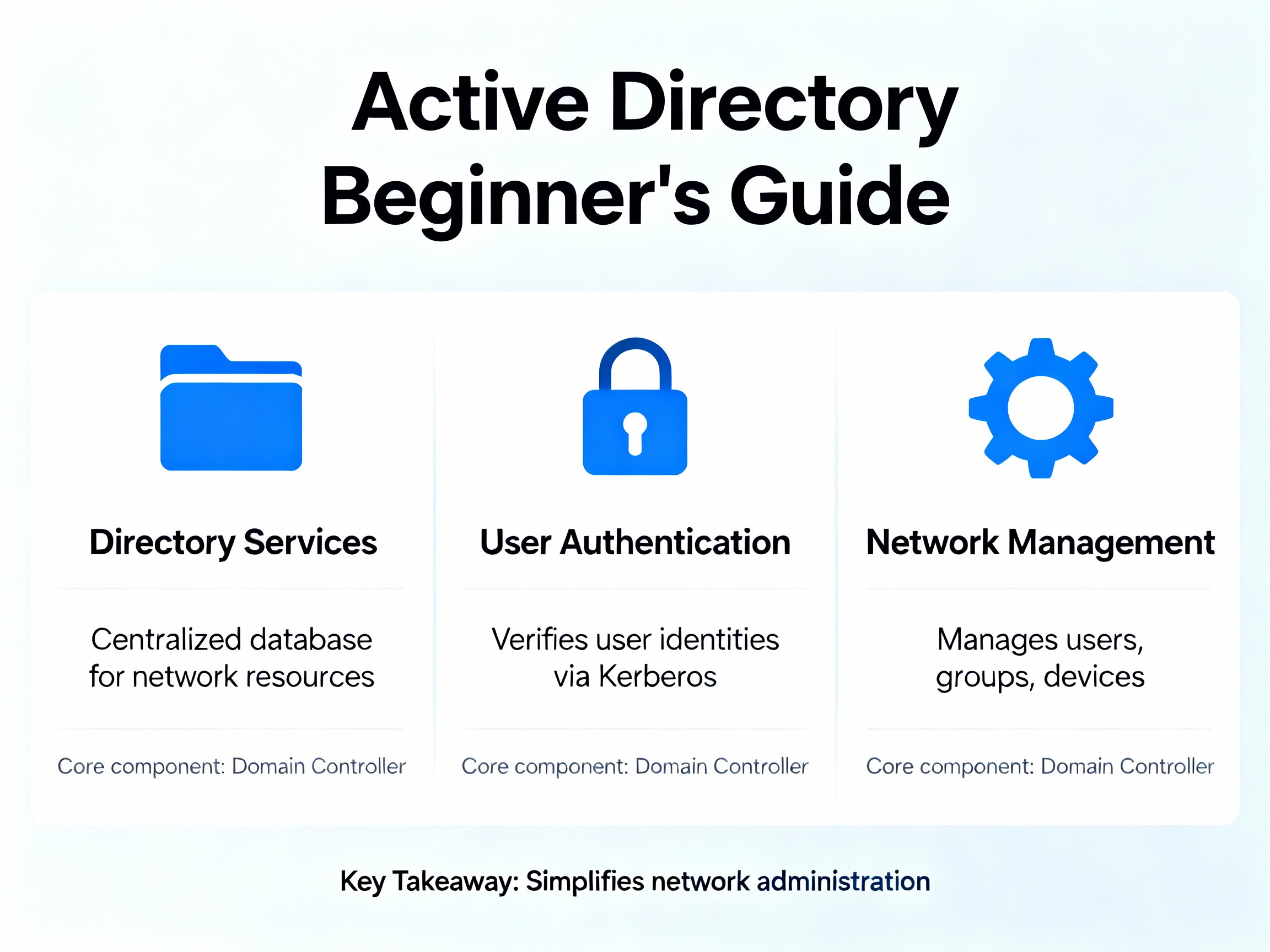
Active Directory (AD) is Microsoft’s directory service that provides centralized management for users, computers, and network resources across your entire organization. Also known as “Active Directory Users and Computers,” it’s the default management interface installed when you set up Active Directory Domain Services on a Windows Server.
When working with a domain controller—the server that hosts Active Directory—you’ll interact with AD to authenticate users, manage permissions, and control access to resources like shared folders, printers, and applications.
You can also install Active Directory management tools on your workstation by installing Remote Server Administration Tools (RSAT), though you’ll need connectivity to a domain controller for it to function properly.
The Core Function: Centralized Database
Think of Active Directory as a live, searchable database storing your organization’s entire digital identity infrastructure. This centralized repository contains:
- User accounts with credentials and profile information
- Computer objects representing every domain-joined machine
- Security groups that bundle users, computers, and permissions
- Printers available across the network
- Shared folders and file server resources
- Group Policy settings that enforce security and configuration standards
Security groups can contain users, computers, printers, or folders, allowing administrators to assign permissions to entire groups rather than individual objects. Combined with Group Policy, this creates powerful, scalable access control across thousands of resources.
💡 Real-World Example: When a user named Sarah from the Finance department logs into any company computer, Active Directory authenticates her credentials and automatically grants access to the finance shared drive, accounting software, and department printers—without IT manually configuring each device.
Why Organizations Need Active Directory
Primary Purpose: Security Authentication
The fundamental purpose of Active Directory is handling security authentication and authorization across your entire domain. This centralized approach ensures only authorized users access network resources while providing administrators with granular control over permissions.
Active Directory authenticates users at login and authorizes their access to specific resources throughout the day. Without this centralized system, managing even a small network becomes unmanageable.
How AD Provides Security
Active Directory stores all usernames and passwords in one central location—the domain controller—instead of requiring administrators to maintain separate credentials on each computer. When users log in, their computer queries the domain controller to verify credentials.
This centralized model provides:
- Single sign-on (SSO) allowing users to access multiple resources with one login
- Unified password policies enforcing complexity and expiration rules
- Centralized audit logs tracking authentication and access attempts
- Rapid credential revocation when employees leave or accounts are compromised
The Value of Centralization
Without Active Directory: The Manual Nightmare
Imagine managing a network without Active Directory. Every time you need to perform basic tasks, you would:
- Create separate local accounts on every single computer where users need access
- Reset passwords on each individual machine when users forget credentials
- Manually configure printer access on every workstation
- Copy permission settings across hundreds or thousands of computers
- Track which users have access to which machines in spreadsheets
This approach is time-consuming, error-prone, and scales terribly as your organization grows.
With Active Directory: Efficiency at Scale
Since usernames and passwords live on the domain controller, all network computers query this central server for authentication. Need to reset a password? Change it once in Active Directory, and the update applies across every computer in your domain instantly.
Real-World Scenario:
You manage a company with 2,000 computers. User Mike forgets his password and needs it reset immediately to access critical systems.
- Without AD: You’d manually reset Mike’s password on 2,000 individual computers—assuming you even have access to all of them. This could take weeks and costs thousands in lost productivity.
- With AD: You open Active Directory Users and Computers, locate Mike’s account, reset his password once, and he’s back to work in 60 seconds across all 2,000 machines.
This efficiency scales to every administrative task: creating accounts, managing permissions, deploying software, and enforcing security policies.
Essential IT Support Tasks
Understanding these common Active Directory tasks prepares you for daily responsibilities in Level 1 and Level 2 support roles:
1. Password Resets
Frequency: Multiple times daily in most organizations
Users frequently forget passwords, especially after vacations or when policies enforce regular changes. Password resets are the most common AD request you’ll handle.
Process:
- Open Active Directory Users and Computers (ADUC)
- Navigate to the appropriate Organizational Unit (OU)
- Right-click the user account and select “Reset Password”
- Enter a temporary password and require change at next logon
- Communicate the temporary password securely to the user
2. Creating User Accounts
Frequency: Weekly or monthly depending on organization size
Every new employee needs a domain account to access email, applications, and network resources. Proper account creation ensures users have appropriate permissions from day one.
Process:
- Navigate to the correct OU (e.g., HR department, Sales team)
- Right-click and select New > User
- Fill in user details (first name, last name, username, email)
- Set initial password with “User must change password at next logon”
- Add user to appropriate security groups
- Help the user log in for the first time and verify access
3. Deleting or Disabling User Accounts
Frequency: As employees leave the organization
When employees leave, proper account management protects company data and maintains compliance with security policies.
Best Practice:
- Disable accounts immediately upon termination to revoke access
- Wait 30-90 days before deleting to ensure data transfer and account recovery if needed
- Remove user from all security groups
- Document the action in your ticketing system
⚠️ Security Tip: Never leave terminated employee accounts active. Disable them immediately to prevent unauthorized access, even if final account deletion happens later.
Understanding Domain Controllers
A domain controller (DC) is a specialized Windows Server that stores the Active Directory database and manages authentication for your entire network. Every computer, user login attempt, and resource access request communicates with a domain controller to verify credentials and permissions.
Key Domain Controller Characteristics
Centralized authentication: All login requests route through domain controllers for credential verification.
Redundancy: Enterprise environments deploy multiple domain controllers for high availability. If one fails, others continue serving authentication requests.
Replication: Changes made to AD on one domain controller automatically replicate to all others, ensuring consistency across your network.
Security hub: Domain controllers enforce password policies, account lockout rules, and Kerberos authentication protocols.
Organizations typically maintain at least two domain controllers per domain to prevent single points of failure and distribute authentication load across servers.
Benefits of Centralized Management
Efficiency: Change Once, Apply Everywhere
Make administrative changes once in Active Directory rather than thousands of times across individual computers. This applies to password resets, group membership changes, and permission updates.
Cost Savings: Reduced Administrative Overhead
Centralized management dramatically reduces the time IT staff spend on routine tasks. What once took hours or days now completes in minutes, allowing your team to focus on strategic initiatives rather than repetitive manual work.
Consistency: Uniform Policies Across Systems
All systems receive identical user information and security settings, eliminating configuration drift where different computers have different rules. This consistency improves security and simplifies troubleshooting.
Security: Controlled Authentication
Centralized authentication prevents unauthorized access across the entire network. Users can’t bypass security by logging into different machines, and administrators can instantly revoke access organization-wide.
Why Active Directory Matters for Your IT Career
Active Directory knowledge is non-negotiable for IT professionals working in enterprise environments. Whether you’re in help desk support, system administration, network engineering, or cybersecurity, you’ll interact with Active Directory regularly.
Common roles requiring AD expertise:
- Help Desk Technician (password resets, account creation)
- Desktop Support Specialist (domain-joining computers, troubleshooting authentication)
- System Administrator (managing OUs, Group Policy, server roles)
- Network Engineer (integrating AD with network infrastructure)
- Security Analyst (auditing permissions, investigating compromised accounts)
Understanding how to create accounts, reset passwords, manage security groups, and troubleshoot authentication issues through Active Directory forms the foundation of modern enterprise IT support work.
💡 Career Tip: Mastering Active Directory basics opens doors to specialized areas like Group Policy management, Azure Active Directory (now Microsoft Entra ID), and hybrid cloud identity solutions—all high-demand skills with strong compensation.
Key Takeaways
🔑 Active Directory centralizes identity management by storing all user accounts, passwords, and permissions in one location—the domain controller—enabling administrators to manage thousands of users and computers efficiently.
⚡ Centralization saves massive time and money compared to managing local accounts on individual computers. Tasks that once took weeks now complete in seconds, dramatically improving IT efficiency.
🛡️ Domain controllers provide security and redundancy by handling all authentication requests and replicating changes across multiple servers, ensuring high availability and consistent security enforcement.
Frequently Asked Questions
Q: What’s the difference between Active Directory and Azure Active Directory?
A: Traditional Active Directory (on-premises AD) runs on Windows Servers within your organization’s network and manages on-premises resources. Azure Active Directory (recently renamed Microsoft Entra ID) is Microsoft’s cloud-based identity service that manages access to cloud applications like Microsoft 365, SaaS platforms, and Azure resources. Many organizations use both in a hybrid configuration.
Q: Can I practice Active Directory at home?
A: Absolutely! You can set up a home lab using free virtualization software (VirtualBox, VMware Workstation Player) and Windows Server evaluation editions (free for 180 days). This hands-on practice is invaluable for learning AD concepts before implementing them in production environments.
Q: How many domain controllers does my organization need?
A: Small businesses typically start with two domain controllers for redundancy. Larger organizations deploy additional controllers based on geographic sites, user count, and performance requirements. Best practice recommends at least two DCs per domain to prevent single points of failure.
Q: What happens if the domain controller goes down?
A: If you have multiple domain controllers (recommended), authentication continues using the remaining controllers without interruption. If your only domain controller fails, users already logged in can continue working, but no new logins or authentication requests will succeed until the DC is restored. This is why redundancy is critical.
Q: Do I need to be a programmer to work with Active Directory?
A: Not at all! Basic AD management uses graphical interfaces (Active Directory Users and Computers) that don’t require programming. As you advance, learning PowerShell scripting helps automate repetitive tasks, but it’s not required for Level 1-2 support roles.
Next Steps in Your Active Directory Journey
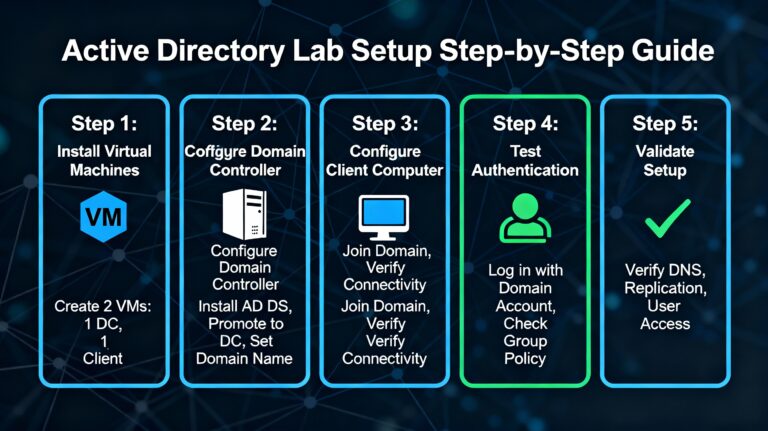
Now that you understand Active Directory fundamentals, the next logical step is building your own lab environment where you can practice these concepts hands-on without risk to production systems.
Coming in the next post: “Setting Up Your First Active Directory Lab: Step-by-Step Guide” where I’ll walk you through:
- Installing Windows Server in a virtual environment
- Promoting your server to a domain controller
- Creating your first users and security groups
- Joining a client computer to your domain
- Troubleshooting common setup issues
Related topics we’ll cover in future posts:
- Managing Organizational Units (OUs) for efficient AD structure
- Introduction to Group Policy Objects (GPOs)
- Active Directory security best practices
- Automating AD tasks with PowerShell
Have questions about Active Directory or want to share your own AD experiences? Drop a comment below—I respond to every one and love hearing about others’ learning journeys.
Found this guide helpful? Share it with aspiring IT professionals, and follow along as I document my progression from Level 1 support to advanced Active Directory administration. Subscribe for weekly posts covering hands-on AD projects and real-world scenarios.