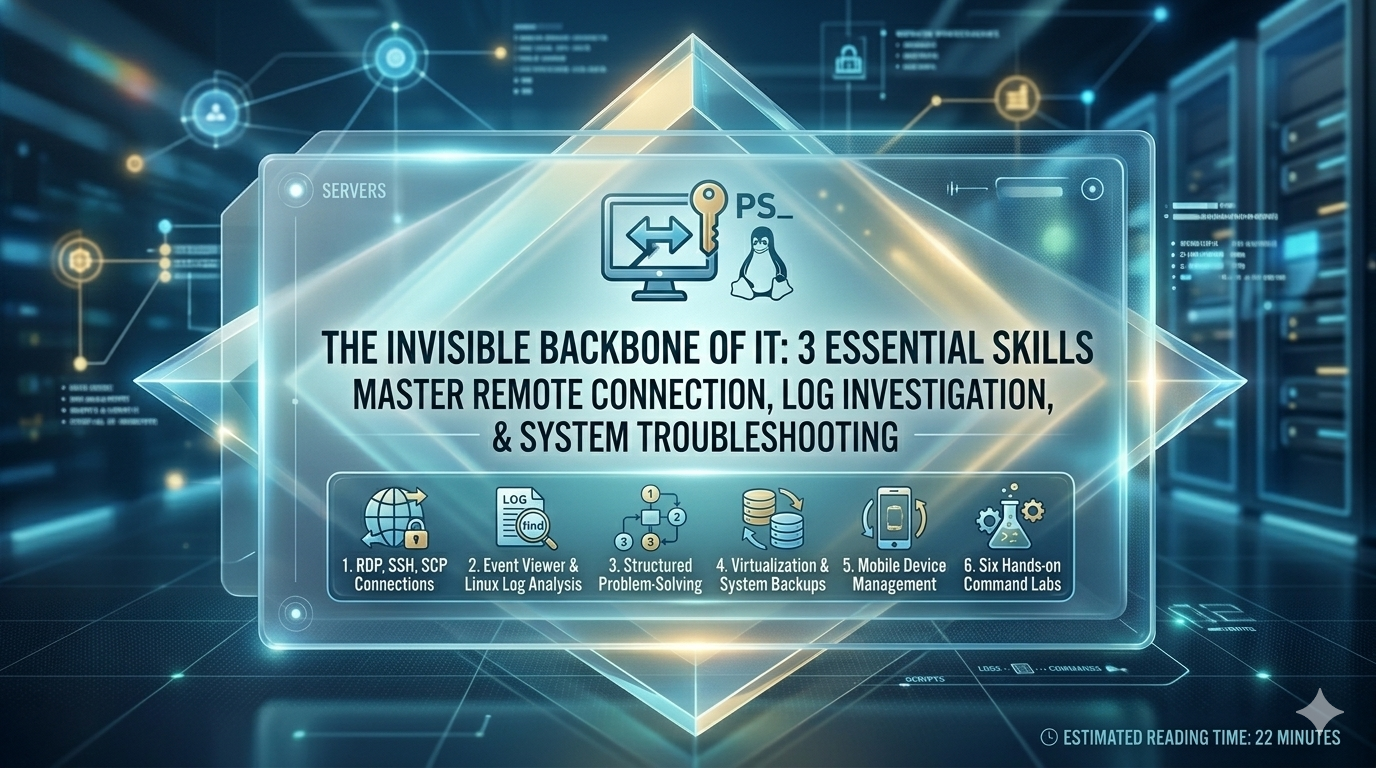
Imagine being paged at midnight because a production server is unresponsive — and you’re sitting at home. Without remote access skills, you’re powerless. Without log analysis skills, you’re blind. Without systematic troubleshooting, you’re guessing. These three capabilities — remote connection, log investigation, and structured problem-solving — form the invisible backbone of every IT role, from help desk to cloud engineer. Mastering just 20% of these skills (SSH, RDP, Event Viewer, grep, and PID termination) resolves 80% of real-world system issues you’ll face daily. Estimated reading time: 22 minutes.
What You’ll Learn:
- SSH with PuTTY and OpenSSH (Windows to Linux remote access)
- RDP for Windows GUI remote management
- SCP and PSCP secure file transfers
- Windows shared folders and
net sharecommand - Virtual machine creation and management with VirtualBox
- Windows Event Viewer log analysis and custom views
- Linux
/var/loganalysis withcat,grep, andtail -f - Log rotation and centralized logging concepts
- Structured troubleshooting strategy (5-step process)
- Disk cloning with Clonezilla and
dd - Mobile OS factory reset and OTA updates
- Six hands-on labs with complete commands
Prerequisites
Windows:
- Windows 10/11 or Windows Server 2019/2022
- Administrator privileges
- PuTTY downloaded from putty.org
- PowerShell 5.1+
Linux:
- Ubuntu 20.04+ or Debian 11+ (physical, VM, or WSL2)
- Sudo access
- OpenSSH server installed on remote machines
Lab Environment Recommended:
- VirtualBox with one Windows VM and one Linux VM on same host network
- Both VMs on the same NAT network or Host-Only network
Module 1: Remote Connection Protocols
1.1 What Is SSH?
SSH (Secure Shell) is a cryptographic network protocol that provides encrypted remote access to computers over untrusted networks — all data, including your password, is fully encrypted in transit. It replaced insecure protocols like Telnet and rlogin that transmitted credentials in plain text visible to packet sniffers.
Two connection models:
- Client → Server: You (client) connect to the remote machine (server)
- Port 22: Default SSH port — change this in production to reduce bot attacks
OpenSSH on Windows: Since autumn 2018, Windows 10/Server 2019+ includes OpenSSH natively. Windows Server 2025 installs OpenSSH by default.
# Check if OpenSSH client is installed on Windows
Get-WindowsCapability -Online | Where-Object Name -like 'OpenSSH*'
# Install OpenSSH client if missing
Add-WindowsCapability -Online -Name OpenSSH.Client~~~~0.0.1.0
# Install OpenSSH server (to accept incoming SSH connections)
Add-WindowsCapability -Online -Name OpenSSH.Server~~~~0.0.1.0
# Start and enable the SSH service
Start-Service sshd
Set-Service -Name sshd -StartupType 'Automatic'
1.2 SSH Client Comparison
| Tool | Protocols | Key Features |
|---|---|---|
| PuTTY | SSH, Telnet, Rlogin, raw | Free; terminal emulator; includes SFTP/SCP tools |
| SecureCRT | SSH1, SSH2, Telnet/SSL | Tabbed sessions; scripting; file transfer |
| SmarTTY | SSH, SCP | Multi-tab; auto-completion; SCP GUI |
| mRemoteNG | RDP, VNC, SSH, Telnet | Multi-protocol; tabbed; connection manager |
| MobaXterm | SSH, X11, RDP, VNC | X server; X11 forwarding; graphical apps over SSH |
| Windows Terminal | SSH (OpenSSH) | Built-in; modern UI; profiles; tabs |
💡 Recommendation: Use PuTTY for beginners (clear GUI), Windows Terminal + OpenSSH for power users and automation, and MobaXterm when you need to run graphical Linux apps over SSH.
1.3 Using PuTTY Step by Step
Download PuTTY: Visit putty.org → download putty.exe (standalone installer, no setup required).
GUI Connection Method:
1. Launch putty.exe
2. In "Host Name (or IP address)": type the remote machine's IP
   Example: 192.168.1.50
3. Port: 22  (default SSH port)
4. Connection type: SSH  ← ensure this is selected
5. Optional: Under "Saved Sessions", type a name and click "Save"
   → Lets you quickly reload settings next time
6. Click "Open"
7. Security alert on first connection → Click "Accept" to trust the host key [web:159]
8. Enter username at "login as:" prompt
9. Enter password (characters do not display — this is normal)
Command-Line Method (PowerShell/CMD):
# Basic SSH connection using built-in OpenSSH
ssh john@192.168.1.50
# Specify port (if server uses non-standard port)
ssh john@192.168.1.50 -p 2222
# Launch PuTTY directly from command line
putty.exe -ssh john@192.168.1.50 -P 22
# Run single remote command without interactive session
ssh john@192.168.1.50 "df -h && uptime"
PuTTY Link (plink.exe) — For Scripting:
# Run a command on remote machine via script
plink.exe -ssh john@192.168.1.50 -P 22 "sudo systemctl status nginx"
# Useful for automation: pipe commands, capture output
plink.exe -ssh john@192.168.1.50 "cat /var/log/syslog | tail -50" > local_output.txt
⚠️ Security Warning: Never use password authentication for production servers. Configure SSH key-based authentication — generate a key pair with
ssh-keygen, copy the public key to the server withssh-copy-id, and disable password login entirely in/etc/ssh/sshd_configby settingPasswordAuthentication no.
Generate SSH Key Pair (Best Practice):
# Generate RSA key pair (4096-bit recommended)
ssh-keygen -t rsa -b 4096 -C "your_email@example.com"
# Copy public key to remote server
ssh-copy-id john@192.168.1.50
# Now connect without password
ssh john@192.168.1.50
1.4 Remote Desktop Protocol (RDP)
RDP provides full graphical Windows remote access, equivalent to sitting in front of the machine. It transmits the entire desktop GUI, keyboard, and mouse over the network.
Enable RDP on the Target Machine:
Method 1 (GUI):
1. Right-click "This PC" → Properties
2. Click "Remote Settings" (left pane)
3. Under Remote Desktop: select "Allow remote connections to this computer"
4. Uncheck "Allow connections only from computers running Remote Desktop
with Network Level Authentication" (for cross-version compatibility)
5. Click "Select Users" → Add authorized users
6. Click OK → Apply
Method 2 (PowerShell — faster for sysadmins):
# Enable RDP via Registry
Set-ItemProperty -Path 'HKLM:\System\CurrentControlSet\Control\Terminal Server' `
-Name "fDenyTSConnections" -Value 0
# Enable through Windows Firewall
Enable-NetFirewallRule -DisplayGroup "Remote Desktop"
# Verify RDP is enabled
Get-ItemProperty -Path 'HKLM:\System\CurrentControlSet\Control\Terminal Server' `
-Name "fDenyTSConnections"
# Value 0 = RDP enabled, Value 1 = RDP disabled
Connect to Remote Windows Machine:
GUI Method:
1. Press Win+R → type: mstsc → Enter
2. Enter hostname or IP address
3. Optional: Click "Show Options" to configure:
- Display resolution
- Local resources (printers, clipboard, drives)
- Experience settings (bandwidth optimization)
4. Click "Connect"
5. Enter credentials → OK
Command-line method:
# Connect to remote machine
mstsc.exe /v:192.168.1.100
# Connect with admin session (displaces existing admin sessions)
mstsc.exe /v:192.168.1.100 /admin
# Specify display size
mstsc.exe /v:192.168.1.100 /w:1920 /h:1080
# Connect and use full screen
mstsc.exe /v:192.168.1.100 /f
💡 Cross-Platform Note: Microsoft RDP client is available on macOS (Microsoft Remote Desktop from App Store) and Linux (Remmina, FreeRDP) — useful when managing Windows servers from non-Windows devices.
Module 2: Secure File Transfer
2.1 SCP — Secure Copy (Linux/macOS/Windows OpenSSH)
SCP (Secure Copy Protocol) transfers files between computers encrypted over SSH. Think of it as cp but for remote machines.
# ─── Syntax ─────────────────────────────────────────────
# scp [options] source destination
# ─── Upload: local → remote ─────────────────────────────
scp /home/john/report.txt john@192.168.1.50:/home/john/documents/
# ─── Download: remote → local ───────────────────────────
scp john@192.168.1.50:/var/log/syslog ~/Desktop/syslog_backup.txt
# ─── Copy entire directory (recursive) ──────────────────
scp -r /home/john/project/ john@192.168.1.50:/var/www/html/
# ─── Specify non-standard SSH port ──────────────────────
scp -P 2222 file.txt john@192.168.1.50:/tmp/
# ─── Compress data during transfer (faster on slow links)
scp -C large_file.tar.gz john@192.168.1.50:/backup/
# ─── Preserve file timestamps and permissions ────────────
scp -p config.cfg john@192.168.1.50:/etc/app/
# ─── Copy between two remote servers (via local machine)
scp john@server1:/path/file.txt john@server2:/path/
Expected Output:
report.txt 100% 2048 1.2MB/s 00:00
2.2 PSCP — PuTTY Secure Copy (Windows)
PSCP is the Windows equivalent of SCP, included with the PuTTY suite:
# Download pscp.exe from putty.org (same download page as PuTTY)
# Upload file to Linux server
pscp.exe C:\Users\John\report.txt john@192.168.1.50:/home/john/
# Download file from Linux server
pscp.exe john@192.168.1.50:/var/log/syslog C:\Users\John\Desktop\
# Upload entire directory recursively
pscp.exe -r C:\Users\John\project\ john@192.168.1.50:/var/www/html/
# Specify port
pscp.exe -P 2222 file.txt john@192.168.1.50:/tmp/
💡 Alternative on Windows: Use
scpdirectly in PowerShell or Windows Terminal if OpenSSH client is installed — no separate tool needed.scpsyntax is identical to Linux.
Module 3: Shared Folders (Windows)
3.1 Create a Shared Folder
GUI Method:
1. Right-click the folder you want to share
2. Select "Give access to" → "Specific people"
3. In the dropdown: select user, group, or type "Everyone"
4. Set permission level:
   - Read (view only)
   - Read/Write (view and modify)
5. Click "Share"
6. Note the network path shown: \\ComputerName\FolderName
Access Shared Folder from Another Computer:
Method 1: File Explorer
1. Open File Explorer → "This PC"
2. Click "Computer" tab → "Map Network Drive"
3. Drive letter: choose available letter (e.g., Z:)
4. Folder: \\computername\sharename
5. Check "Reconnect at sign-in" for persistent mapping
6. Click Finish → enter credentials if prompted
Method 2: Direct address bar
1. Press Win+R → type: \\192.168.1.100\ShareMe
2. Enter credentials if prompted
3.2 Command-Line: net share
For administrators who prefer automation over GUI:
# Open PowerShell as Administrator
# Share a folder
net share ShareMe=C:\path\to\folder /grant:Everyone,FULL
# Share with specific user only
net share ShareMe=C:\Data /grant:"DOMAIN\john",READ
# List all current shares
net share
# Sample output:
# Share name Resource Remark
# -------------------------------------------------------
# C$ C:\ Default share
# IPC$ Remote IPC
# ShareMe C:\path\to\folder
# Remove a share (does not delete the folder)
net share ShareMe /delete
# Map a network drive from command line
net use Z: \\192.168.1.100\ShareMe /persistent:yes
# Disconnect network drive
net use Z: /delete
Module 4: Virtual Machines
4.1 Virtualization Concepts
Virtual Machines (VMs) let you run a complete operating system inside your existing OS:
- Host OS: The operating system running on physical hardware
- Guest OS: The operating system running inside the VM
- Hypervisor: Software layer managing VMs (VirtualBox, Hyper-V, VMware)
- Isolation: Guest is fully isolated — malware in guest cannot affect host
- Resource Allocation: VM receives a defined portion of RAM, CPU, and disk
Virtualization Software Comparison:
| Tool | Host OS | Guest Support | Cost |
|---|---|---|---|
| VirtualBox | Windows, Linux, macOS | Windows, Linux, macOS, BSD | Free (open-source) |
| Hyper-V | Windows Pro/Server | Windows, Linux, FreeBSD | Built-in (no macOS support) |
| VMware Workstation | Windows, Linux | Multiple OSs | Free (Player) or paid (Pro) |
| Red Hat RHV | Enterprise Linux | Multiple OSs | Subscription |
⚠️ Before installing VirtualBox: Verify CPU virtualization is enabled in BIOS/UEFI (Intel VT-x or AMD-V). Also, if Hyper-V is active on Windows, disable it first — Hyper-V blocks hardware virtualization extensions VirtualBox needs.
4.2 VirtualBox: Create and Manage a VM
Create a New VM:
1. Open VirtualBox Manager
2. Click the blue "New" button (or Ctrl+N)
3. Name: "Ubuntu-Lab" (VirtualBox auto-detects OS type from name)
4. Type: Linux | Version: Ubuntu (64-bit)
5. Memory: minimum 2 GB; 4+ GB recommended [file:21]
   → Keep slider in the GREEN zone [web:147]
6. Hard disk:
   → "Create a virtual hard disk now"
   → VDI (VirtualBox Disk Image)
   → Dynamically allocated (grows as needed, saves host disk space)
   → Size: 20-50 GB depending on use [file:21]
7. Click "Create"
Attach ISO and Install Guest OS:
1. Select your new VM → Click "Settings"
2. Storage → Controller: IDE → Click the empty DVD icon
3. Click the disk icon on the right → "Choose a disk file"
4. Browse to your .iso file (e.g., ubuntu-22.04.iso)
5. Click OK
6. Click "Start" (green arrow)
7. Follow the OS installation wizard inside the VM window
Install VirtualBox Guest Additions (Strongly Recommended):
Guest Additions improves performance, enables clipboard sharing, and allows folder sharing between host and guest:
1. Start the VM
2. VM window menu → Devices → Insert Guest Additions CD Image
3. Inside the VM, run the installer:
   - Windows guest: AutoPlay the inserted CD → Run VBoxWindowsAdditions.exe
   - Linux guest:
     sudo mount /dev/cdrom /mnt/cdrom
     sudo /mnt/cdrom/VBoxLinuxAdditions.run
4. Restart the VM
Modify VM Resources:
# GUI Method:
1. Right-click VM → Settings
2. System → Motherboard: adjust RAM
3. System → Processor: adjust CPU cores
4. Storage: add/resize virtual disks
5. Network: switch between NAT, Bridged, Host-Only
6. Click OK (VM must be powered off to change most settings)
# Command-line with VBoxManage (for scripting):
VBoxManage modifyvm "Ubuntu-Lab" --memory 4096 # Set 4GB RAM
VBoxManage modifyvm "Ubuntu-Lab" --cpus 2 # Set 2 CPU cores
VBoxManage modifyvm "Ubuntu-Lab" --vram 128 # Set 128MB video RAM
Delete a VM:
1. Right-click VM → Remove
2. Choose:
   → "Delete all files" = removes VM and virtual hard disk from disk
   → "Remove only" = keeps virtual disk files but removes from VirtualBox list
Module 5: System Logging
5.1 What Are Logs?
Logs are structured records of system events — every significant action an OS, application, or service takes gets recorded with a timestamp and context. They are your primary evidence when diagnosing what went wrong and when.
Log Severity Levels (Low to High):
| Level | Meaning | Action Required |
|---|---|---|
| Information | Normal operation — action succeeded | None |
| Warning | Potential problem developing | Monitor |
| Error | Significant problem occurred | Investigate |
| Critical | Severe failure; service/system affected | Immediate action |
5.2 Windows Event Viewer
Launch Event Viewer:
Method 1: Start menu → search "Event Viewer"
Method 2: Run box (Win+R) → eventvwr.msc
Method 3: PowerShell → eventvwr
Main Log Categories:
Windows Logs → System:
- OS startup, shutdown, reboots
- Driver loads and failures
- Disk and hardware events
- Service start/stop events
Windows Logs → Security:
- User login successes and failures (Event ID 4624/4625)
- Account lockouts (Event ID 4740)
- File and folder access (if auditing enabled)
- Privilege escalation events
Windows Logs → Application:
- Errors and crashes from installed software
- .NET runtime errors
- Database errors (SQL Server, etc.)
Applications and Services Logs:
- Logs specific to individual applications (PowerShell, IIS, Windows Update)
- More granular than Windows Logs
Reading Event Details:
Each event record contains:
- Timestamp: Exact date and time the event occurred
- Source: Application or service that generated the event
- Event ID: Unique numeric identifier for this event type
- Level: Information, Warning, Error, or Critical
- Description: Detailed explanation of what happened
Creating a Custom View (Essential for Troubleshooting):
Custom Views let you create persistent filters for recurring investigation tasks:
1. Event Viewer → left pane → "Custom Views"
2. Actions pane (right) → "Create Custom View"
3. Configure:
   - Logged: Last hour / Last 24 hours / Custom range
   - Event level: ✅ Critical  ✅ Error  ✅ Warning
   - By log: ✅ System  ✅ Application
   - OR By source: type application name
4. Click OK
5. Name the view: "System Errors Last 24h"
6. Click OK → View appears under Custom Views (persists across sessions)
PowerShell Log Analysis (Faster than GUI for scripts):
# Get last 20 System log errors
Get-EventLog -LogName System -EntryType Error -Newest 20
# Search for specific Event ID (e.g., 41 = unexpected shutdown)
Get-EventLog -LogName System -EventID 41 -Newest 5
# Search Application log for specific source
Get-EventLog -LogName Application -Source "Application Error" -Newest 10
# Filter by time range
Get-EventLog -LogName System -EntryType Error `
-After (Get-Date).AddHours(-24) |
Select TimeGenerated, Source, EventID, Message |
Format-Table -AutoSize
# Search for specific taxt in event messages
Get-EventLog -LogName Application |
Where-Object {$_.Message -like "*crash*"} |
Select TimeGenerated, Source, Message |
Format-List
5.3 Linux Logs — /var/log
Linux stores logs in the /var/log directory as plain text files:
Key Log Files:
| File | Contents |
|---|---|
/var/log/syslog | Comprehensive — logs almost everything |
/var/log/auth.log | Authentication, sudo, SSH login events |
/var/log/kern.log | Kernel messages — hardware, driver events |
/var/log/dmesg | Boot-time kernel messages and hardware detection |
/var/log/apt/history.log | Package install/remove history (Debian/Ubuntu) |
/var/log/nginx/ | Nginx web server access and error logs |
/var/log/mysql/ | MySQL database errors |
Viewing and Searching Linux Logs:
# View entire syslog (opens in less pager — press q to quit)
sudo less /var/log/syslog
# View last 50 lines
sudo tail -50 /var/log/syslog
# Follow log in real-time (update as new entries appear)
sudo tail -f /var/log/syslog
# Press Ctrl+C to stop
# Follow multiple log files simultaneously
sudo tail -f /var/log/syslog /var/log/auth.log
# Search for specific keyword (case-insensitive)
sudo grep -i "error" /var/log/syslog
# Search for specific keyword with line numbers
sudo grep -n "failed" /var/log/auth.log
# Search multiple keywords (OR logic)
sudo grep -E "error|warning|critical" /var/log/syslog
# Search and show 3 lines of contaxt before/after each match
sudo grep -B 3 -A 3 "kernel panic" /var/log/syslog
# Count occurrences
sudo grep -c "Failed password" /var/log/auth.log
# Show only SSH failed login attempts
sudo grep "Failed password" /var/log/auth.log | tail -20
# Filter by date (logs start with month/day format)
sudo grep "Mar 9" /var/log/syslog | grep "error"
# Save filtered results to file for analysis
sudo grep "error" /var/log/syslog > ~/errors_today.txt
5.4 Log Rotation
Log rotation automatically archives and deletes old logs to prevent disk exhaustion:
# Linux uses logrotate utility
# Configuration: /etc/logrotate.conf and /etc/logrotate.d/
# View current logrotate configuration
cat /etc/logrotate.conf
# Typical rotation settings (in /etc/logrotate.d/syslog):
/var/log/syslog {
rotate 7 # Keep 7 rotated copies
daily # Rotate daily
compress # Compress old logs with gzip
missingok # Don't error if log is missing
notifempty # Skip rotation if log is empty
postrotate
/usr/lib/rsyslog/rsyslog-rotate
endscript
}
# Manually trigger rotation (for testing)
sudo logrotate -f /etc/logrotate.conf
# Rotated logs look like:
# syslog ← current log
# syslog.1 ← yesterday
# syslog.2.gz ← 2 days ago (compressed)
# syslog.7.gz ← 7 days ago (oldest retained)
💡 Centralized Logging: In enterprise environments, logs from dozens of servers are parsed and forwarded to a central platform (e.g., Elastic Stack/ELK, Splunk, Graylog) for unified searching and alerting — one query searches all machines simultaneously.
Module 6: Troubleshooting with Logs
6.1 The 5-Step Log Troubleshooting Strategy
Step 1: Search for Keywords
# Linux: search for generic errors
sudo grep -i "error\|fail\|critical" /var/log/syslog | tail -30
# Search for specific application crash
sudo grep -i "nginx" /var/log/syslog | grep -i "error"
# Windows: Event Viewer filter
# OR PowerShell
Get-EventLog -LogName Application -EntryType Error -Newest 20 |
Select TimeGenerated, Source, Message
Step 2: Check Timestamps
# Find events at specific time (e.g., around 14:30)
sudo grep "Mar 9 14:3" /var/log/syslog
# Cross-reference multiple logs at same timestamp
sudo grep "Mar 9 14:32" /var/log/syslog /var/log/auth.log
Step 3: Find the Root Cause
- Start from the first error in a sequence — later errors are usually cascading symptoms of the first failure
- If no errors are visible, read from the bottom up to find the most recent state
- Distinguish between root cause (what actually broke) and symptoms (side effects)
# Find first occurrence of a specific error (root cause hunting)
sudo grep -n "Out of memory" /var/log/syslog | head -5
# Line number shows where the sequence began
# Show events just BEFORE the first error (contaxt)
sudo sed -n '240,260p' /var/log/syslog
# Displays lines 240-260 (adjust to 10 lines before first error line)
Step 4: Monitor in Real-Time
# Watch syslog update live while reproducing the issue
sudo tail -f /var/log/syslog
# Example: Unplug USB drive and watch kernel messages appear
# Example: Restart nginx and watch for startup errors
# Filter real-time stream
sudo tail -f /var/log/syslog | grep -i "error"
Step 5: Document Your Solution
After resolving:
1. Record what the root cause was
2. Note exact commands/steps used to fix it
3. Save relevant log excerpts as evidence
4. Create a Knowledge Base article:
   - Title: [Application] crashes on startup
   - Symptoms: What the user reported
   - Root Cause: Which log entry revealed the issue
   - Resolution: Exact fix applied
   - Prevention: How to avoid recurrence
6.2 Windows Troubleshooting Scenarios
Slow Computer:
# Step 1: Reboot (resolves ~50% of performance issues) [file:21]
Restart-Computer

# Step 2: Check disk space (need ≥20% free)
Get-PSDrive C | Select Used, Free

# Step 3: Check Event Viewer for errors at time issue started
Get-EventLog -LogName System -EntryType Error -Newest 20 |
  Select TimeGenerated, Source, EventID, Message

# Step 4: Run Windows Update
Install-Module PSWindowsUpdate -Force
Get-WindowsUpdate
Install-WindowsUpdate -AcceptAll -AutoReboot

# Step 5: Scan for malware
Start-MpScan -ScanType QuickScan

# Step 6: Boot into Safe Mode if problem persists
# Settings → Recovery → Advanced Startup → Restart Now
# Troubleshoot → Advanced Options → Startup Settings → 4 (Safe Mode)
Blue Screen (BSOD):
# Step 1: Note error code from BSOD screen

# Step 2: Wait 30 seconds, restart system

# Step 3: Check System log for Event ID 1001 (BugCheck)
Get-EventLog -LogName System -EventID 1001 -Newest 5 |
  Select TimeGenerated, Message

# Step 4: Research error code
# Visit: https://learn.microsoft.com/en-us/windows-hardware/drivers/debugger/bug-check-code-reference

# Step 5: Analyze minidump (requires WinDbg)
# Open WinDbg → File → Open Crash Dump → C:\Windows\Minidump\*.dmp
# Command: !analyze -v

# Step 6: Boot Safe Mode if crashes prevent normal boot
# Power on → force off 3 times during boot → Recovery Environment appears
Application Crash:
# Search Application log for specific application
Get-EventLog -LogName Application -Source "Application Error" -Newest 10 |
  Where-Object {$_.Message -like "*YourApp*"} |
  Select TimeGenerated, EventID, Message |
  Format-List

# Filter for Critical and Error in last 24 hours
Get-EventLog -LogName Application -EntryType Error,Critical `
  -After (Get-Date).AddHours(-24) |
  Select TimeGenerated, Source, EventID

# Repair corrupted system files (fixes many app crashes)
sfc /scannow
DISM /Online /Cleanup-Image /RestoreHealth
Hardware Problems:
# Check Device Manager for problem devices
devmgmt.msc

# PowerShell: Find devices with errors
Get-PnpDevice | Where-Object {$_.Status -ne "OK"} |
  Select Name, Status, Class

# Check Event Viewer for hardware events
Get-EventLog -LogName System -Source "disk", "Ntfs" -Newest 20 |
  Select TimeGenerated, Source, Message

# Check SMART status of hard drive
Get-WmiObject -Namespace root\wmi -Class MSStorageDriver_FailurePredictStatus |
  Select InstanceName, PredictFailure
Module 7: Disk Imaging and Mobile OS
7.1 Disk Cloning Overview
Disk cloning creates an exact byte-for-byte copy of an entire disk, including the OS, applications, settings, and all data. Used for:
- Workstation deployment (clone one configured image to many machines)
- Backup before major changes
- Hard drive migration (old HDD → new SSD)
- Forensic imaging
Common Tools:
| Tool | Type | Platform |
|---|---|---|
| Clonezilla | Open-source; bootable ISO | Disk-to-disk and disk-to-image |
| Symantec Ghost | Commercial enterprise | Network deployment |
| dd | Built-in Linux command | Lightweight; scriptable |
| Macrium Reflect | Free/paid GUI | Windows; incremental backup |
7.2 Disk Cloning with dd (Linux)
dd (data duplicator) is a powerful low-level copy tool — it reads and writes raw disk data without caring about filesystems:
# ─── STEP 1: Identify your disks ────────────────────────
lsblk
# Output shows disks and partitions:
# sdd   8:48   0  500G  0 disk   ← source disk
# sde   8:64   0  500G  0 disk   ← destination disk

# ─── STEP 2: Unmount source partition FIRST ─────────────
sudo umount /dev/sdd1
# Prevents data corruption from writes during clone [file:21]

# ─── STEP 3a: Clone to an image file ────────────────────
sudo dd if=/dev/sdd of=~/Desktop/disk_image.img bs=4M status=progress
# if = input file (source disk)
# of = output file (destination image file) [file:21]
# bs = block size (4MB = faster transfer)
# status=progress = shows progress bar

# ─── STEP 3b: Clone directly to another disk ────────────
sudo dd if=/dev/sdd of=/dev/sde bs=4M status=progress [file:21]

# ─── STEP 3c: Compress image while cloning (saves space)
sudo dd if=/dev/sdd bs=4M | gzip > ~/backup/disk_image.img.gz

# ─── STEP 4: Verify clone integrity ─────────────────────
# Compare MD5 checksums of source and destination
md5sum /dev/sdd
md5sum /dev/sde
# Identical hashes = perfect clone confirmed
⚠️ Critical Warning:
ddis called “disk destroyer” in some circles — a typo swappingif=andof=overwrites your source with zeros. Always double-check yourifandofvalues before pressing Enter. There is no undo.
7.3 Mobile OS Management
Factory Reset:
iOS:
Settings → General → Transfer or Reset iPhone → Erase All Content and Settings

Android:
Settings → General Management → Reset → Factory Data Reset

⚠ ALWAYS back up before resetting [file:21]:
- iCloud Backup (iOS) or Google One Backup (Android)
- Export contacts, photos, app data
Factory reset removes ALL user data, apps, and settings
Over-the-Air (OTA) Updates:
iOS:  Settings → General → Software Update → Download and Install
Android: Settings → Software Update → Download and Install

Benefits:
- Delivered directly by manufacturer (Apple, Google)
- Applied wirelessly without connecting to computer
- Automatically verified (cryptographically signed)
- Safe to install — rollback available if issues occur
Re-flashing / Computer-Assisted Updates:
Use when:
- Device won't boot
- No internet access on device
- OTA update failed

Process:
1. Download firmware/update package to computer from manufacturer
2. Connect device via USB cable
3. Run manufacturer tool:
   - iOS: iTunes or Finder (macOS)
   - Android: ADB fastboot or manufacturer tool
4. Follow on-screen instructions to flash firmware
5. ⚠ May erase all user data depending on update type [file:21]
   Always check documentation first
Hands-On Practice Labs
Lab 1: SSH Remote Connection (Windows → Linux)
Goal: Establish a secure SSH session from Windows to a Linux machine
Prerequisites:
- Linux VM running on same network as Windows machine
- OpenSSH server installed on Linux:
  sudo apt install openssh-server -y
  sudo systemctl start ssh && sudo systemctl enable ssh

Step 1: Get Linux VM IP address
  ip addr show | grep inet

Step 2: Download PuTTY from putty.org [web:162]
  Save putty.exe to Desktop

Step 3: Launch PuTTY
  - Host Name: [Linux VM IP]
  - Port: 22
  - Connection type: SSH
  - Click Open

Step 4: Accept host key on first connection (click Accept/Yes)

Step 5: Login with Linux credentials
  login as: john
  password: [your password]

Step 6: Execute commands on remote Linux
  uname -a          # Show Linux version
  df -h             # Check disk space
  free -h           # Check RAM usage
  uptime            # Show system load

Step 7: (Advanced) Try OpenSSH from PowerShell
  ssh john@[Linux-VM-IP]
Lab 2: File Transfer with SCP (Linux ↔ Linux or Windows ↔ Linux)
Goal: Transfer files between machines using SCP
# ─── On LOCAL machine ────────────────────────────────────

# Step 1: Create a test file
echo "This is test data for SCP lab - $(date)" > ~/scp_test.txt
cat ~/scp_test.txt  # Verify content

# Step 2: Upload file to remote machine
scp ~/scp_test.txt john@192.168.1.50:/tmp/
# Expected output: scp_test.txt  100%  52  51.2KB/s  00:00

# Step 3: Verify file arrived on remote
ssh john@192.168.1.50 "cat /tmp/scp_test.txt"

# Step 4: Download file back (with new name)
scp john@192.168.1.50:/tmp/scp_test.txt ~/scp_returned.txt

# Step 5: Verify downloaded content matches
diff ~/scp_test.txt ~/scp_returned.txt
# No output = files are identical

# Step 6: (Advanced) Transfer a directory
mkdir -p ~/lab_folder/sub1 ~/lab_folder/sub2
touch ~/lab_folder/sub1/file1.txt ~/lab_folder/sub2/file2.txt
scp -r ~/lab_folder/ john@192.168.1.50:/tmp/
ssh john@192.168.1.50 "find /tmp/lab_folder -type f"
Lab 3: Windows Event Viewer Log Analysis
Goal: Locate and analyze application errors using Event Viewer
Step 1: Open Event Viewer
  Win+R → eventvwr.msc → Enter

Step 2: Browse System Logs
  Left pane → Windows Logs → System
  Right pane shows events chronologically

Step 3: Create a Custom Error View
  Actions pane (right) → Create Custom View
  - Logged: Last 24 hours
  - Event level: ✅ Critical  ✅ Error
  - By log: ✅ System  ✅ Application
  - Click OK → Name: "Recent Errors" → OK

Step 4: Analyze an Error Event
  Double-click any Error event
  Record:
  - Timestamp: _______________
  - Source: _______________
  - Event ID: _______________
  - Description: _______________

Step 5: PowerShell Log Query
  Get-EventLog -LogName System -EntryType Error -Newest 5 |
    Select TimeGenerated, Source, EventID, Message |
    Format-List

Step 6: Search for specific Event ID
  Get-EventLog -LogName System -EventID 41 -Newest 3
  # Event 41 = Kernel Power - unexpected shutdown
Lab 4: Linux Log Analysis with grep
Goal: Find and filter specific events in Linux syslog
# Step 1: View current syslog
sudo tail -20 /var/log/syslog

# Step 2: Search for all errors
sudo grep -i "error" /var/log/syslog | tail -15

# Step 3: Search authentication log
sudo grep "Failed password" /var/log/auth.log | tail -10
sudo grep "Accepted password" /var/log/auth.log | tail -10
# Compare: shows failed vs successful logins

# Step 4: Follow syslog in real-time
sudo tail -f /var/log/syslog &   # Run in background

# Step 5: Trigger events and watch
# Plug in a USB drive → watch kernel messages appear
# Or: sudo systemctl restart ssh → watch service restart events

# Step 6: Kill the tail process
kill %1

# Step 7: Count SSH failures (brute force indicator)
sudo grep -c "Failed password" /var/log/auth.log

# Step 8: Find top attacking IPs
sudo grep "Failed password" /var/log/auth.log |
  awk '{print $(NF-3)}' | sort | uniq -c | sort -rn | head -10
Lab 5: Virtual Machine Creation (VirtualBox)
Goal: Create, configure, and manage a VM
Step 1: Download VirtualBox
  Visit virtualbox.org → Downloads → Windows hosts

Step 2: Download Ubuntu ISO
  Visit ubuntu.com/download/server → Download Ubuntu 22.04 LTS

Step 3: Create VM
  VirtualBox → New
  Name: "Ubuntu-Server-Lab"
  Type: Linux
  Version: Ubuntu (64-bit)
  Memory: 2048 MB (2 GB)
  Hard disk: Create → VDI → Dynamically allocated → 20 GB
  Click Create

Step 4: Attach ISO
  Select VM → Settings → Storage
  Controller: IDE → Empty → Disk icon → Choose disk file
  Select ubuntu-22.04-live-server-amd64.iso
  OK

Step 5: Start VM
  Click Start → Ubuntu installer loads
  Follow installation wizard
  Set: hostname, username, password
  Enable OpenSSH server when prompted

Step 6: Modify resources (after installation)
  Right-click VM → Settings
  System → Processor → increase to 2 CPUs
  System → Motherboard → increase RAM to 4096 MB
  OK

Step 7: Connect via SSH from host
  SSH port forward: Settings → Network → Advanced → Port Forwarding
  Add rule: Host Port 2222 → Guest Port 22
  From host PowerShell: ssh -p 2222 john@127.0.0.1

Step 8: Delete VM
  Right-click → Remove → Delete all files
Lab 6: Capstone — Troubleshoot Slow Computer After Update
Scenario: Computer running slowly after Windows Update; user reports apps taking 3× longer to open
# Step 1: Check disk space (most common silent killer)
Get-PSDrive C | Select @{n='Used(GB)';e={[math]::Round($_.Used/1GB,1)}}, @{n='Free(GB)';e={[math]::Round($_.Free/1GB,1)}}
# Goal: ≥20% free space
# Step 2: Check when issue started (correlate with update time)
Get-EventLog -LogName System -EntryType Error,Critical `
-After (Get-Date).AddDays(-3) |
Select TimeGenerated, Source, EventID, Message |
Format-List
# Step 3: Find update installation time
Get-EventLog -LogName System -Source "Microsoft-Windows-WindowsUpdateClient" -Newest 5 |
Select TimeGenerated, Message
# Step 4: Check top CPU/memory consumers
Get-Process | Sort-Object WorkingSet -Descending |
Select -First 10 Id, ProcessName, @{n='RAM(MB)';e={[math]::Round($_.WorkingSet/1MB,1)}}
# Step 5: Run Disk Cleanup
cleanmgr /sagerun:1
# Step 6: Check for Windows Update issues
Get-WindowsUpdateLog
# Opens WindowsUpdate.log for analysis
# Step 7: Disable startup programs temporarily
Get-CimInstance Win32_StartupCommand | Select Name, Command, Location
# Step 8: Reboot and verify
Restart-Computer -Confirm
# Step 9: Post-fix verification
# Time application launch before vs after
# Compare Task Manager CPU/RAM at idle
# Check Event Viewer for new errors post-reboot
# Step 10: Document
# Record: Problem, Root Cause, Actions Taken, Verification, Prevention
Quick Reference Commands
| Task | Windows | Linux |
|---|---|---|
| SSH remote access | ssh user@ip (OpenSSH) or PuTTY | ssh user@ip |
| Copy files securely | pscp.exe file user@ip:dest | scp file user@ip:dest |
| View logs | Event Viewer (eventvwr.msc) | sudo less /var/log/syslog |
| Search logs | PowerShell Get-EventLog filter | grep "error" /var/log/syslog |
| Follow log real-time | PowerShell Get-EventLog | tail -f /var/log/syslog |
| Disk clone | Clonezilla (bootable USB) | dd if=/dev/sdd of=/dev/sde |
| Remote desktop | mstsc.exe /v:IP | Remmina / FreeRDP client |
| Share folder | net share Name=C:\path | Samba (/etc/samba/smb.conf) |
| Map network drive | net use Z: \\host\share | mount //host/share /mnt/ |
| Check disk space | Get-PSDrive C | df -h |
Key Takeaways
- SSH is the foundation of remote Linux/Unix management — learn it via PuTTY GUI first, then graduate to OpenSSH command line for scripting and automation; always prefer key-based authentication over passwords for production
- Windows Event Viewer and Linux /var/log are your primary diagnostic tools — always check timestamps against reported issue times, start with the first error in a sequence (not the last), and use
grep/ PowerShell filters to cut through thousands of events to find the relevant few - Virtual machines are indispensable for IT learning and testing — they provide isolated sandboxes to practice dangerous operations, test software, and break/fix systems without risking production hardware
- The
ddcommand clones disks with forensic precision but requires extreme care — always verifyif=(source) andof=(destination) before executing, and never skip unmounting the source first - Log your solutions — every resolved issue is an opportunity to create a knowledge base article that saves you (and your team) hours on the next identical problem
Frequently Asked Questions
Q: Should I use PuTTY or Windows native OpenSSH in 2026? A: For interactive sessions and beginners, PuTTY’s GUI makes it approachable with features like saved sessions and visual port forwarding configuration. For scripting, automation, and power users, Windows Terminal + OpenSSH is superior — it integrates with PowerShell pipelines, supports SSH config files (~/.ssh/config), and doesn’t require additional downloads. Use both: PuTTY for saved GUI sessions, OpenSSH for scripts.
Q: What’s the fastest way to find out why my Windows computer crashed yesterday? A: Get-EventLog -LogName System -EntryType Error,Critical -After (Get-Date).AddDays(-1) in PowerShell gives you all system-level errors from the past 24 hours. For BSOD crashes specifically, look for Event ID 1001 (BugCheck) in the System log — it records the stop code and may identify the driver that caused the crash.
Q: How do I know if someone is brute-force attacking my Linux SSH server? A: sudo grep -c "Failed password" /var/log/auth.log — if this returns hundreds or thousands of failures, you’re being attacked . To see the attacking IPs: sudo grep "Failed password" /var/log/auth.log | awk '{print $(NF-3)}' | sort | uniq -c | sort -rn | head -10. Mitigations: install fail2ban (auto-bans repeat offenders), change SSH port, and disable password auth in favour of key-based login.
Q: When should I use dd vs Clonezilla for disk cloning? A: dd is ideal for scripting, automation, single-disk cloning via terminal, and forensic imaging where you need raw byte copies. Clonezilla is better for end-users and technicians who need a guided GUI, network deployment support, and built-in verification — it also skips empty disk sectors, making it faster for large drives with little data. For enterprise mass deployment, Clonezilla Server Edition or Symantec Ghost handles multiple machines simultaneously.
Q: What log level should I monitor daily in production? A: Focus on Critical and Error levels for daily review. Warnings are worth a weekly review to catch developing problems before they escalate. Information events are mainly for audit trails and should only be searched when actively diagnosing a specific incident. Configure alerts for Critical events so you’re notified immediately without manual log polling.
Next Steps
Remote access and log analysis are living skills — the more systems you manage, the more fluent you become. Build your lab environment now and interact with it daily rather than saving these skills for certification exam week.
Extend your skills:
- Configure SSH key-based auth end-to-end: generate keypair, deploy to server, disable password login
- Set up centralized logging with Elastic Stack (ELK): ship syslog from Linux VM to Elasticsearch, visualize in Kibana
- Create a scheduled PowerShell script that emails you error events from Event Viewer every morning
- Practice RDP over SSH tunnel for secure remote access without VPN
- Deploy a second VM and practice SCP automation with a cron job for daily backups
Certification alignment:
- CompTIA A+ — Event Viewer, Remote Desktop, Safe Mode troubleshooting (Core 2 Domain 3)
- CompTIA Network+ — SSH, SCP, RDP protocols and port numbers
- CompTIA Linux+ —
/var/loganalysis, logrotate, grep,ddcommand - Google IT Support Certificate — All modules covered in this guide
Built your lab? Share a screenshot or a tail -f output in the comments — the community learns together. Subscribe for weekly IT skill-building guides covering automation, cloud fundamentals, and security hardening.