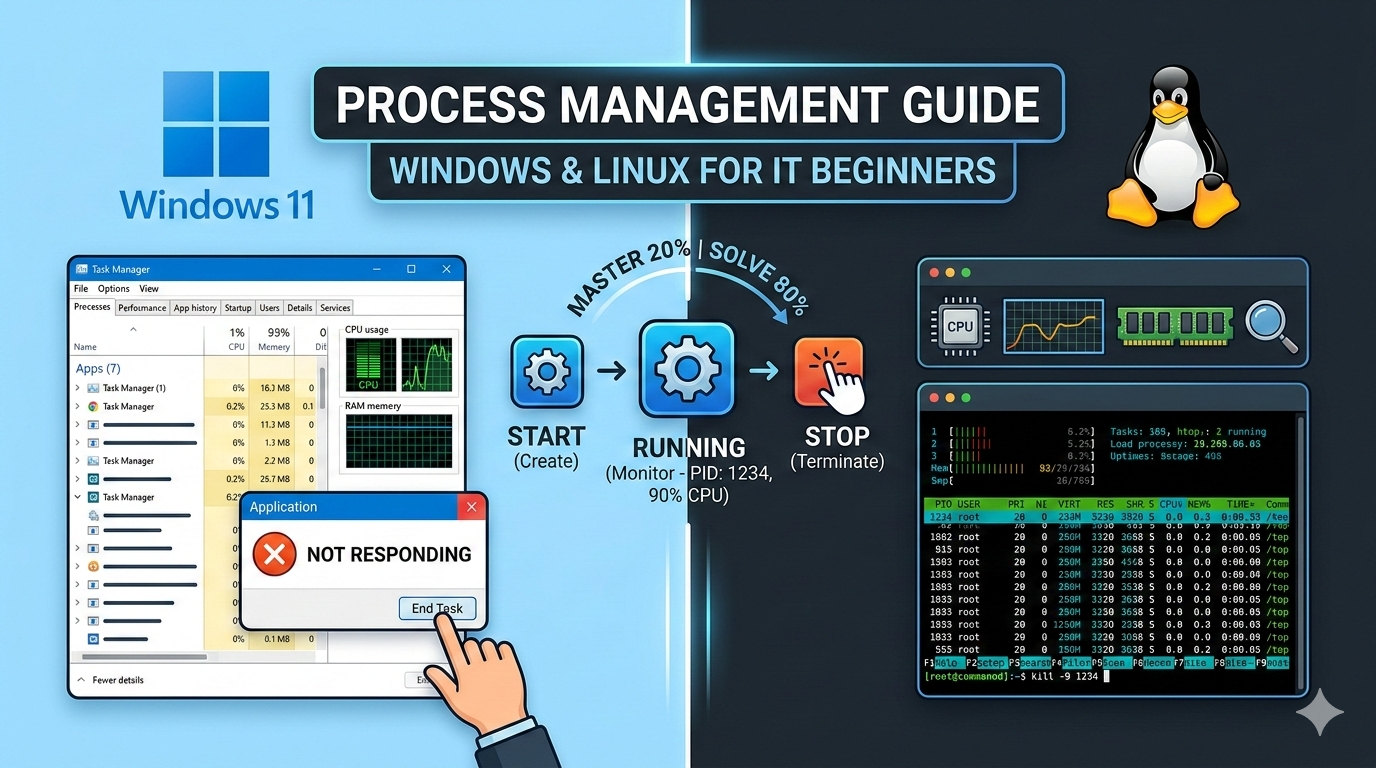
Ever watched helplessly as a frozen application refuses to close, or struggled to identify which background process is secretly consuming 90% of your CPU and grinding your system to a halt? Understanding how operating systems create, monitor, and terminate processes is one of the most powerful skills in an IT professional’s toolkit—mastering just 20% of these concepts (viewing processes, finding resource hogs, terminating by PID, and verifying results) resolves 80% of everyday performance and unresponsive application problems across Windows and Linux environments.
Reading Time: 30 minutes
What You’ll Learn:
- Programs vs. processes: understanding PIDs and resource consumption
- Windows process hierarchy: smss.exe, csrss.exe, winlogon.exe boot chain
- Linux process tree: init/systemd PID=1, parent-child relationships, zombie processes
- Viewing processes: Task Manager, Get-Process, tasklist, ps -ef, top, htop
- Real-time monitoring: Resource Monitor, Performance Monitor, top keyboard shortcuts
- Terminating processes: taskkill, Stop-Process, kill signals (SIGTERM vs SIGKILL)
- Mobile process management: iOS and Android background app behavior
- Hands-on labs with real-world troubleshooting scenarios
Prerequisites
Windows:
- Windows 10/11 administrator access
- PowerShell 5.1+ or Windows Terminal
- Familiarity with Task Manager (Ctrl+Shift+Esc)
Linux:
- Ubuntu 20.04+, Debian 11+, or equivalent distribution
- Sudo access for system process management
- Basic terminal/command line comfort
Knowledge Foundation:
- Basic understanding of operating system components
- Familiarity with 6-step troubleshooting methodology
Understanding Processes
Programs vs. Processes
These two terms sound interchangeable but represent fundamentally different states:
Program: Software sitting on disk, waiting to execute
- A static collection of instructions and data
- Consumes no CPU or RAM when not running
- Examples: notepad.exe on disk, firefox on /usr/bin/
Process: Program actively running and consuming hardware resources
- Dynamic—loaded into RAM, executing instructions on CPU
- Allocated system resources (memory, file handles, network sockets)
- Has a unique Process ID (PID) assigned by the OS
Key insight: Multiple processes can run from the same program simultaneously. Open five Chrome windows? That’s five (or more) processes all spawned from the same chrome.exe binary, each with unique PIDs and independent memory spaces.
Analogy: Think of a program as a recipe book sitting on a shelf. A process is a chef actively cooking from that recipe—consuming ingredients (RAM), using the stove (CPU), and creating output. Multiple chefs can cook from the same recipe book simultaneously.
Process ID (PID)
Every process receives a unique Process ID (PID) when launched by the operating system. This number is your primary handle for interacting with processes programmatically.
Why PIDs matter to IT professionals:
- Terminate specific process instances without killing others
- Monitor resource consumption per process
- Trace parent-child relationships for troubleshooting
- Identify malicious processes disguising themselves as legitimate programs
Example: Multiple svchost.exe processes
PID 856  - svchost.exe  (manages network services)
PID 1204 - svchost.exe  (manages Windows Update)
PID 2340 - svchost.exe  (manages Windows Audio)

Same program name, three different processes, three unique PIDs
Background Processes (Daemon Processes)
Background processes (called daemons in Linux) run invisibly without user interaction, performing essential system functions.
What daemons do:
- Logging: Record system events and errors continuously
- Scheduling: Execute tasks at defined times (cron on Linux, Task Scheduler on Windows)
- Network management: Handle DNS resolution, DHCP leases, network discovery
- System services: Antivirus scanning, Windows Update checks, print spooling
Windows examples:
svchost.exe— Service host container running multiple Windows serviceslsass.exe— Local Security Authority managing authenticationspoolsv.exe— Print spooler service
Linux examples:
systemd(PID 1) — Init system and service managercron— Task scheduler daemonsshd— SSH server daemon accepting remote connectionsNetworkManager— Network connection management
Process Creation and Hierarchy
Windows Boot Process Chain
Windows creates processes in a strict hierarchy during startup.
Kernel (ntoskrnl.exe)
       ↓
   smss.exe  ←── Session Manager Subsystem (First user-mode process)
   /      \
csrss.exe  wininit.exe   ←── Session 0 (OS services)
               ↓
         services.exe
         lsass.exe

   csrss.exe  winlogon.exe  ←── Session 1 (User session)
                  ↓
            LogonUI.exe (login screen)
                  ↓
            explorer.exe (desktop shell)
Key Windows Core Processes:
smss.exe (Session Manager Subsystem):
- First user-mode process started by the kernel
- Creates Windows sessions (Session 0 for OS, Session 1 for first user)
- Launches csrss.exe and wininit.exe in Session 0, csrss.exe and winlogon.exe in Session 1
- Self-terminates after sessions initialize
- Path:
%SystemRoot%\System32\smss.exe
csrss.exe (Client/Server Runtime Subsystem):
- Manages Windows GUI subsystem and console windows
- Handles thread creation, console I/O operations
- Critical system process—cannot be terminated without BSOD
- Two or more instances normal (one per session)
winlogon.exe:
- Manages user login and logout
- Handles Ctrl+Alt+Del Secure Attention Sequence (SAS)
- Loads user profile after authentication
wininit.exe:
- Windows Initialization process for Session 0
- Parent of services.exe, lsass.exe, and other critical Session 0 processes
⚠ Security Note: Malware often disguises itself as legitimate Windows processes (e.g., svchost32.exe instead of svchost.exe, or placing lsass.exe in a different folder). Always check the exact file path, not just the name, when investigating suspicious processes.
Windows Parent-Child Behavior:
Unlike Linux, terminating a parent process in Windows does NOT kill child processes. Children become orphaned but continue running independently, inheriting environment variables from their parent at creation time.
Linux Process Tree
Linux uses a strict parent-child hierarchy where every process descends from a single ancestor.
PID 1: systemd (or init)  ←── Root of all processes
├── PID 245: systemd-journald   (logging daemon)
├── PID 312: NetworkManager     (network management)
├── PID 780: sshd               (SSH server)
│   └── PID 1205: bash         (your terminal session)
│       └── PID 1389: ps -ef   (the command you just ran)
├── PID 892: apache2            (web server)
└── PID 1044: cron              (task scheduler)
init/systemd (PID=1):
- Root parent of all processes on the system
- Modern distributions use
systemd; older ones useinitorupstart - If PID 1 dies, kernel panics—system crashes immediately
Resource Release: When a child process completes, resources return to the kernel. If a child finishes before the parent acknowledges termination, it briefly becomes a zombie process—consuming an entry in the process table but no CPU or meaningful memory.
Viewing Process Hierarchy:
# Show process tree visually
pstree

# Show tree with PIDs
pstree -p

# Output example:
systemd(1)─┬─NetworkManager(312)─┬─{NetworkManager}(314)
           │                     └─{NetworkManager}(315)
           ├─sshd(780)───sshd(1204)───bash(1205)
           └─cron(892)
Viewing Process Information
Windows: Task Manager (GUI)
Opening Task Manager:
Method 1: Ctrl + Shift + Esc     ← Fastest method
Method 2: Ctrl + Alt + Delete → Task Manager
Method 3: Right-click taskbar → Task Manager
Method 4: Run → taskmgr
Processes Tab:
Shows all running applications and background processes with resource columns:
- Name: Executable/application name
- CPU: Real-time CPU percentage
- Memory: RAM consumption in MB
- Disk: Disk I/O activity
- Network: Network bandwidth usage
Details Tab:
Shows granular process information including the crucial PID column:
PID    Name           Status    User Name      CPU    Memory
4      System         Running   SYSTEM          0      116K
856    svchost.exe    Running   SYSTEM          0      8,540K
1204   svchost.exe    Running   NETWORK SERVICE 0      4,280K
2684   notepad.exe    Running   John            0      14,576K
3892   chrome.exe     Running   John            2      245,320K
Ending Tasks via GUI:
1. Processes tab → Select application or process
2. Right-click → End Task
   OR Click "End Task" button (bottom-right)

⚠ Warning: Ending system processes (csrss.exe, lsass.exe) causes immediate BSOD
⚠ End Task without saving causes unsaved data loss in documents
Windows: PowerShell (Get-Process)
Get-Process is the PowerShell cmdlet for listing and managing processes:
powershell# List ALL running processes
Get-Process
# Output columns:
# Handles NPM(K) PM(K) WS(K) CPU(s) Id SI ProcessName
# ------- ------ ----- ----- ------ -- -- -----------
# 285 18 3512 4512 0.05 2684 1 notepad
# 1234 56 245320 210456 125.23 3892 1 chrome
# Find specific process by name
Get-Process -Name notepad
# Wildcard search (find all Chrome-related processes)
Get-Process -Name "*chrome*"
# Get process with specific PID
Get-Process -Id 2684
# Show ALL properties (verbose)
Get-Process | Format-List *
Output Column Meanings:
| Column | Description |
|---|---|
| Handles | Number of system resources (files, registry keys) held |
| NPM(K) | Non-paged memory in KB (cannot be swapped to disk) |
| PM(K) | Paged memory in KB (can be swapped to pagefile) |
| WS(K) | Working Set—actual RAM currently used by process |
| CPU(s) | Total CPU time consumed (seconds) since process started |
| Id | Process ID (PID) |
| ProcessName | Executable name without .exe extension |
Find Top CPU/Memory Consumers:
powershell# Top 5 processes by CPU usage
Get-Process | Sort-Object CPU -Descending | Select-Object -First 5 Id, ProcessName, CPU
# Top 5 processes by memory (WorkingSet)
Get-Process | Sort-Object WorkingSet -Descending | Select-Object -First 5 Id, ProcessName, @{n='RAM(MB)'; e={[math]::Round($_.WorkingSet/1MB,1)}}
# Processes consuming >100MB RAM
Get-Process | Where-Object {$_.WorkingSet -gt 100MB} | Select-Object Id, ProcessName, @{n='RAM(MB)'; e={[math]::Round($_.WorkingSet/1MB,1)}}
Windows: Command Prompt (tasklist)
# List all running processes
tasklist

# Verbose output with window title, memory, session
tasklist /v

# Filter by image name
tasklist /fi "imagename eq notepad.exe"

# Filter processes using more than 10MB RAM
tasklist /fi "memusage gt 10000"

# Show processes running as specific user
tasklist /fi "username eq Administrator"

# XML output format (for scripting)
tasklist /fo xml

# Sample Output:
# Image Name          PID     Session Name  Session#  Mem Usage
# ==================  ======  ============  ========  =========
# System Idle Process     0   Services           0       8 K
# System                  4   Services           0     116 K
# notepad.exe          2684   Console            1  14,576 K
Linux: ps Command
ps (process status) takes a snapshot of currently running processes:
# Show processes owned by current terminal only
ps

# Output:
  PID TTY          TIME CMD
 1205 pts/0    00:00:00 bash
 1389 pts/0    00:00:00 ps

# Show ALL processes with terminal and CPU time info
ps -x

# Full details: UID, PID, PPID, CPU, start time, command [file:21]
ps -ef

# BSD-style: shows all processes with CPU% and MEM%
ps -aux

# Output (ps -ef):
UID        PID  PPID  C STIME TTY          TIME CMD
root         1     0  0 09:00 ?        00:00:03 /sbin/init
root       312     1  0 09:00 ?        00:00:01 /usr/sbin/NetworkManager
john      1205   780  0 10:30 pts/0    00:00:00 -bash
john      1389  1205  0 10:45 pts/0    00:00:00 ps -ef
ps -ef Column Meanings:
| Column | Meaning |
|---|---|
| UID | User ID (owner of process) |
| PID | Process ID—unique identifier |
| PPID | Parent Process ID—which process spawned this one |
| STIME | Start time of process |
| TTY | Terminal associated with process (?= no terminal, daemon) |
| TIME | Cumulative CPU time consumed |
| CMD | Full command including arguments |
Searching for Specific Processes:
# Find Firefox processes
ps -aux | grep firefox

# Output:
john    3421  2.3  5.1  892340  42156  ?  Sl  10:30   0:12 /usr/bin/firefox
john    4832  0.0  0.0   7240    900  pts/0  S+  10:45   0:00 grep --color=auto firefox

# Note: grep command itself appears in results—
# Use -v to exclude grep line
ps -aux | grep firefox | grep -v grep

# Find all processes by specific user
ps -ef | grep john

# Find processes with high CPU
ps -aux --sort=-%cpu | head -10

# Find processes with high memory
ps -aux --sort=-%mem | head -10
Linux: /proc Virtual Filesystem
Linux exposes process information through the /proc virtual filesystem:
# List all process directories (each PID has a folder)
ls /proc/ | grep -E '^[0-9]+$' | head -20
# View detailed status of specific process (replace 1205 with PID)
cat /proc/1205/status
# Output:
Name: bash
Umask: 0022
State: S (sleeping)
Tgid: 1205
Pid: 1205
PPid: 780
FDSize: 64
VmRSS: 3456 kB ← Physical RAM used
VmPeak: 12048 kB ← Peak virtual memory
Threads: 1
# View command that launched process
cat /proc/1205/cmdline | tr '\0' ' '
# View environment variables of process
cat /proc/1205/environ | tr '\0' '\n'
# View open files/connections
ls -la /proc/1205/fd
Monitoring Resource Usage
Windows: Resource Monitor
Resource Monitor (resmon.exe) provides deeper visibility than Task Manager:
Open:
1. Task Manager → Performance tab → "Open Resource Monitor" link
2. Search: resmon
3. Run: resmon.exe
Five Tabs:
Overview: Summary of all resource categories—quick snapshot
CPU Tab:
- Processes consuming CPU with detailed thread counts
- Services running inside svchost.exe instances
- Associated module handles for each process
Memory Tab:
- Physical memory usage breakdown (In Use, Modified, Standby, Free)
- Per-process Working Set, Shareable, and Private memory
- Memory commit limit warnings
Disk Tab:
- Real-time disk read/write activity per process
- Files being read/written by each process
- Response time (milliseconds) per disk operation
- Identifies which process is causing 100% disk activity
Network Tab:
- Network activity per process (bytes sent/received)
- Active TCP connections with remote addresses
- Listening ports per application
- Essential for identifying network-hungry processes
Windows: Performance Monitor
Performance Monitor (perfmon.exe) provides long-term trending and custom metrics:
Open: Run → perfmon.exe

Key Features:
- Real-time counter graphs
- Data Collector Sets (log performance over time)
- Performance reports
- Resource View (quick overview)

Useful counters:
- Processor: % Processor Time
- Memory: Available MBytes
- PhysicalDisk: % Disk Time
- PhysicalDisk: Avg. Disk Queue Length (>2 indicates bottleneck)
- Process: Working Set (per-process RAM)
PowerShell Performance Query:
powershell# Top 3 CPU-consuming processes
Get-Process | Sort-Object CPU -Descending | Select-Object -First 3 -Property Id, ProcessName, CPU
# Monitor process resource usage every 5 seconds
while ($true) {
Get-Process | Sort-Object CPU -Descending | Select-Object -First 5 Id, ProcessName, CPU
Start-Sleep 5
Clear-Host
}
Linux: top Command
top provides real-time process monitoring, refreshing every 3 seconds by default:
# Launch top
top
# Monitor specific user's processes
top -u john
# Monitor specific PID
top -p 1205
# Update every 1 second (instead of 3)
top -d 1
Understanding the top Header:
top - 11:23:45 up 2 days, 3:12,  2 users,  load average: 0.15, 0.12, 0.09
Tasks: 234 total,   1 running, 233 sleeping,   0 stopped,   0 zombie
%Cpu(s):  2.3 us,  0.5 sy,  0.0 ni, 96.8 id,  0.3 wa,  0.0 hi,  0.1 si
MiB Mem :  15858.0 total,   4532.1 free,   8124.3 used,   3201.6 buff/cache
MiB Swap:   2048.0 total,   2048.0 free,      0.0 used.   7234.7 avail Mem

  PID USER      PR  NI    VIRT    RES    SHR S  %CPU  %MEM     TIME+ COMMAND
 3421 john      20   0  892340  42156  28456 S   2.3   5.1   0:12.34 firefox
 1204 root      20   0   45320   8456   6234 S   0.3   0.1   2:45.12 sshd
    1 root      20   0  168980  12456   9234 S   0.0   0.0   0:03.45 systemd
Load Average Interpretation:
load average: 0.15, 0.12, 0.09
              ↑     ↑     ↑
           1-min  5-min  15-min

For a single-CPU system:
- 1.00 = 100% CPU utilization (fully busy)
- 0.50 = 50% CPU utilization
- 2.00 = CPU overloaded (processes waiting in queue)

For a 4-core system:
- 4.00 = 100% utilization across all cores
- 0.03 ≈ 3% CPU usage (3 processes waiting) [file:21]

Rule of thumb: Load average > number of CPU cores = overloaded
top Interactive Keyboard Shortcuts:
| Key | Action |
|---|---|
| P | Sort by CPU usage (descending) |
| M | Sort by memory usage (descending) |
| N | Sort by PID |
| k | Kill a process (prompts for PID then signal) |
| u | Filter by username |
| h | Help menu |
| q | Quit top |
| 1 | Toggle per-CPU-core view |
| Space | Force immediate refresh |
Linux: htop (Enhanced top)
htop provides a more visual, user-friendly alternative to top:
# Install htop (if not present)
sudo apt install htop # Debian/Ubuntu
sudo yum install htop # CentOS/RHEL
# Launch htop
htop
htop Advantages over top:
- Color-coded CPU, memory, swap meters (per-core visibility)
- Mouse support—click to select processes
- Process tree view showing parent-child relationships
- Kill processes without typing PIDs
- Disable thread view for cleaner output (Shift+H)
htop Key Shortcuts:
F9 (or k) → Kill selected process → Choose signal → Enter
F5        → Toggle tree view
Shift+M   → Sort by memory
Shift+P   → Sort by CPU
Shift+H   → Toggle thread display
Space     → Tag process (for bulk operations)
F10 (q)   → Quit
Kill process in htop:
1. Arrow keys to select process
2. Press F9
3. Signal menu appears:
   - 15 SIGTERM (graceful)
   - 9  SIGKILL (force)
4. Select signal → Enter
Linux: uptime and System Load
# Quick load average check [file:21]
uptime

# Output:
 11:23:45 up 2 days,  3:12,  2 users,  load average: 0.15, 0.12, 0.09

# Fields:
# Current time
# Uptime (how long system has been running)
# Number of logged-in users
# Load average: 1-min, 5-min, 15-min [file:21]
Linux: lsof (List Open Files)
# List all open files on system
lsof
# Files open in specific directory [file:21]
lsof /var/log/
# Find process using specific port (who's using port 80?)
lsof -i :80
# Find all files opened by specific process
lsof -p 3421
# Find processes holding specific file open
lsof /path/to/file.db
# Useful for: "Can't delete file—it's in use by another process"
lsof | grep filename
Terminating Processes
Windows: GUI Methods
Task Manager:
1. Ctrl+Shift+Esc → Task Manager
2. Processes tab → Select stuck application
3. Right-click → End Task
   OR click "End Task" button

For specific PID:
1. Details tab (shows PID column)
2. Right-click process → End Process
3. Confirm "Are you sure you want to end this process?"
Process Explorer (Sysinternals):
More powerful than Task Manager for advanced operations:
Download: https://docs.microsoft.com/en-us/sysinternals/downloads/process-explorer

Features:
- Suspend process (pause without killing) [file:21]
- Kill process tree (terminate parent AND all children)
- View DLLs and handles loaded by process
- Verify process signatures against VirusTotal
- Identify parent-child relationships visually

Right-click process options:
- Suspend: Pauses process, releases CPU but keeps memory [file:21]
- Kill Process: Terminates single process
- Kill Process Tree: Terminates process and all children
- Restart: Kills and relaunches
Windows: PowerShell and Command Prompt
powershell# Kill by PID (force)
taskkill /F /PID 2684

# Kill by process name (kills ALL instances)
taskkill /F /IM notepad.exe

# Kill without /F flag (graceful termination request)
taskkill /PID 2684

# Kill all instances matching wildcard pattern
taskkill /F /IM "chrome*"

# Kill process on remote computer
taskkill /S RemoteComputer /U Domain\Admin /P Password /F /PID 1234

# PowerShell: Stop specific process by name
Stop-Process -Name notepad

# PowerShell: Stop by PID
Stop-Process -Id 2684

# PowerShell: Force stop (like /F flag)
Stop-Process -Id 2684 -Force

# PowerShell: Kill all Chrome processes (pipeline)
Get-Process -Name "*chrome*" | Stop-Process -Force

# PowerShell: Kill multiple specific processes
Stop-Process -Name notepad, mspaint, calc -Force

# Verify termination (should return error if successful)
Get-Process -Name notepad
# Output: "Cannot find a process with the name 'notepad'"
Linux: Process Signals
Signals are software messages sent to processes, instructing them to take specific actions.
Core Signals:
SIGTERM (Signal 15) — The Polite Request:
bashkill [PID]          # Default signal is SIGTERM
kill -15 [PID]      # Explicit SIGTERM
kill -TERM [PID]    # Alternative syntax

Behavior:
- Asks process to terminate gracefully [web:98][web:102]
- Process receives signal and can:
  - Save current state to disk
  - Close open file handles cleanly
  - Release database connections
  - Flush network buffers
  - Delete temporary files
- Process CAN ignore or override SIGTERM [web:98][web:102]
- Use this FIRST before escalating [web:98][web:108]
SIGKILL (Signal 9) — The Nuclear Option:
bashkill -9 [PID]       # Force kill
kill -KILL [PID]    # Alternative syntax

Behavior:
- Sent directly to kernel, NOT to the process [web:98][web:102]
- Process cannot catch, ignore, or override [web:102][web:108]
- Immediate termination—no cleanup possible [web:102][web:108]
- Risk: Can leave:
  - Corrupted files (mid-write operations interrupted)
  - Orphaned temporary files
  - Locked database files
  - Dangling network connections
- Use ONLY when SIGTERM fails [web:98][web:108]
SIGINT (Signal 2) — Keyboard Interrupt:
# Sent when user presses Ctrl+C in terminal [file:21]
kill -2 [PID]       # Programmatic equivalent

Behavior:
- Graceful stop request, similar to SIGTERM [web:98]
- Process can override SIGINT for different meaning [web:98]
- Common use: Stopping interactive processes (top, ping, etc.)
SIGTSTP (Signal 20) — Suspend/Pause:
# Sent when user presses Ctrl+Z in terminal [file:21]
kill -TSTP [PID]    # Programmatic equivalent
kill -20 [PID]      # By number

Behavior:
- Pauses (suspends) process execution [file:21]
- Process remains in memory but uses no CPU
- Terminal returns to prompt
- Resume with SIGCONT
SIGCONT (Signal 18) — Continue:
bashkill -CONT [PID]    # Resume suspended process [file:21]
kill -18 [PID]      # By number

Behavior:
- Resumes process paused by SIGTSTP or SIGSTOP [file:21]
- Process continues from where it was suspended
Signal Summary Table:
| Signal | Number | Shortcut | Behavior |
|---|---|---|---|
| SIGINT | 2 | Ctrl+C | Graceful interrupt, can be overridden |
| SIGTERM | 15 | (default kill) | Graceful termination, process cleans up |
| SIGKILL | 9 | — | Forced kill, no cleanup, cannot ignore |
| SIGTSTP | 20 | Ctrl+Z | Suspend/pause process |
| SIGCONT | 18 | — | Resume suspended process |
Linux: kill Command
# Graceful terminate (SIGTERM is default)
kill 3421
# Explicit SIGTERM
kill -TERM 3421
kill -15 3421
# Force kill (SIGKILL)
kill -KILL 3421
kill -9 3421
# Suspend process
kill -TSTP 3421
kill -20 3421
# Resume suspended process
kill -CONT 3421
# Kill system processes (requires sudo)
sudo kill 856
# Verify process terminated
ps -aux | grep firefox | grep -v grep
# Empty output = process successfully terminated
# Kill all instances of process by name
killall firefox # Send SIGTERM to all 'firefox' processes
killall -9 firefox # Force kill all instances
# Kill processes by name pattern
pkill firefox # Kill by name pattern (SIGTERM)
pkill -9 firefox # Force kill by pattern
pkill -u john # Kill all processes owned by user 'john'
# Check which signals are available
kill -l
Signal Best Practice:
Step 1: Try SIGTERM first (graceful)
        kill PID
        Wait 10-15 seconds

Step 2: If process still running, use SIGKILL (force)
        kill -9 PID

Never go directly to SIGKILL—always attempt graceful
termination first to preserve data integrity [web:98][web:108]
Mobile Process Management
iOS and Android Background Behavior
Mobile operating systems manage processes fundamentally differently from desktop OSes to maximize battery life.
Foreground Apps:
- App currently visible and active on screen
- Full access to CPU, GPU, memory, network
- Can run any background tasks
Background/Suspended Apps:
- App moved to background when user switches away
- OS automatically suspends app (pauses execution) to save battery
- App remains in memory for fast resume
- Receives minimal CPU time or none at all
- Key Distinction: Background ≠ Using significant resources
Misconception Correction: Most users force-close all background apps believing this saves battery/performance. Modern mobile OS research shows this often hurts performance—apps must fully reload from disk instead of resuming from RAM suspension. Force-close only misbehaving apps, not all background apps.
Closing Apps
iOS:
1. Swipe up from bottom (iPhone X+) or double-tap Home (older)
2. App Switcher shows all background apps
3. Swipe up on specific app card to close
4. Or swipe up multiple apps simultaneously
Android:
1. Tap Recent Apps button (square icon or gesture)
2. Swipe left or right to close individual app
3. Tap "Clear All" to close all background apps
Troubleshooting Slow Mobile Devices
Step 1: Check battery usage
Settings → Battery → Battery Usage
Identify apps consuming disproportionate battery [file:21]

Step 2: Force-close misbehaving apps
App using high CPU/battery despite not being in use
→ Swipe away in App Switcher [file:21]

Step 3: Clear app cache
Android: Settings → Apps → Select app → Storage → Clear Cache
iOS: Delete and reinstall app (iOS clears cache on install) [file:21]

Step 4: Restart device
Clears all suspended apps from memory
Resets running processes to clean state [file:21]
Resolves most temporary performance issues

Step 5: If still slow after restart
Check for OS updates (may include performance fixes)
Identify storage capacity (full storage degrades performance)
Consider factory reset if chronic performance issues persist
Hands-On Practice Labs
Lab 1: Windows Process Termination
Goal: Locate and terminate specific processes using PowerShell
powershell# Step 1: Open PowerShell as Administrator
# Step 2: Open Notepad to create test process
Start-Process notepad.exe
# Step 3: List all processes (verify Notepad appears)
Get-Process
# Step 4: Search specifically for Notepad
Get-Process -Name "*notepad*"
# Step 5: Note the PID from output
# Example: Id = 2684
# Step 6: Terminate by PID
taskkill /F /PID 2684
# Step 7: Verify termination (should show error)
Get-Process -Name "*notepad*"
# Expected: "Cannot find a process with the name 'notepad'"
# Advanced: Kill ALL Word processes at once
Start-Process notepad.exe
Start-Process notepad.exe
Start-Process notepad.exe
Get-Process -Name "*notepad*" | Stop-Process -Force
Get-Process -Name "*notepad*" # Verify all terminated
Expected Results:
taskkill /F /PID 2684
→ SUCCESS: The process with PID 2684 has been terminated.

Get-Process -Name "*notepad*"
→ Get-Process: Cannot find a process with the name "notepad".
   At line:1 char:1
Lab 2: Linux Process Termination
Goal: Locate and terminate processes using kill and signals
# Step 1: Create a test background process
sleep 9999 &           # Runs sleep in background
# Output: [1] 1523    ← Job number and PID

# Step 2: List all processes
ps -ef | grep sleep

# Step 3: Find process and identify PID (second column in ps -ef)
# Output:
# john    1523  1205  0 11:30 pts/0    00:00:00 sleep 9999
# john    1524  1205  0 11:30 pts/0    00:00:00 grep --color=auto sleep

# PID = 1523

# Step 4: Send graceful termination (SIGTERM)
kill 1523

# Step 5: Verify termination
ps -aux | grep "sleep 9999" | grep -v grep
# Empty output = terminated

# Step 6: Advanced - Force kill stubborn process
sleep 9999 &           # Create another test process
sleep 9999 &           # And another
ps -aux | grep "sleep 9999" | grep -v grep
# Shows PIDs of both processes

# Graceful attempt
kill 1601
kill 1602

# If still running after 10 seconds:
kill -9 1601          # Force kill
kill -KILL 1602       # Alternative syntax

# Step 7: Kill all sleep processes with killall
sleep 9999 &
sleep 9999 &
killall sleep          # Kills ALL sleep processes
ps -aux | grep sleep | grep -v grep  # Verify all gone
Lab 3: Resource Monitoring
Windows Resource Monitoring:
powershell# Step 1: Open Task Manager
# Ctrl+Shift+Esc

# Step 2: Performance tab
# Note current CPU%, Memory usage, Disk activity

# Step 3: Open Resource Monitor from Task Manager
# Click "Open Resource Monitor" link at bottom

# Step 4: Processes tab → Sort by CPU column
# Identify which process consumes most CPU

# Step 5: PowerShell monitoring
Get-Process | Sort-Object CPU -Descending | Select-Object -First 5 Id, ProcessName, @{n='CPU(s)';e={$_.CPU}}, @{n='RAM(MB)';e={[math]::Round($_.WorkingSet/1MB,1)}}

# Step 6: Watch performance over time (refresh every 5 seconds)
while ($true) {
    Clear-Host
    Write-Host "=== Top 5 CPU Processes ===" (Get-Date)
    Get-Process | Sort-Object CPU -Descending | Select-Object -First 5 Id, ProcessName
    Start-Sleep 5
}
# Press Ctrl+C to stop
Linux Resource Monitoring:
# Step 1: Launch top
top

# Step 2: Press 'P' to sort by CPU usage
# Identify top CPU consumers

# Step 3: Press 'M' to sort by memory usage
# Identify top memory consumers

# Step 4: Note load average values
# Compare 1-min vs 15-min (trending up = increasing load)

# Step 5: Press '1' to see per-core CPU usage
# Useful for spotting single-core bottlenecks

# Step 6: Press 'q' to exit top

# Step 7: Check load average via uptime
uptime

# Step 8: Monitor specific process
top -p $(pgrep firefox)   # Monitor Firefox specifically

# Step 9: Advanced - one-shot output (for scripting)
top -b -n 1 | head -20   # Batch mode, 1 iteration, first 20 lines
Lab 4: Malicious Process Cleanup (Capstone)
Scenario: System running slowly, suspicious process detected consuming 40% CPU
Windows Steps:
powershell# Step 1: Open PowerShell as Administrator
# Step 2: Search for suspicious process
Get-Process | Sort-Object CPU -Descending | Select-Object -First 10 Id, ProcessName, CPU
# Step 3: Investigate suspicious process (verify path and publisher)
Get-Process -Name "suspicious_app" | Select-Object Id, ProcessName, Path, Company
# Legitimate processes have proper paths and publishers
# Malware often runs from temp directories:
# C:\Users\User\AppData\Temp\ ← Suspicious
# C:\Windows\System32\ ← Normal
# Step 4: Note the PID
$pid = (Get-Process -Name "suspicious_app").Id
# Step 5: Force kill
taskkill /F /PID $pid
# Step 6: Verify ALL instances terminated
Get-Process -Name "*suspicious*"
# Step 7: Run antivirus scan after termination
Start-MpScan -ScanType FullScan
Linux Steps:
# Step 1: List all processes, search for suspicious activity
ps -aux | sort -nrk 3,3 | head -20   # Sort by CPU usage

# Step 2: Find suspicious process
ps -aux | grep suspicious

# Step 3: Note ALL PIDs (multiple instances possible)
# Output shows:
# john  4521  40.0  0.5  12340  4567  ?  R  11:30  0:45 suspicious_malware
# john  4523  38.5  0.4  11230  3456  ?  R  11:31  0:40 suspicious_malware

# Step 4: Terminate all instances gracefully first
sudo kill 4521
sudo kill 4523

# Step 5: Verify (wait 10 seconds then check)
ps -aux | grep suspicious | grep -v grep

# Step 6: Force kill if still running
sudo kill -9 4521
sudo kill -9 4523

# Step 7: Kill by name (catches any remaining instances)
sudo killall -9 suspicious_malware

# Step 8: Verify clean
ps -aux | grep suspicious | grep -v grep
# Empty output = all instances terminated

# Step 9: Schedule antivirus scan
sudo clamscan -r /home/          # ClamAV full scan
Process Management Quick Reference
| Task | Windows | Linux |
|---|---|---|
| List all processes | Get-Process | ps -ef |
| Find by name | Get-Process -Name "text" | ps -aux | grep name |
| Show top CPU | Sort CPU -Descending | top → press P |
| Show top memory | Sort WorkingSet -Descending | top → press M |
| Terminate gracefully | taskkill /PID x | kill PID |
| Force terminate | taskkill /F /PID x | kill -9 PID |
| Suspend process | Process Explorer → Suspend | kill -TSTP PID |
| Resume process | Process Explorer → Resume | kill -CONT PID |
| Kill by name | Stop-Process -Name app | killall appname |
| View real-time | Resource Monitor (resmon) | top or htop |
| View process tree | Process Explorer | pstree -p |
| View open files | Process Explorer → Handles | lsof -p PID |
Key Takeaways
- A program is software on disk consuming no resources; a process is that program actively running with a unique PID, consuming CPU and RAM—multiple processes can run from the same program simultaneously, each with independent resource usage
- Windows process hierarchy starts with
smss.exe(first user-mode process) creating sessions containingcsrss.exe,winlogon.exe, andwininit.exe—terminating a parent process does NOT kill children in Windows, unlike Linux where all processes descend from PID 1 (init/systemd) - Always attempt SIGTERM before SIGKILL in Linux—SIGTERM requests graceful shutdown allowing cleanup, while SIGKILL cannot be ignored and provides no cleanup opportunity, risking data corruption
- Load average values (from
uptimeortop) represent processes running/waiting over 1, 5, and 15-minute intervals—values consistently exceeding your CPU core count indicate system overload - Mobile app management differs from desktop: background apps are automatically suspended by the OS to save battery, meaning most “background” apps consume minimal resources—force-close only misbehaving apps identified through battery usage settings
Frequently Asked Questions
Q: What’s the difference between End Task in Task Manager and Kill Process in Process Explorer? A: Task Manager’s End Task sends a WM_CLOSE message requesting graceful shutdown (similar to SIGTERM)—the application can save state and close windows cleanly. Process Explorer’s Kill Process forcibly terminates immediately (like SIGKILL), with no cleanup. Always try End Task first; escalate to Kill Process only for completely unresponsive processes.
Q: Why do I see multiple svchost.exe processes in Task Manager? A: Windows uses svchost.exe (Service Host) as a container process for running Windows services. Multiple instances are completely normal—each hosts different groups of services. In Windows 10+, each service runs in its own svchost.exe instance for better isolation. Investigate only svchost.exe processes located outside C:\Windows\System32\.
Q: Can I kill a process with PID 1 (init/systemd) in Linux? A: The kernel protects PID 1 from SIGKILL signals—the kernel ignores kill -9 sent to PID 1. Killing PID 1 would orphan every process on the system and trigger kernel panic. This protection is intentional and cannot be bypassed without modifying kernel behavior.
Q: Why does ps -aux | grep appname always show an extra result? A: The grep command itself appears in process results because it’s running while containing your search term in its command line . Filter it out: ps -aux | grep appname | grep -v grep. Alternatively, use pgrep appname which returns only PIDs without the grep artifact.
Q: How do I find which process is holding a port or file in use? A: Use lsof -i :PORT_NUMBER (Linux) to find which process holds a specific port, or lsof /path/to/file to find what’s holding a file open . On Windows, use netstat -ano | findstr :PORT to find the PID, then cross-reference with Task Manager.
Next Steps
Process management mastery develops through regular hands-on practice with real systems—deliberately create processes, monitor their behavior, and practice termination techniques until commands execute from muscle memory without referencing documentation.
Practice exercises:
- Create a shell script that launches 10 background sleep processes, then write another script to find and kill them all
- Use
topdaily for a week—identify patterns in your system’s process landscape - Practice piping Get-Process output through various Sort-Object and Where-Object filters for PowerShell fluency
- Simulate a “runaway process” with a CPU-intensive script, then diagnose and kill it using only command-line tools
- Build a simple Bash monitoring script that alerts when any process exceeds 80% CPU usage
Advanced topics to explore:
- Process scheduling and priority (nice/renice on Linux, priority classes on Windows)
- cgroups (Linux control groups) for resource limiting containers
- Windows Job Objects for grouping and managing related processes
- Systemd service unit files for creating and managing Linux daemons
- Performance tuning and bottleneck analysis with perf (Linux) and WPA (Windows)
Struggling with runaway processes or have interesting troubleshooting stories? Share in the comments or subscribe for weekly system administration tutorials covering performance tuning, automation, and enterprise IT support strategies.
Blog Category: System Administration / Performance & Process Management