Master how the internet works, from packets to routers to cloud infrastructure
Meta Information
Description: Learn networking fundamentals—how the internet works, IP addresses, DNS, routers, and why understanding networks is essential for IT and cloud careers.
Target Audience: Beginners, IT students, career changers, aspiring cloud engineers, system administrators
Reading Time: 14-16 minutes
Difficulty Level: Beginner
Prerequisites: Basic computer knowledge (computer parts, web browsing, email)
Introduction
When you type “google.com” into your browser and instantly see search results, magic appears to happen. But it’s not magic—it’s the internet, one of humanity’s greatest engineering achievements.
Behind every website you visit, every email you send, every video you stream, and every file you download is an intricate network of computers, cables, routers, and protocols working together seamlessly. Understanding how this system works is no longer a luxury for IT specialists—it’s fundamental knowledge for anyone working in technology.
Whether you’re pursuing an IT career, cloud engineering, system administration, or simply want to understand the technology shaping our world, networking fundamentals are essential. This guide explains how the internet actually works, from the packets traveling across cables to the routers directing traffic to the protocols enabling communication.
Key Takeaway: The internet is a network of networks, and understanding how data travels through it is the foundation of any technology career.
What is the Internet, Really?
Before diving into technical details, let’s clarify what the internet actually is—and what it isn’t.
Simple Definition
The Internet is a global network of interconnected computers.
More specifically, it’s a collection of networks (groups of connected computers) that are themselves connected together, enabling communication between computers worldwide.
Internet vs. World Wide Web—An Important Distinction
These terms are often used interchangeably, but they’re fundamentally different:
| Term | What It Is | Example |
|---|---|---|
| Internet | Physical connection of computers and cables | The highways and infrastructure |
| World Wide Web (WWW) | Information accessed over the Internet | Websites, videos, documents |
Think of It This Way:
- Internet = Highway System: The physical infrastructure (cables, routers, servers) that enables communication
- World Wide Web = Traffic on the Highway: Websites, videos, and documents traveling on the internet
- Email and Chat = Other Vehicles: Alternative uses of the same internet infrastructure
Real-World Example:
textInternet: The physical cables and routers connecting your home to Google's servers
World Wide Web: The search page you see when you visit google.com
Email: A message you send to a friend (uses internet, not web)
Why This Matters: Understanding this distinction helps you understand that the internet is far more than just websites. Email, video calls, file transfers, and cloud services all use the same underlying internet infrastructure.
The Networks Behind the Internet
A Network: Two or more connected computers that can communicate with each other.
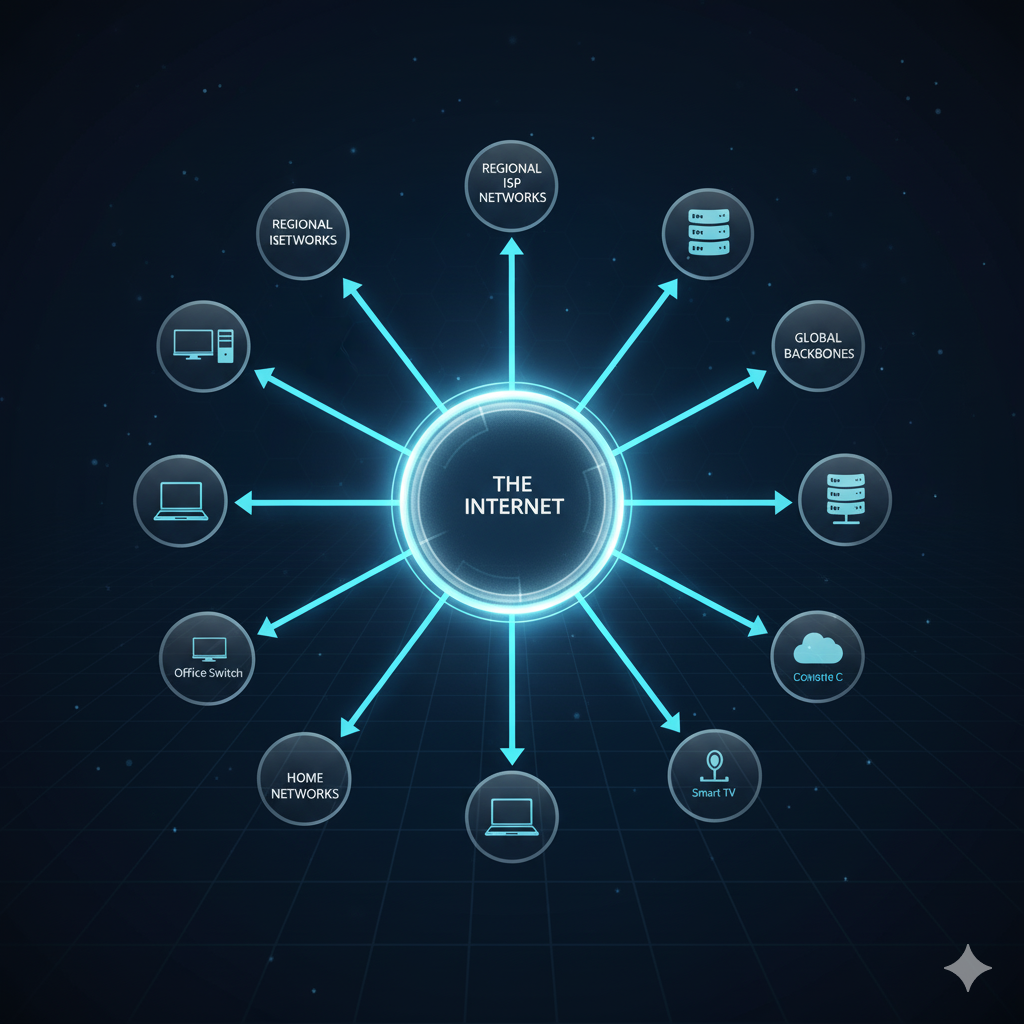
Examples of Networks:
- Your home network (phone, laptop, smart TV)
- Your office network (all office computers and printers)
- Your internet service provider’s network
- Google’s internal network
- Facebook’s data center network
The Internet: All these networks connected together, allowing communication across the entire world.
How the Internet Works—The Core Components
Now let’s explore how data actually travels across the internet and reaches its destination.
Clients and Servers—The Two Sides of Communication
Almost all internet communication follows a simple model: clients request data, and servers provide it.
Clients:
- Your devices: phone, laptop, tablet, smartwatch
- Any device requesting information
- Initiates communication
- Role: Makes requests
Servers:
- Computers that store and provide data
- Always running, always available
- Responds to client requests
- Role: Provides information
Real-World Examples:
| Client | Server | What Happens |
|---|---|---|
| Your phone | Google’s server | You search, Google returns results |
| Your laptop | Netflix server | You click play, Netflix sends video |
| Your smart speaker | Amazon server | You ask for weather, Amazon provides it |
| Your game console | Game developer’s server | You join game, server manages players |
Key Point: The internet is fundamentally a request-response system. Clients ask for things; servers answer.
Internet Service Providers (ISPs)—Your Gateway to the Internet
What is an ISP? A company that provides you access to the internet.
Common ISPs:
- Comcast (cable provider)
- Verizon (telephone/wireless provider)
- AT&T (telecom provider)
- Local regional providers
How ISPs Work:
textYour Home Network
     ↓ (through cables/wireless)
ISP Network (e.g., Comcast's network)
     ↓ (connected to other ISPs)
Internet Backbone (major network lines)
     ↓ (connects to other ISPs/networks)
Global Internet (entire world's networks)
What ISPs Do:
- Provide physical cables or wireless access to their network
- Connect their network to other ISPs
- Route your traffic toward its destination
- Maintain the infrastructure
- Charge you monthly for access
Why This Matters: Your ISP is your entry point to the internet. If your ISP has network problems, you can’t access the internet, even if Google’s servers are working perfectly.
The Journey of Data—The Letter Analogy
Understanding how data travels is essential. Let’s trace the journey when you visit a website.
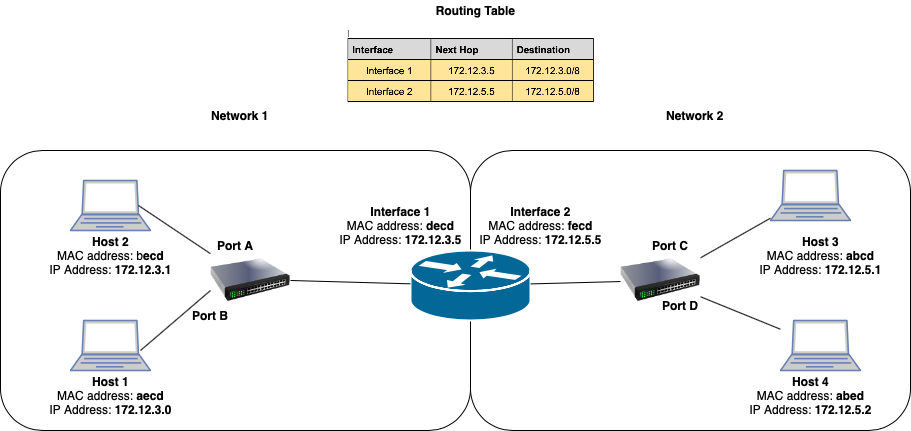
Scenario: You type “www.google.com” into your browser and press Enter.
Step 1: Your Request is Created
Your browser creates a request asking Google’s servers for the search homepage.
Step 2: Request is Broken into Packets
Your request is too large to send all at once, so it’s broken into small pieces called packets. Think of it like mailing multiple letters instead of one huge package.
Example:
textEntire Request: "Get me the Google search homepage"
Broken into Packets:
Packet 1: [Part 1 of request] → Destination: 172.217.6.46
Packet 2: [Part 2 of request] → Destination: 172.217.6.46
Packet 3: [Part 3 of request] → Destination: 172.217.6.46
Step 3: Packets Travel Through Routers
Each packet travels through multiple routers (network devices) on its way to Google’s servers.
Routers’ Job: Read the packet’s destination address and forward it closer to the target, like a post office reading addresses and routing mail.
textYour Home Router
     ↓ (reads destination address)
ISP's Router
     ↓ (reads destination address)
Internet Backbone Router
     ↓ (reads destination address)
Another ISP's Router
     ↓ (reads destination address)
Google's Router
     ↓ (delivers to Google's servers)
Step 4: Packets Reassemble
When all packets reach Google’s servers, they’re reassembled into the complete request.
Step 5: Server Responds
Google’s servers process your request and create a response (the search page).
Step 6: Response Breaks Into Packets
Google’s response (the search page) is again broken into packets.
Step 7: Response Packets Travel Back
These packets travel back through routers to your home.
Step 8: Packets Reassemble Again
Your browser reassembles all the packets into a complete webpage.
Step 9: You See the Result
The Google search page appears in your browser.
Total Time: Usually less than 1 second for the entire journey!
Why Packets?
You might wonder why data is broken into packets instead of sent all at once.
Advantages of Packets:
| Advantage | Benefit | Example |
|---|---|---|
| Parallel Paths | Multiple packets can take different routes simultaneously | Faster overall delivery |
| Resilience | If one packet is lost, resend just that one, not everything | Only tiny data loss |
| Shared Network | Many communications can share network links | Efficient use of bandwidth |
| Error Handling | Check each packet for corruption independently | High reliability |
| Dynamic Routing | Packets reroute around congestion automatically | Avoids bottlenecks |
Real-World Impact: If your internet connection is interrupted briefly while downloading a movie, only a small portion needs to be resent, not the entire file. Packets make this possible.
Device Addresses—How Computers Find Each Other
For packets to travel correctly, computers need addresses. But there are two types of addresses, and understanding both is crucial.
MAC Address—Physical Identity
What is a MAC Address? A unique serial number burned into your device’s network card during manufacturing.
Full Name: Media Access Control address
Characteristics:
- Permanent (doesn’t change)
- Physical (built into hardware)
- Identifies the physical device
- Local network use (doesn’t route across internet)
Format: 48-bit address (usually displayed as 6 pairs of hexadecimal numbers)
Example: 00:1A:2B:3C:4D:5E
Analogy: Your MAC address is like your name—it’s your permanent identity.
Where MAC Addresses Work:
- Your home network: Your router knows all device MAC addresses
- Local network: Computers in same building
- Does NOT route across internet
IP Address—Logical Location
What is an IP Address? A logical address assigned to your device when it connects to a network.
Characteristics:
- Assignable (can change)
- Logical (assigned by software)
- Identifies the device’s network location
- Routes across internet worldwide
Analogy: Your IP address is like your home address—it tells the world where to send information.
Why Both Are Needed:
textMAC Address: Finds your physical device on a local network
IP Address: Routes to the correct network across the internet

Example:
Your router knows your phone's MAC address: 00:1A:2B:3C:4D:5E
But Google's servers know your IP address: 203.0.113.45

The internet uses IP addresses to route packets globally
Your local network uses MAC addresses for local delivery
IPv4—The Old Standard (Running Out)
Current Standard: Most internet still uses IPv4
Format: Four numbers (0-255) separated by periods
Examples:
text192.168.1.1 (common home router address)
8.8.8.8 (Google's DNS server)
172.217.6.46 (Google's website server)
Total Addresses: IPv4 allows approximately 4.3 billion unique addresses.
The Problem: The world has more than 4.3 billion devices connected to the internet, and growing rapidly!
Result: We’re running out of IPv4 addresses.
What Happened:
- 1980s: IPv4 created, seemed like unlimited addresses
- 2011: IPv4 address pool officially exhausted
- Today: Address recycling and NAT techniques keep IPv4 working
IPv6—The New Standard (Virtually Unlimited)
Future Standard: IPv6 was created to solve IPv4’s limitations.
Format: Eight groups of four hexadecimal digits (0-9 and A-F)
Examples:
2001:0db8:85a3:0000:0000:8a2e:0370:7334 (full form)
2001:db8:85a3::8a2e:370:7334 (shortened)
::1 (localhost, even shorter)
Total Addresses: IPv6 allows approximately 340 undecillion addresses (340 trillion trillion trillion).
Enough for: Every person on Earth could have a billion devices with unique IP addresses each.
Current Adoption: IPv6 is slowly being adopted globally but still has lower adoption than IPv4.
| Feature | IPv4 | IPv6 |
|---|---|---|
| Address Space | 4.3 billion | 340 undecillion |
| Current Use | ~95% of internet | ~5% growing |
| Address Format | 32-bit | 128-bit |
| Example | 192.168.1.1 | 2001:db8::1 |
| Status | Mature, running out | Future standard |
For Your Career: You’ll work with IPv4 primarily today, but understanding IPv6 is important for future-proofing.
NAT—Network Address Translation
Problem: Your home has multiple devices (phone, laptop, tablet) but your ISP gives you one public IP address.
Solution: NAT (Network Address Translation)
How NAT Works:
Your router acts as a “receptionist”:
- Multiple devices inside your home: Private IP addresses (192.168.x.x)
- Router’s outward-facing address: One public IP address
- Router tracks which device sent which request
- Response comes back to router’s public IP
- Router forwards response to correct device
Real-World Example:
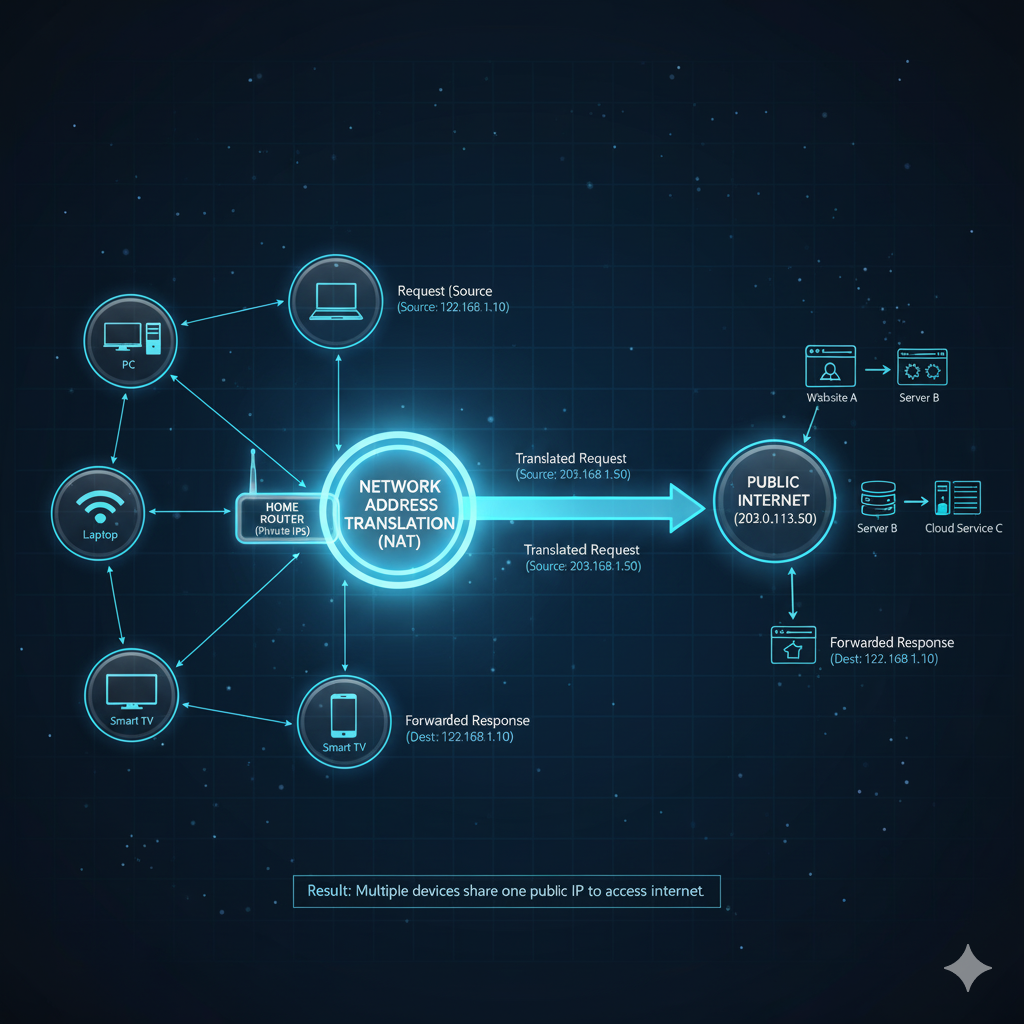
Your Home Network:
Phone:   192.168.1.5
Laptop:  192.168.1.10
Tablet:  192.168.1.15

Public Internet sees: 203.0.113.45 (your home's public IP)

When phone requests data:
Phone (192.168.1.5) → Request out → Router adds public IP (203.0.113.45)
Server responds to: 203.0.113.45 → Router receives → Routes to phone (192.168.1.5)

Result: Server thinks it's communicating with one address
Actually, it's communicating with multiple devices through one IP
Why This Matters: NAT lets your router manage multiple devices over one internet connection. Without it, each device would need its own public IP address, and we’d run out even faster.
Private IP Address Ranges (reserved for internal networks only):
192.168.0.0 to 192.168.255.255
10.0.0.0 to 10.255.255.255
172.16.0.0 to 172.31.255.255
Critical Network Protocols—The Rules of Communication
For the internet to work, all computers must follow the same communication rules. These rules are called protocols.
What is a Protocol?
Protocol: A set of rules that define how communication happens.
Real-World Analogy: Phone call protocols
- Pick up phone (connect)
- Dial number (address)
- Person answers (acknowledge)
- Speak (transmit data)
- Listen (receive data)
- Say goodbye (disconnect)
Both people follow the same rules for communication to work.
TCP/IP—The Foundation of the Internet
TCP/IP is the fundamental protocol suite of the internet. Almost everything uses it.
Two Protocols Working Together:
| Protocol | Layer | Function | Role |
|---|---|---|---|
| IP (Internet Protocol) | Network Layer | Routes packets to correct address | “Where it goes” |
| TCP (Transmission Control Protocol) | Transport Layer | Ensures reliable delivery | “How it gets there reliably” |
IP’s Job—Routing Packets:
- Reads destination IP address on packet
- Determines next hop (next router)
- Forwards packet toward destination
- Doesn’t guarantee delivery (best effort)
TCP’s Job—Reliable Delivery:
- Ensures all packets arrive
- Reassembles packets in correct order
- Detects lost packets and requests resend
- Provides error checking
- Ensures data integrity
Why Both Are Needed:
IP is like: Sending a postcard (best effort, may get lost)
TCP is like: Sending registered mail (guaranteed delivery, tracking)

Together: Reliable delivery of data across internet
Real-World Analogy:
IP: A mail carrier who knows routes and addresses but doesn't verify delivery
TCP: The postal service that tracks packages and verifies arrival

IP: "I'll try to get this packet to that IP address"
TCP: "Did it arrive? If not, send it again. Make sure it's in order"
DNS—The Phonebook of the Internet
Problem: You want to visit “google.com” but servers only understand IP addresses like “172.217.6.46”.
Solution: DNS (Domain Name System) — The internet’s phonebook.
What DNS Does:
Translates human-readable domain names into machine-readable IP addresses.
How DNS Works:
You type: google.com
↓
DNS Lookup: What's the IP address for google.com?
↓
DNS Server responds: 172.217.6.46
↓
Your browser connects to: 172.217.6.46
↓
You see Google's website
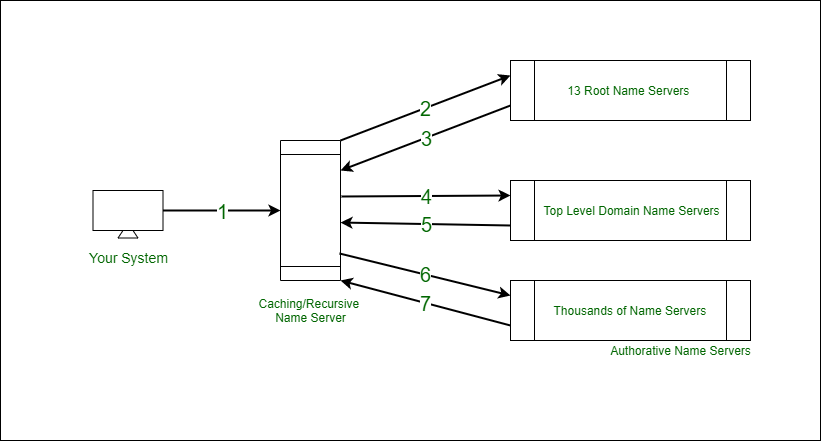
DNS Query Process:
- Your Computer Asks: “What’s the IP for google.com?”
- Local DNS Resolver (usually your ISP’s DNS): “Let me check…”
- Root Nameserver: “I don’t know, ask the .com server”
- TLD Server (.com): “I don’t know google specifically, ask Google’s nameserver”
- Google’s Nameserver: “The IP is 172.217.6.46”
- Response Travels Back: Through the chain
- Your Computer Gets: “172.217.6.46”
- Browser Connects: To that IP address
DNS Records:
| Record Type | Purpose | Example |
|---|---|---|
| A | IPv4 address | google.com → 172.217.6.46 |
| AAAA | IPv6 address | google.com → 2607:f8b0:4004:801… |
| MX | Mail server | gmail.com → mail.google.com |
| CNAME | Alias | www.google.com → google.com |
| TXT | Text data | Verification records |
DNS Caching:
Once you look up a domain, the result is cached (stored temporarily) so future lookups are instant.
Troubleshooting Tip—DNS Problems
Symptom: You can’t access a website by name, but it works when you use the IP address directly.
Diagnosis: DNS problem
Why:
- Your network connection works (you reached by IP)
- The website is online (you accessed by IP)
- The problem is DNS lookup failed
Common Causes:
- ISP’s DNS server is down
- Local DNS cache corrupted
- Domain name misspelled
- Domain expired or misconfigured
Quick Fix:
- Try a different DNS server (8.8.8.8 = Google’s DNS)
- Clear DNS cache on your computer
- Wait a few minutes (DNS settings propagate)
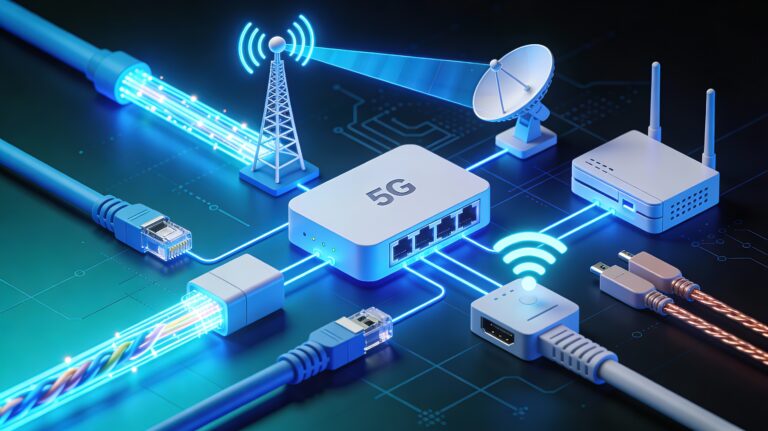
Connecting to a Network—The Physical Layer
Data travels through a network using physical connections. Let’s explore the options.
Ethernet Cable—Stable and Fast
What It Is: A physical cable that connects your device to a network.
Characteristics:
- Most reliable connection
- Fastest speeds available
- Doesn’t degrade with distance (to a limit)
- Cannot move around (tethered)
Speed Examples:
- Ethernet 1.0: 10 Mbps (1990s)
- Ethernet 10: 100 Mbps (2000s)
- Ethernet 100: 1 Gbps (modern standard)
- Ethernet 1000: 10 Gbps (high-end)
Common Use:
- Home internet connection
- Office networks
- Data centers
- Gaming setups (for best performance)
Advantage: Best for consistency and speed
Disadvantage: Can’t move around; requires physical connection
Wi-Fi—Wireless Convenience
What It Is: Wireless connection using radio waves.
Characteristics:
- Wireless (move anywhere in range)
- Convenient for multiple devices
- Slower than wired Ethernet
- Can be affected by interference
Speed Examples:
- Wi-Fi 4 (802.11n): ~150 Mbps
- Wi-Fi 5 (802.11ac): ~1 Gbps
- Wi-Fi 6 (802.11ax): ~10 Gbps
Common Use:
- Home networks (phones, laptops, tablets)
- Mobile devices
- IoT devices (smart home)
- Temporary locations (hotels, coffee shops)
Advantage: Wireless freedom
Disadvantage: Slower, more interference-prone, more power-consuming
Fiber Optic Cable—The Future
What It Is: Uses light pulses to transmit data through thin glass or plastic cables.
Characteristics:
- Extremely fast (fastest available)
- Very long distance capability
- Immune to electromagnetic interference
- More expensive than copper cables
- Becoming more common
Speed Examples:
- 1 Gbps to 100 Gbps+ currently
- 400+ Gbps theoretical
Common Use:
- Long-distance internet backbone
- Undersea cables connecting continents
- Large data centers
- Modern high-speed ISP deployments
Advantage: Blazing fast speeds, no interference
Disadvantage: Expensive, specialized equipment needed
| Connection Type | Speed | Distance | Cost | Mobility |
|---|---|---|---|---|
| Ethernet | Very Fast | Limited | Low | No |
| Wi-Fi | Medium | Medium | Low | Yes |
| Fiber Optic | Extremely Fast | Very Long | High | No (infrastructure) |
Network Hardware Devices—The Infrastructure
Various devices work together to build a network. Let’s explore the key ones.
Router—Network Gateway
What It Does: Connects different networks together and routes traffic between them.
Key Responsibility: Decides where each packet should go next.
Real-World Analogy: Mail sorting center that routes mail to the correct post office.
Common Routers:
- Home router (connects your home to ISP)
- ISP router (connects ISP network to internet backbone)
- Data center router (connects data center to other networks)
Functions:
- Reads destination IP addresses
- Determines best path
- Forwards packets
- Manages NAT (home routers)
- Provides Wi-Fi broadcasting (home routers)
Example – Home Router:
Your Devices → Home Router → ISP Network → Internet
           ↑                                    ↓
      Local Network                      Wider Internet
Key Point: Your home router is your gateway to the internet. It decides where to send your traffic.
Switch—Local Network Connection
What It Does: Connects multiple devices within the same network and sends data to the correct device.
Key Responsibility: Intelligently forwards data only to the device that needs it.
Real-World Analogy: Telephone switchboard connecting multiple phone lines.
How Switches Work:
Computer A sends data to Computer B (same network)
Switch reads MAC address on packet
Switch forwards to correct port (Computer B's port)
Only Computer B receives the data

Compare to Hub (older):
Hub broadcasts to ALL ports
Inefficient and slower
Switches vs. Hubs:
| Feature | Switch | Hub |
|---|---|---|
| Intelligence | Smart (learns MAC addresses) | Dumb (broadcasts everything) |
| Efficiency | High (sends only to target) | Low (sends to everyone) |
| Performance | Fast (no collisions) | Slow (lots of interference) |
| Status | Modern standard | Legacy/obsolete |
Where Switches Are Used:
- Office networks
- Data centers
- Buildings connecting devices
- Any scenario with multiple wired devices
Hub—The Outdated Option
What It Does: Connects devices and broadcasts to all of them (very inefficient).
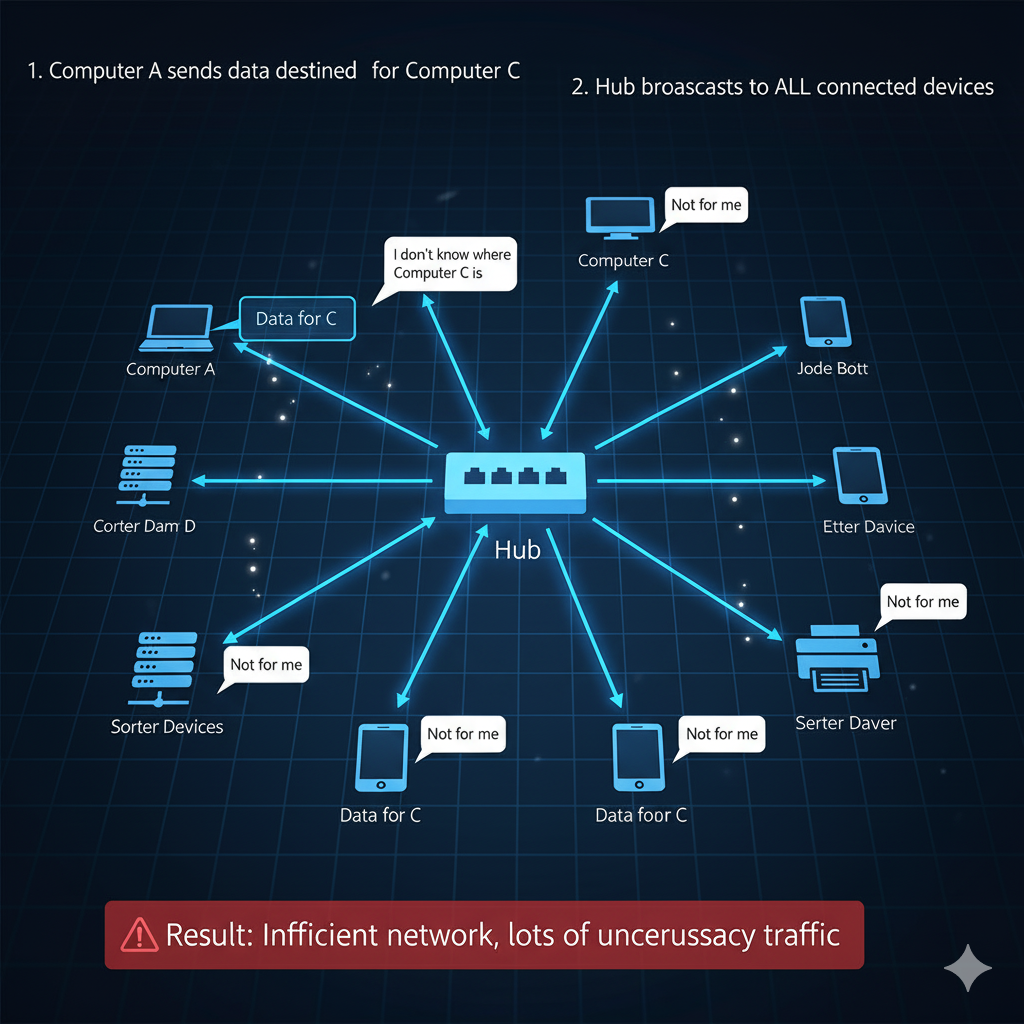
How Hubs Work:
Computer A sends data destined for Computer C
Hub: "I don't know where Computer C is"
Hub broadcasts to ALL connected devices
All devices receive the data
All devices check: "Is this for me?"
Computer C: "Yes, this is mine"
Computer A, B, D, E: "Not for me"

Result: Inefficient network, lots of unnecessary traffic
Why They’re Obsolete:
- Switches are faster and cheaper
- Hubs waste network bandwidth
- Performance degradation with more devices
- No modern networks use hubs
Why Know About Them: Understanding hubs helps you understand why switches are better and how network devices work.
The Impact and Future of the Internet
The internet isn’t just a technical system—it’s transforming society.
Globalization Through Connection
Impact: The internet has connected the world, changing:
- Business: Global commerce, remote work, outsourcing
- Communication: Instant worldwide contact, video calls, social media
- Social Movements: Organized activism, information sharing, social change
Example: Someone in India can instantly communicate with someone in Brazil, work with someone in Germany, and watch a movie from Japan—all simultaneously.
Internet of Things (IoT)—Everything Connected
Concept: Everyday devices connected to the internet to become “smart.”
Examples:
- Smart Thermostats: Learn your preferences, optimize heating/cooling
- Connected Cars: Navigation, diagnostics, autonomous driving
- Smart Home Devices: Lights, locks, security cameras controlled remotely
- Wearables: Fitness trackers, health monitors sending data to cloud
- Agricultural IoT: Sensors monitoring soil, crops, weather
- Industrial IoT: Machines reporting diagnostics, predicting failures
Impact: Billions of devices now connect to the internet, creating massive data streams.
Challenge: Security becomes critical when everything is connected.
Privacy and Security—Everyone’s Responsibility
Reality: As more data moves online, protecting it becomes essential.
Key Concerns:
- Personal data collection and privacy
- Cyberattacks and breaches
- Identity theft and fraud
- Ransomware and malware
Important Shift: Security is no longer just the responsibility of specialists—it’s everyone’s responsibility.
What This Means:
- Use strong passwords
- Keep software updated
- Be suspicious of phishing
- Understand privacy settings
- Think before sharing personal information
Real-World Impact—WannaCry Attack
Event: May 2017 global cyberattack
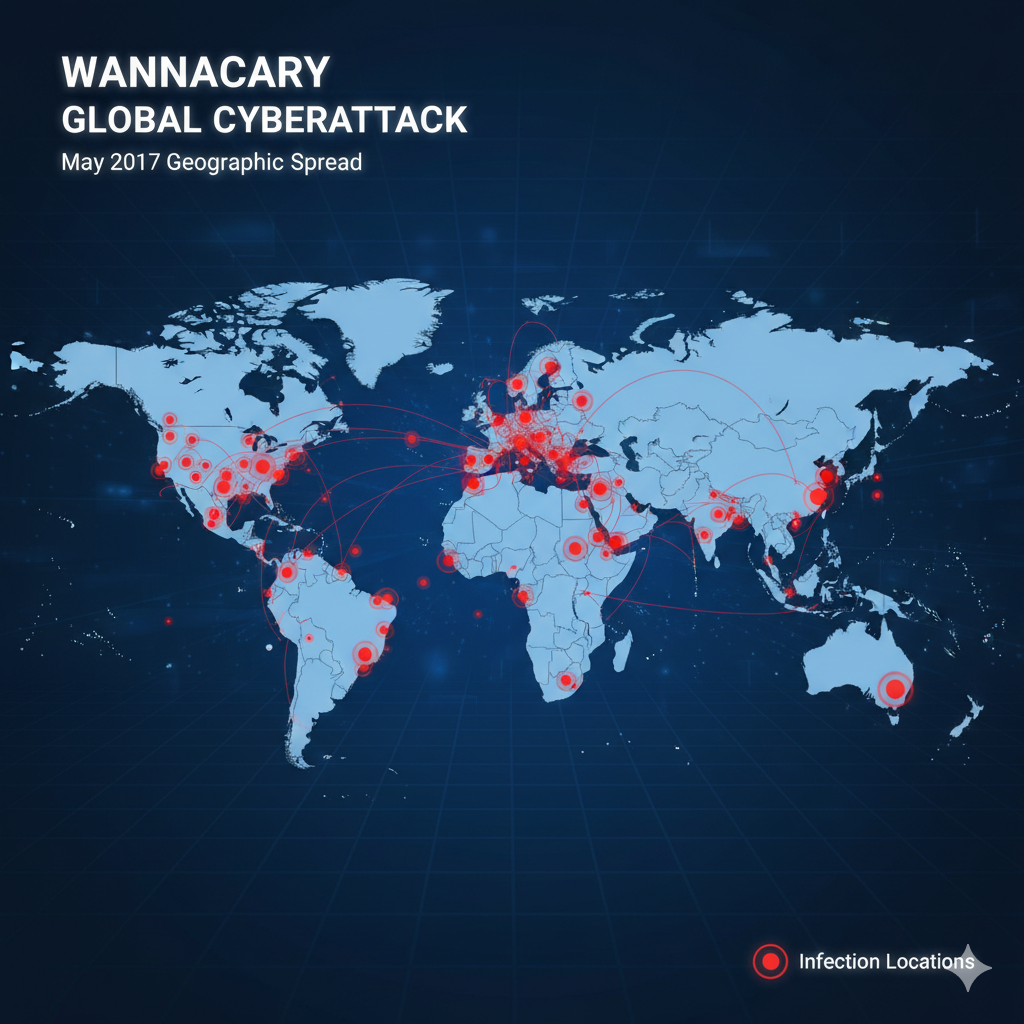
What Happened:
- WannaCry ransomware spread worldwide
- Infected hundreds of thousands of computers
- Particularly hit healthcare systems (hospitals, clinics)
- Attackers demanded payment to unlock files
- Caused billions of dollars in damage
Why It Spread:
- Exploited Windows vulnerability
- Computers hadn’t applied security updates
- Spread automatically across networks
- Attacked through internet connections
Impact:
- Hospitals couldn’t access patient records
- Surgeries delayed
- Emergency care disrupted
- Lives affected directly
Lesson: Cybersecurity isn’t theoretical—it has real, immediate impacts on people’s lives.
Why This Knowledge Matters for Your Career
Essential for IT and Cloud Engineering
If you’re pursuing IT, System Administration, or Cloud Engineering, networking knowledge is non-negotiable.
You’ll Work With:
- IP Addresses: Constant daily work assigning, troubleshooting, and managing IP addresses
- DNS: Diagnosing why websites aren’t resolving, configuring DNS servers
- Routers: Setting up, configuring, troubleshooting routing between networks
- Network Connectivity: Ensuring systems can reach each other
- Cloud Networking: Everything in cloud is networked
Real-World Scenarios You’ll Encounter:
Scenario 1: "Users can't access the database server"
Your job: Check IP address, test DNS, verify network connectivity

Scenario 2: "New office branch needs internet"
Your job: Set up routers, configure NAT, ensure connectivity

Scenario 3: "Cloud service not responding"
Your job: Troubleshoot network connections, check firewall rules, verify routing

Scenario 4: "Website loading slowly"
Your job: Analyze network traffic, identify bottlenecks, optimize connectivity
The Networking Foundation
TCP/IP and DNS are absolutely essential. They’re the foundation everything else builds on.
In IT Careers:
- CompTIA Network+ certification tests this knowledge
- Interview questions almost always include networking concepts
- Day-to-day troubleshooting requires this understanding
- Cloud platforms (AWS, Azure, GCP) are entirely network-based
Career Impact: Strong networking skills significantly increase job prospects and earning potential.
Start Building Your Network Knowledge
Immediate Actions:
- Understand Your Home Network
- Open network settings on your computer
- Find your IP address
- Ping your router
- Access your router’s admin page (usually 192.168.1.1)
- Explore its settings
- Practice DNS Lookups
- Use
nslookupordigcommand - Look up domain names:
nslookup google.com - See the IP addresses returned
- Try different DNS servers
- Use
- Learn Basic Network Tools
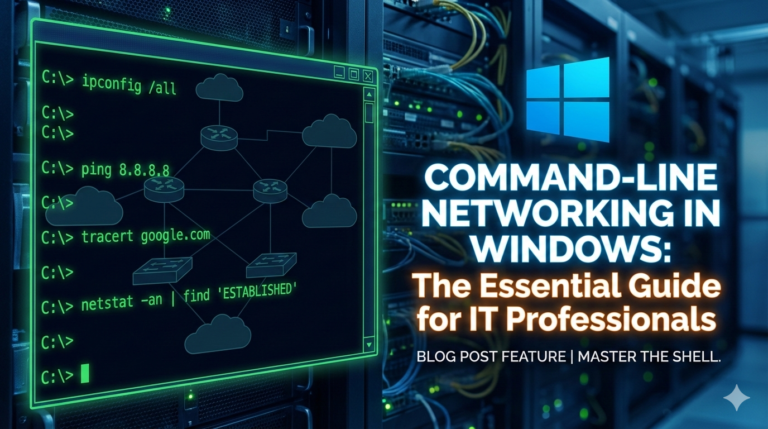
ping: Test connectivityipconfig(Windows) orifconfig(Mac/Linux): View IP infotracert(Windows) ortraceroute(Mac/Linux): See packet pathnetstat: View network connections
- Visualize Network Flow
- Draw your home network
- Label devices with IP addresses
- Show how traffic flows to internet
- Understand your router’s role
- Read About Real Attacks
- Study the WannaCry attack
- Learn how ransomware spreads over networks
- Understand why network security matters
Key Takeaways
- Internet vs. Web: The internet is the physical infrastructure; the web is information accessed over it.
- Client-Server Model: Clients request data; servers provide it. This is how all internet communication works.
- ISPs Are Gateways: Internet Service Providers connect you to the internet and route your traffic.
- Packets Travel the Internet: Data is broken into small packets that travel through multiple routers to reach their destination.
- Two Types of Addresses: MAC addresses identify devices locally; IP addresses route globally.
- IPv4 vs IPv6: IPv4 (current) is running out of addresses; IPv6 (future) provides virtually unlimited addresses.
- NAT Enables Multiple Devices: One router can connect multiple devices to the internet using one public IP address.
- TCP/IP is the Foundation: TCP handles reliability; IP handles routing. Together they’re the internet’s core protocol.
- DNS Translates Addresses: DNS converts human-readable domain names into machine-readable IP addresses.
- Three Connection Types: Ethernet (fast, wired), Wi-Fi (wireless), and Fiber Optic (extremely fast).
- Network Devices Have Roles: Routers connect networks; switches intelligently connect devices locally.
- Everything is Connected: IoT and cloud computing mean almost everything now connects to the internet.
- Security is Everyone’s Job: Cyberattacks like WannaCry show that network security affects everyone.
- Networking is Essential for IT: TCP/IP and DNS knowledge are non-negotiable for IT careers.
- Start With Your Own Network: Understanding your home network is the best way to learn these concepts.
Practical Action Plan—Your Next 30 Days
Week 1—Understand Your Network
Tasks:
- Find your device’s IP address
- Find your router’s IP address
- Access your router’s admin page
- Understand your home network diagram
Time Commitment: 2-3 hours
Week 2—DNS and Name Resolution
Tasks:
- Learn how DNS works
- Practice nslookup command
- Look up multiple domains
- Understand DNS propagation
Time Commitment: 2-3 hours
Weeks 3-4—Tools and Troubleshooting
Tasks:
- Master ping, ipconfig, traceroute
- Understand what each command shows
- Practice troubleshooting scenarios
- Simulate network problems
Time Commitment: 3-4 hours
Success Indicator: You can explain how data travels from your computer to google.com, including every step and device involved.
Conclusion
The internet is a marvel of human engineering—a global network connecting billions of devices, enabling instant communication, commerce, and collaboration worldwide.
Understanding how this system works is no longer specialized knowledge for network engineers—it’s fundamental knowledge for anyone working in technology. Whether you’re troubleshooting why a website isn’t loading, configuring cloud infrastructure, or managing a corporate network, networking fundamentals will serve you daily.
The good news: Networking concepts aren’t complicated. Packets traveling through routers, IP addresses directing traffic, DNS translating names—these are straightforward concepts once understood. Start with your own home network, experiment with network tools, and gradually build deeper knowledge.
Your investment in understanding networking will directly translate to better career opportunities, higher compensation, and the ability to troubleshoot problems that would otherwise baffle you. The internet underlies everything in modern technology. Master it, and you’ve mastered something fundamental.
Additional Resources and Next Steps
To Deepen Your Networking Knowledge:
- Study TCP/IP protocol stack in detail
- Learn about DNS security and DNSSEC
- Explore network routing algorithms
- Understand NAT and port forwarding
- Study firewalls and network security
Hands-On Practice:
- Set up your own home lab with virtual networks
- Use Cisco Packet Tracer for network simulation
- Practice with GNS3 (network emulator)
- Configure routers and switches
- Set up DNS servers
Useful Tools and Software:
- Wireshark: Capture and analyze network traffic
- Packet Tracer: Cisco’s network simulation tool
- GNS3: Network emulator
- Nmap: Network scanning and discovery
- tcpdump: Command-line packet capture
Certifications Building on This Foundation:
- CompTIA Network+ (essential for IT careers)
- Cisco CCNA (more advanced networking)
- Linux Networking courses
- AWS Networking specialty
Courses to Consider:
- CompTIA Network+ prep course
- Cisco Networking Fundamentals
- Udemy networking courses
- Coursera networking specializations
Recommended Reading:
- “Computer Networking: A Top-Down Approach” (textbook)
- RFC 791 (Internet Protocol specification)
- RFC 1035 (DNS specification)
- “Networks and the Internet” series on YouTube