Master the core components that power every computer—from personal devices to enterprise infrastructure
Meta Information
Learn the essential computer hardware components: CPU, RAM, storage, and motherboard. This guide covers how they work together for IT professionals and students.
Audience: IT professionals, career changers, students, developers, tech enthusiasts
Reading Time: 12-15 minutes
Difficulty Level: Beginner to Intermediate
Introduction
Understanding computer hardware is foundational to any IT career. Whether you’re troubleshooting a slow workstation, planning a hardware upgrade, or preparing for an IT certification exam, knowing how computer components work together is essential. This guide breaks down the core hardware components that power modern computers—from smartphones to data center servers—and explains how they function as an integrated system.
Key Takeaway: Compatibility between hardware components is the foundation of IT troubleshooting and system building.
The Four Core Components of a Computer
Think of a computer like a human body: each component serves a specific, critical function, and they must work together seamlessly for the entire system to function.
CPU—The Brain
The Central Processing Unit (CPU) executes all calculations and data processing. It reads instructions from memory one at a time and performs operations based on those instructions.
Key Characteristics:
- Clock Speed: Measured in gigahertz (GHz). A 3.4 GHz processor performs 3.4 billion cycles per second. Higher clock speeds generally mean faster processing.
- Cores: Modern CPUs have multiple cores, allowing them to handle different tasks simultaneously. Think of it as having multiple brains working in parallel.
- Cache: The CPU’s ultra-fast personal workspace (L1 > L2 > L3, where L1 is fastest but smallest).
RAM—The Short-Term Memory
Random Access Memory (RAM) temporarily stores data for quick access while the computer operates. It is volatile—all data is erased when power is cut.
Critical Characteristics:
- Volatile memory (loses data without power)
- DDR SDRAM is the modern standard (DDR4 and DDR5 are current versions)
- Must be compatible with the motherboard
Storage (HDD/SSD)—The Long-Term Memory
Storage devices hold your operating system, programs, and files permanently. Unlike RAM, storage is persistent—data remains even after shutdown.
Two Main Types:
- HDD (Hard Disk Drive): Uses spinning magnetic platters and mechanical arms. More affordable for large capacities.
- SSD (Solid State Drive): Uses flash memory with no moving parts. Significantly faster, more durable, and power-efficient.
Motherboard—The Skeleton and Nervous System
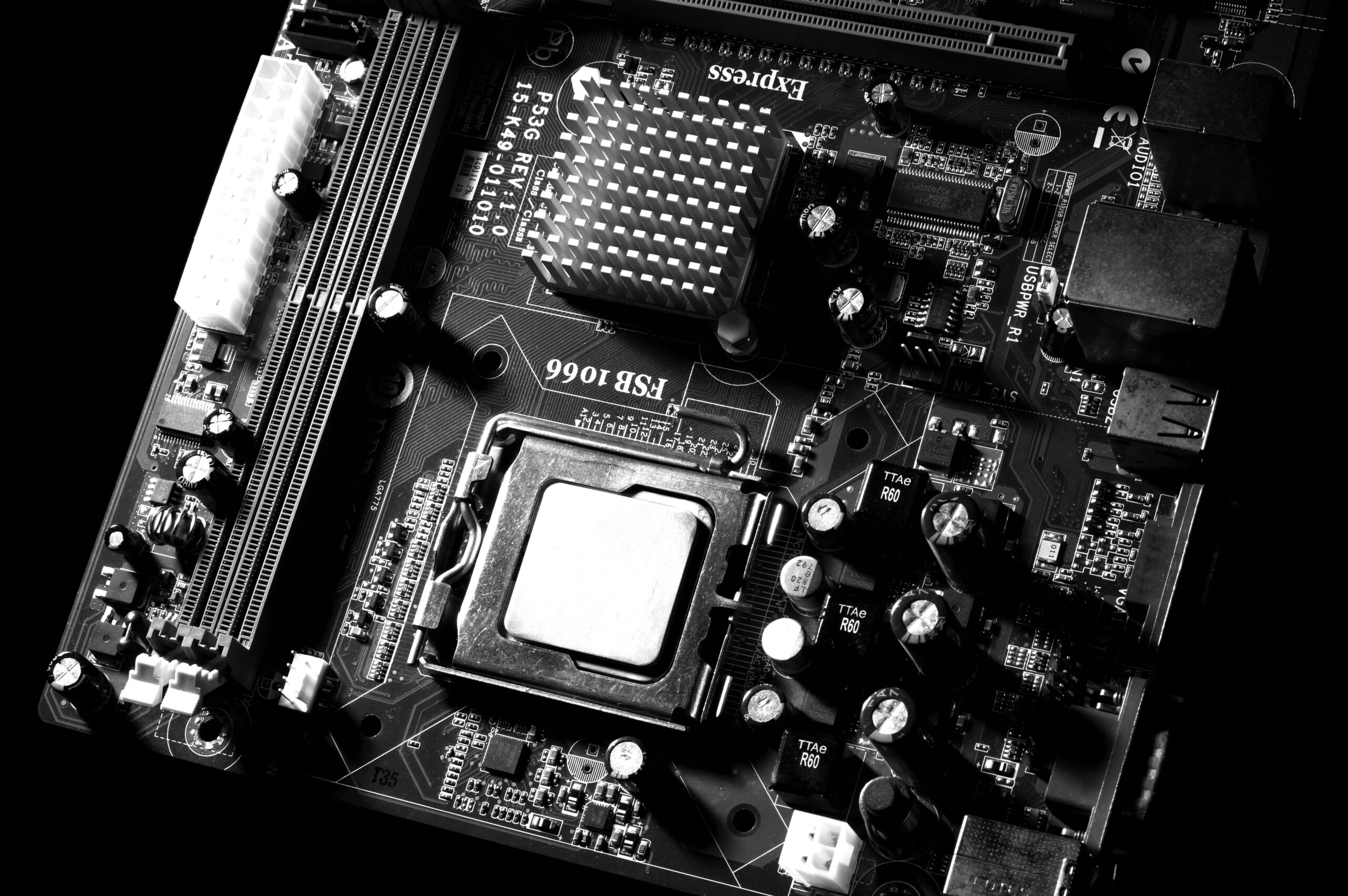
The motherboard connects all components and enables communication between them. It houses the CPU socket, RAM slots, storage connectors, and expansion slots.
The Chipset divides into two parts:
- Northbridge: Manages communication between CPU, RAM, and graphics
- Southbridge: Handles input/output (USB, storage, networking)
How Data Flows Through a Computer System
Understanding data flow is critical for troubleshooting and optimization. Here’s the journey:
Restaurant Analogy:
- Hard Drive: The cookbook storing all recipes (programs)
- RAM: The kitchen counter where active recipes are copied for quick access
- CPU: The chef reading and executing one instruction at a time
- External Data Bus (EDB): The waiter carrying instructions from RAM to the CPU
- Memory Controller Chip (MCC): The manager who retrieves the right instruction from RAM
IMAGE PLACEMENT: Insert a diagram showing the flow of data from storage → RAM → CPU with labeled arrows
The Process:
When you launch an application, the operating system copies the program from your hard drive into RAM. The CPU then reads instructions from RAM one at a time through the External Data Bus, executes them, and repeats the cycle thousands of times per second. The speed of this process determines your computer’s responsiveness and performance.
CPU Deep Dive—Understanding Processors
The CPU is arguably the most important component. Here’s what you need to know for IT support:
Clock Speed and Performance
Clock speed measures how many cycles (instructions) a processor can execute per second:
- 1 GHz = 1 billion cycles per second
- 3.4 GHz = 3.4 billion cycles per second
However, clock speed alone doesn’t determine performance. Modern CPUs with multiple cores at lower clock speeds may outperform older single-core processors running faster.
Cores and Multi-Threading
Modern CPUs feature multiple cores:
- Dual-Core: 2 processing units
- Quad-Core: 4 processing units
- Octa-Core and Beyond: 8+ processing units
Multiple cores allow your CPU to handle different tasks simultaneously, which is why modern systems with 8+ core processors remain responsive even under heavy workload.
Cache Hierarchy
CPU cache acts as ultra-fast temporary storage between the CPU and RAM:
| Cache Level | Speed | Size | Purpose |
|---|---|---|---|
| L1 Cache | Fastest | ~64KB | Immediate instruction access |
| L2 Cache | Very Fast | ~256KB-512KB | Backup for L1 |
| L3 Cache | Fast | ~8MB-16MB | Shared between cores |
| RAM | Slower | 8GB-64GB+ | Main memory storage |
CPU Overclocking—What You Need to Know
Overclocking forces a CPU to run faster than its rated speed. While technically possible, it carries significant risks:
Risks:
- Excessive heat generation
- Hardware damage and degradation
- Voids manufacturer warranty
- System instability and crashes
Recommendation: For IT support and professional environments, overclocking is not recommended. Rely on manufacturer specifications instead.
CPU Sockets—Compatibility is Everything
The CPU must be physically compatible with the motherboard socket:
| Socket Type | Description | Example Processors |
|---|---|---|
| LGA (Land Grid Array) | Pins on motherboard | Intel (many generations) |
| PGA (Pin Grid Array) | Pins on CPU | AMD Ryzen |
IT Principle: Always verify socket compatibility before purchasing a processor. A modern CPU cannot be installed on an old motherboard regardless of capability.
32-Bit vs. 64-Bit Architecture
Modern systems use 64-bit processors:
- 32-Bit: Can address up to 4GB of RAM
- 64-Bit: Can address vastly more RAM (practically unlimited for consumer use)
All modern operating systems and applications are 64-bit. You’ll rarely encounter 32-bit systems in professional IT environments.
RAM—Deep Dive into Random Access Memory
RAM directly impacts system performance and responsiveness. Understanding RAM is critical for troubleshooting slowness and planning upgrades.
Why RAM is Volatile
RAM loses all stored data when power is removed. This is why unsaved work disappears during a power failure. However, this volatility is actually a feature—it allows RAM to be cleared instantly and prepared for new data on every boot.
DDR SDRAM Standards
Modern RAM uses Double Data Rate Synchronous DRAM (DDR SDRAM):
Evolution:
- DDR2: Older standard, rarely used today
- DDR3: Common in systems built 2007-2012
- DDR4: Current standard (2013-present)
- DDR5: Latest standard, beginning widespread adoption
Each generation roughly doubles data transfer rates, providing better performance and efficiency.
RAM Compatibility
RAM compatibility is non-negotiable. Three factors must align:
- Type: Must match motherboard specification (DDR4 or DDR5)
- Speed: Listed in MHz (e.g., 3200MHz). Faster RAM offers marginal performance gains
- Capacity: Motherboard supports up to a maximum capacity (typically 32GB-128GB per slot)
IT Troubleshooting Tip: If a new RAM module doesn’t work, check the motherboard manual first. Installing incompatible RAM won’t damage components, but the system may not recognize or boot with the new module.
How Much RAM Do You Need?
| Use Case | Recommended RAM |
|---|---|
| Basic Office Work | 8GB |
| Light Development & Content Creation | 16GB |
| Heavy Multitasking & Video Editing | 32GB |
| Data Analysis & Virtual Machines | 64GB+ |
Storage Solutions—HDD vs. SSD
Storage devices hold your data permanently. The choice between HDD and SSD significantly impacts performance and reliability.
HDD (Hard Disk Drive)—Traditional Storage
How it Works: A spinning magnetic platter with a mechanical read/write arm stores data magnetically. The platter spins at 5,400-7,200 RPM, and the arm positions itself to read/write data.
Advantages:
- Lower cost per gigabyte
- Suitable for large storage capacity needs
- Proven technology with decades of history
Disadvantages:
- Slower than SSDs (mechanical components limit speed)
- More prone to failure from physical shock or drops
- Higher power consumption
- Audible noise during operation
SSD (Solid State Drive)—Modern Storage
How it Works: SSDs use flash memory (similar to USB drives) with no moving parts. Data is stored electronically.
Advantages:
- Much faster performance (10-100x faster than HDD)
- No moving parts = greater durability
- Lower power consumption (extends laptop battery life)
- Silent operation
- Better for portable devices
Disadvantages:
- Higher cost per gigabyte
- Limited write cycles (though practical lifespan is very long)
Storage Interfaces
The interface determines how fast data flows between storage and the system:
| Interface | Speed | Common Use | Connection |
|---|---|---|---|
| SATA | Up to 6 Gbps | HDDs and budget SSDs | 2.5″ form factor |
| NVMe (M.2) | Up to 24 Gbps | Modern SSDs | Plugs directly into motherboard |
Key Difference: NVMe SSDs connect directly to the motherboard and are 3-5x faster than SATA SSDs. They’re now the standard for new builds.
IMAGE PLACEMENT: Side-by-side comparison of HDD and SSD components with labels
The Motherboard—The Communication Hub
The motherboard is the nervous system of your computer. Every component connects to it, and it manages all communication.
Chipset Architecture
The chipset divides into two functional areas:
Northbridge (now integrated into CPU):
- Manages high-speed communication between CPU, RAM, and GPU
- Now integrated directly into modern processors
Southbridge:
- Manages I/O devices (USB, Ethernet, audio)
- Handles storage connections (SATA, NVMe)
- Slower but essential for peripheral communication
Expansion Slots (PCIe)
PCIe (PCI Express) slots allow you to add expansion cards:
Common Expansion Cards:
- Graphics Cards (GPUs)
- Wi-Fi/Networking Cards
- Sound Cards
- Capture Cards
- Storage Controllers
PCIe Versions:
- PCIe 3.0: 1GB/s per lane
- PCIe 4.0: 2GB/s per lane (current standard)
- PCIe 5.0: 4GB/s per lane (newer high-end boards)
Form Factors—Physical Size Matters
Motherboards come in different sizes to fit different cases:
| Form Factor | Size | Use Case | Expansion Slots |
|---|---|---|---|
| ATX | Full-size | Desktop towers | 7-8 slots |
| Micro-ATX | Mid-size | Compact builds | 4 slots |
| Mini-ITX | Small | Tiny cases, media centers | 1 slot |
Mobile Devices—Computer Power in Your Pocket
Smartphones and tablets contain the same core components as desktops but optimized for mobility.
System-on-Chip (SoC) Architecture
Mobile devices integrate all components (CPU, RAM, storage, GPU) onto a single chip:
Advantages:
- Extreme space efficiency
- Lower power consumption
- Better heat management
- Faster internal communication
Examples:
- Apple A17 Pro (iPhone)
- Qualcomm Snapdragon 8 Gen 3
- MediaTek Dimensity series
Mobile Battery Fundamentals
Mobile batteries are measured in charge cycles:
Key Concepts:
- Charge Cycle: One complete charge and discharge
- Typical Lifespan: 500-1,000 charge cycles (~2-3 years)
- Degradation: Battery capacity naturally decreases over time
Best Practices:
- Use the manufacturer’s recommended charger
- Mismatched chargers can damage the device or battery
- Enable battery saver mode for optimal longevity
BYOD (Bring Your Own Device) in IT Environments
Many organizations allow BYOD policies, where employees use personal devices for work.
Security Considerations:
- Always follow your organization’s security policies
- Use VPN for sensitive data
- Enable device encryption
- Keep software and OS updated
- Remote wipe capabilities if device is lost
Peripherals and Connectors
Peripherals extend your computer’s functionality. Understanding connector standards ensures compatibility and optimal performance.
USB Standards
USB (Universal Serial Bus) is the most common standard for connecting external devices:
| USB Standard | Connector Color | Speed | Transfer Rate |
|---|---|---|---|
| USB 2.0 | Black | Slow | 480 Mbps |
| USB 3.0 | Blue | Fast | 5 Gbps |
| USB 3.1/Type-C | Teal | Very Fast | 10 Gbps |
| USB 4.0 | Dark Teal | Ultra-Fast | 40 Gbps |
Key Point: The connector color indicates speed capability. Always check device requirements for data transfer speeds.
Display Connections
Modern displays use digital standards:
| Connector | Audio Support | Common Use | Note |
|---|---|---|---|
| HDMI | Yes | TVs, monitors, gaming | Most universal |
| DisplayPort | Yes | Professional displays | Higher bandwidth |
| USB-C | Yes | Laptops, portable displays | Reversible, multipurpose |
| DVI | No | Older monitors | Legacy standard |
| VGA | No | Legacy CRT monitors | Rarely used |
BIOS/UEFI and the Boot Process
The BIOS/UEFI is low-level software that initializes your hardware before the operating system loads.
What is BIOS/UEFI?
BIOS (Basic Input/Output System):
- Legacy standard, still found on older systems
- 16-bit architecture with limitations
- Being phased out
UEFI (Unified Extensible Firmware Interface):
- Modern replacement for BIOS
- 64-bit architecture, more flexible
- Faster boot times
- Better security features
The Boot Process Step-by-Step
- Power On: CPU and motherboard activate
- POST (Power-On Self-Test): BIOS/UEFI runs diagnostics on CPU, RAM, and storage
- Hardware Initialization: All connected components are initialized
- Boot Device Selection: System looks for bootable devices in order (specified in BIOS/UEFI)
- OS Loading: Selected drive’s bootloader loads the operating system
- System Ready: OS fully loaded and ready for user input
Beep Codes and Troubleshooting
If POST fails, the motherboard emits beep codes to indicate problems:
Common Beep Patterns:
- 1 beep: Normal POST completion
- 2 beeps (repeating): Memory error
- 1 long, 2 short: Graphics card error
- Continuous beeps: RAM not properly seated
IMAGE PLACEMENT: Boot process flowchart diagram
CMOS Battery and Settings
The CMOS is a small battery-backed chip that stores BIOS/UEFI settings:
What CMOS Stores:
- System date and time
- Boot device order
- Overclocking settings (if enabled)
- Power management settings
Why It Matters: If CMOS battery dies, settings revert to defaults. This is a common IT support issue with older systems.
IT Use Case—Reimaging Systems
A common task in IT support is reimaging (reinstalling OS on multiple machines):
Process:
- Enter BIOS/UEFI during boot (usually F2, Del, or F12)
- Change boot order to prioritize USB drive
- Insert Windows/Linux installation USB
- Boot from USB and proceed with OS installation
- Return boot order to hard drive after installation
Hardware Compatibility and IT Troubleshooting
This is the critical principle that ties everything together.
The Golden Rule of Hardware
Compatibility is everything. A modern component cannot work with incompatible hardware, regardless of performance specs. Before any upgrade or replacement, verify:
Compatibility Checklist:
- ✓ CPU Socket: CPU socket type matches motherboard
- ✓ RAM Type & Speed: RAM type matches motherboard specifications
- ✓ Power Supply Wattage: PSU provides sufficient power for all components
- ✓ Physical Space: Component fits in case (especially GPU length)
- ✓ BIOS/UEFI Support: Motherboard BIOS recognizes the component
Common Compatibility Issues and Solutions
Issue: New CPU doesn’t fit in socket
- Solution: Verify socket type. LGA and PGA are not interchangeable.
Issue: New RAM not recognized by system
- Solution: Check DDR version (DDR4 vs. DDR5). Reseat RAM firmly.
Issue: System won’t boot after adding new component
- Solution: Check PCIe slot compatibility. Reseat component. Update BIOS if necessary.
Issue: GPU takes up adjacent PCIe slot
- Solution: Use lower PCIe slot, or use PCIe riser card (for some applications).
When to Consult Manufacturer Documentation
Always consult the motherboard manual when:
- Upgrading any component
- Troubleshooting hardware issues
- Enabling advanced features
- Troubleshooting boot problems
The manual contains the definitive compatibility information for your specific board.
Practical Applications for IT Professionals
Understanding hardware helps you excel in various IT roles:
IT Support and Troubleshooting
Hardware knowledge enables you to:
- Diagnose performance issues quickly
- Recommend appropriate upgrades
- Plan hardware purchases cost-effectively
- Troubleshoot compatibility issues
System Building and Configuration
When building systems from scratch:
- Choose compatible components
- Ensure adequate power supply capacity
- Plan for future upgrades
- Consider thermal management and case airflow
Hardware Planning and Procurement
For teams managing multiple devices:
- Standardize on compatible components
- Plan refresh cycles
- Budget for future upgrades
- Consider total cost of ownership
Key Takeaways
- Core Components: CPU, RAM, storage, and motherboard are interdependent. Each must work seamlessly with the others.
- Data Flow Matters: Understanding how data moves from storage to RAM to CPU is fundamental to troubleshooting performance issues.
- Modern Standards: DDR4/DDR5 RAM, NVMe SSD storage, and 64-bit processors are now standard. Older technology should only be encountered in legacy systems.
- Compatibility is Non-Negotiable: A modern component cannot work with incompatible hardware. Always verify specifications before purchasing or installing.
- Mobile Devices are Computers Too: Smartphones and tablets use the same principles, just optimized for power efficiency and space constraints.
- Boot Process Basics: Understanding BIOS/UEFI and the boot process is essential for OS installation and troubleshooting startup issues.
- Continuous Learning: Hardware technology evolves. Stay updated on new standards (PCIe 5.0, DDR5, NVMe technology advances).
Conclusion
Computer hardware fundamentals are the foundation of IT careers. Whether you’re pursuing CompTIA A+, supporting users in a corporate environment, or building your own systems, this knowledge is indispensable.
The key principle is simple: understand how components work together and prioritize compatibility. This approach will guide you successfully through nearly any hardware scenario you encounter.
Start by building or troubleshooting a system yourself. Hands-on experience solidifies theoretical knowledge and builds the confidence you need for professional IT roles.
Additional Resources (Optional Section)
For Further Learning:
- CompTIA A+ Certification Guide
- Motherboard manual documentation (Intel, ASUS, MSI, Gigabyte)
- Manufacturer datasheets for components
- YouTube channels: Linus Tech Tips, JayzTwoCents, Paul’s Hardware
Next Steps:
- Practice identifying components in computers around you
- Familiarize yourself with motherboard layouts
- Read your motherboard manual thoroughly
- Build your first computer (or help troubleshoot existing ones)
