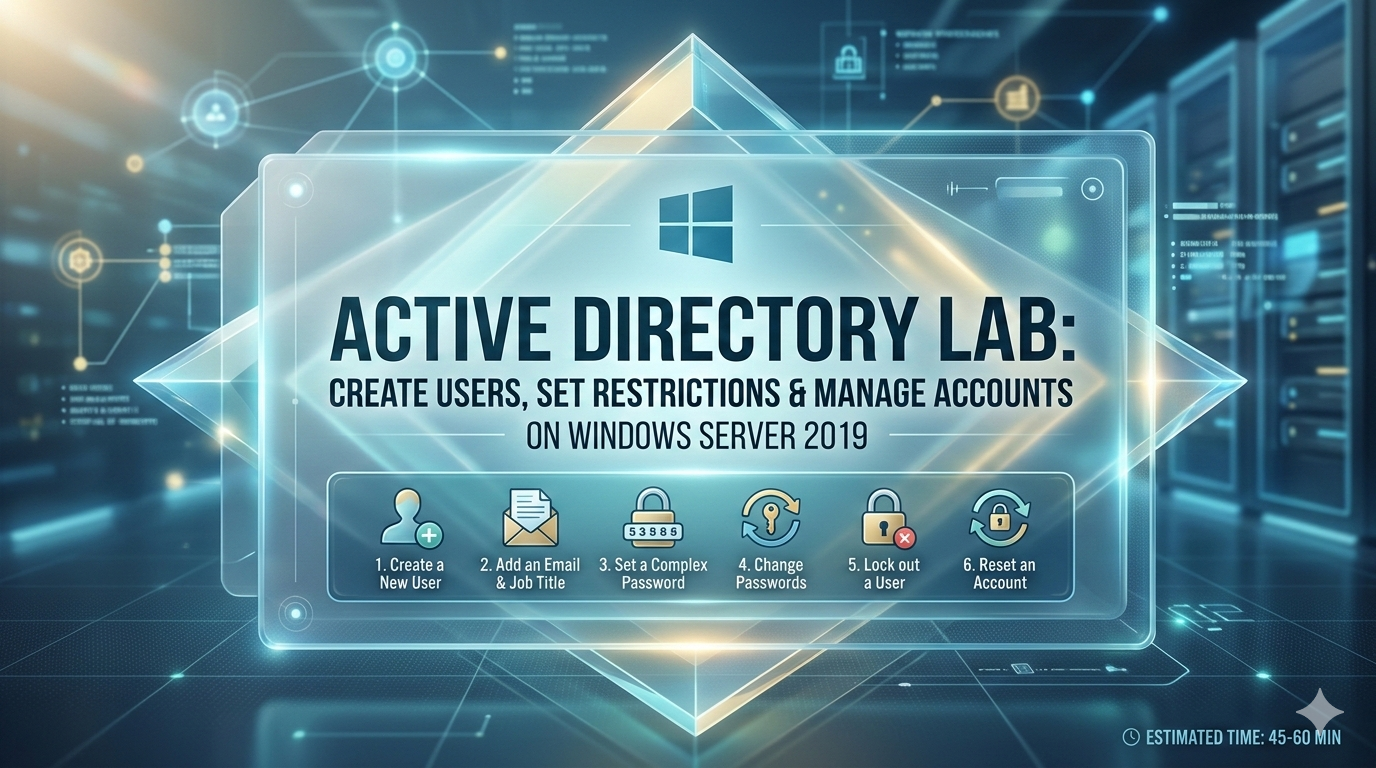
If you’ve just promoted your first Windows Server 2019 machine to a domain controller—or you’re preparing for the CompTIA A+, Network+, or Server+ certification—this is where theory becomes reality. Managing users in Active Directory (AD) is one of the most frequent tasks every IT support specialist and sysadmin performs daily, and the only way to truly learn it is to get your hands dirty in the console. This lab covers six essential Active Directory tasks with real-world scenarios you’ll actually encounter on the job. Estimated time: 45–60 minutes.
“Active Directory is not just a user database—it’s the security backbone of every Microsoft-based enterprise network.”
What You’ll Learn:
- Create a new Active Directory user with proper naming conventions
- Add a user to a security group and verify membership
- Restrict which computers a user can log on to
- Limit a user’s logon hours to enforce working-hours policies
- Reset a locked or forgotten user password
- Unlock, disable, and enable user accounts
🖥️ Prerequisites & Lab Environment
System Requirements:
- Windows Server 2019 (physical or VM via VirtualBox/VMware/Hyper-V)
- Active Directory Domain Services (AD DS) role installed
- Machine promoted to Domain Controller (DC)
- Logged in as Domain Administrator
Tools Used:
- Server Manager (opens automatically on login)
- Active Directory Users and Computers (ADUC) —
dsa.msc
💡 Tip: If you haven’t yet promoted your server to a domain controller, refer to the previous lab on installing AD DS before proceeding. All tasks in this lab assume a functional DC.
Lab Overview: Your 6 Tasks
Before reading the step-by-step instructions below, try each task on your own first. Real IT environments won’t give you a guide—building the habit of exploring consoles independently is the skill that separates good technicians from great ones.
✅ Challenge Yourself First: Read the task description, open your DC, and attempt it solo. Only scroll down to the instructions if you get stuck.
| Task | Objective |
|---|---|
| Task 1 | Create a new Active Directory user |
| Task 2 | Add the user to a security group |
| Task 3 | Restrict the user to specific computers |
| Task 4 | Limit the user’s logon hours |
| Task 5 | Reset the user’s password |
| Task 6 | Unlock, disable, and enable a user account |
Task 1 — Create a New Active Directory User
🎯 Your Challenge
Create a new domain user account inside the Users container in Active Directory. Use a proper naming convention: first initial + last name for the logon name (e.g., John Smith → jsmith). Set a temporary default password and require the user to change it at first login.
📋 Step-by-Step Instructions
Step 1: Open Active Directory Users and Computers
Server Manager → Tools → Active Directory Users and Computers
Step 2: Navigate to the Users Container
In the left pane, expand your domain name (e.g., lab.local) and scroll down until you see the Users container. Click on it to select it.
📷 [Suggested screenshot: Left pane of ADUC showing the expanded domain tree with the Users container highlighted]
Step 3: Create a New User
Right-click on the Users container → New → User
Step 4: Fill in User Information
In the New Object – User dialog that opens:
- First name:
Test - Last name:
User - User logon name:
tuser
💡 Naming Convention Best Practice: A standardized naming scheme (first initial + last name) lets you quickly locate any user in a directory of thousands. For example: John Smith =
jsmith, Maria Garcia =mgarcia. Apply this consistently for users, computers, servers, and printers.
Click Next.
Step 5: Set the Password
On the password page:
- Enter a temporary default password (e.g.,
Welcome1!orLetMeIn@123) - Check “User must change password at next logon” ✅
🔐 Security Note: Most AD environments enforce a complex password policy requiring at least 7 characters, upper and lowercase letters, at least one number, and one special character. Your default handoff password should meet these requirements.
Click Next.
Step 6: Confirm and Finish
Review the summary screen. If all information is correct, click Finish.
Your new user Test User (tuser) now appears in the Users container. 🎉
Task 2 — Add the User to a Security Group
🎯 Your Challenge
Open the newly created user’s properties and add them to the Administrators built-in group. Then verify the membership by navigating to the group itself using Advanced Features view.
📋 Step-by-Step Instructions
Step 1: Open User Properties
In the Users container, double-click on Test User to open their Properties dialog.
Step 2: Navigate to the Member Of Tab
Click the Member Of tab.
Step 3: Add the User to a Group
Click "Add" → In the search box, type "Administrators" → Click "Check Names" → OK
📷 [Suggested screenshot: Member Of tab showing Administrators group added]
Step 4: Apply Changes
Click Apply → OK.
⚠️ Security Warning: Adding standard users to the Administrators group is done here for lab learning only. In production environments, always apply the principle of least privilege—grant users only the permissions their role requires, nothing more. Over-privileged accounts are a primary attack vector in enterprise breaches.
Step 5: Verify Group Membership
View menu → Advanced Features
Now in the left pane, click Builtin → double-click Administrators → go to the Members tab.
You should now see Test User listed as a member. ✅
Task 3 — Restrict Which Computers a User Can Log On To
🎯 Your Challenge
Using the user’s Account tab, restrict Test User so they can only log on to a single computer named DC1. Then remove the restriction and return the account to its default setting (all computers allowed).
📋 Step-by-Step Instructions
Step 1: Open User Properties → Account Tab
Double-click Test User → click the Account tab.
Step 2: Click “Log On To”
Account tab → Click the "Log On To..." button
By default, the radio button reads “All computers” — meaning the user can authenticate from any machine on the domain.
Step 3: Restrict to Specific Computer
- Select the radio button: “The following computers”
- In the Computer name field, type:
DC1 - Click Add
📷 [Suggested screenshot: Logon Workstations dialog with DC1 added to the list]
Click OK.
💡 Real-World Use Case: Computer restrictions are commonly applied to service accounts, kiosk users, or contractor accounts that should only access designated workstations. A security guard’s account, for example, might be restricted to the lobby PC only.
Step 4: Remove the Restriction
To return to default (allow all computers):
- Highlight
DC1in the list → click Remove - Select the radio button: “All computers”
- Click OK → Apply → OK
The user can now log on from any domain computer again. ✅
Task 4 — Restrict User Logon Hours
🎯 Your Challenge
Restrict Test User from logging on between 7:00 PM and 12:00 AM (midnight) every day. Then go back in and restore full 24/7 access. Verify your settings after each change.
📋 Step-by-Step Instructions
Step 1: Open User Properties → Account Tab
Double-click Test User → click the Account tab.
Step 2: Click the “Logon Hours” Button
Account tab → Click "Logon Hours..."
The Logon Hours dialog opens. You’ll see a grid with days of the week on the vertical axis and hours of the day across the horizontal axis.
- Blue (filled) squares = Logon Permitted (default: all 24 hours, all 7 days)
- White (empty) squares = Logon Denied
📷 [Suggested screenshot: Logon Hours grid with all hours shown as blue/permitted]
Step 3: Select Hours to Deny
- Click and drag across the 7 PM to 12 AM column range for all rows (Sunday through Saturday)
- After selecting, click the “Logon Denied” radio button
The selected squares will turn white, indicating those hours are now blocked.
💡 What Happens If a User Is Already Logged On? By default, AD does not force-disconnect users when their logon hours expire. To automatically log out users at expiration, configure GPO:
Computer Configuration → Windows Settings → Security Settings → Local Policies → Security Options → "Network security: Force logoff when logon hours expire".
Click OK.
Step 4: Verify the Restriction
Click Logon Hours again to review. Confirm the 7 PM–midnight window appears white (denied) and all other hours remain blue (permitted).
Step 5: Restore Full 24/7 Access
- Click and drag across the 7 PM to midnight range again
- Select the “Logon Permitted” radio button
- Click OK → Apply → OK
Step 6: Verify Restoration
Reopen Logon Hours and confirm all squares are blue again. ✅
🌍 Real-World Use Case: Logon hour restrictions are used to enforce working-hours policies, limit after-hours unauthorized access, or restrict temporary/contractor accounts to business hours only. If a user tries to log on outside permitted hours, they see: “Your account has time restrictions that prevent you from signing in at this time”.
Task 5 — Reset a User’s Password
🎯 Your Challenge
Simulate a scenario where Test User has forgotten their password (and the account may be locked). Reset their password from ADUC using a default temporary password and require a change at next logon.
📋 Step-by-Step Instructions
Step 1: Locate the User in ADUC
In the Users container, locate Test User.
Step 2: Initiate Password Reset
Right-click Test User → Reset Password...
💡 Alternative method: You can also reset via
Action menu → Reset Passwordwhen the user is selected.
Step 3: Enter New Temporary Password
In the Reset Password dialog:
- Enter a new temporary password in the New password field (e.g.,
Welcome1!) - Re-enter the same password in Confirm password
- Check ✅ “User must change password at next logon”
- Optionally check ✅ “Unlock the user’s account” — if the account was locked due to failed attempts
🔐 Password Policy Reminder: If your domain has a complex password policy in place, the temporary password must include at least 7 characters, upper and lowercase letters, a number, and a special character. A password like
P@ssw0rd1satisfies all these requirements.
Click OK.
Step 4: Confirm and Notify the User
You should see the confirmation: “The password for Test User has been changed.”
💡 Support Process Best Practice: After resetting, notify the user through a secondary channel (phone or in person)—never send new credentials via email. Inform them they’ll be prompted to set a new password immediately on their next login.
Task 6 — Unlock, Disable, and Enable a User Account
🎯 Your Challenge
Learn the difference between a locked account and a disabled account. Practice unlocking a locked account, disabling an active account, and re-enabling a disabled account. Identify the visual indicator for each state in ADUC.
📋 Step-by-Step Instructions
Part A: Unlock a Locked Account
A user account becomes locked when the user exceeds the maximum number of failed password attempts defined by the domain’s Account Lockout Policy.
🔒 Locked ≠ Disabled: A locked account is still an active, valid account—the user just needs it unlocked. A disabled account is intentionally turned off by an administrator and cannot be used until re-enabled.
Step 1: Open User Properties → Account Tab
Double-click Test User → click the Account tab.
Step 2: Unlock the Account
If the account is locked, you’ll see the message: “The account is currently locked out on this Active Directory Domain Controller.”
Check the box: "Unlock account" ✅
Step 3: Apply
Click Apply → OK. The account is now unlocked.
💡 Pro Tip: If a user frequently gets locked out, investigate whether they have an old password saved on a mobile device, a mapped drive, or a scheduled task still using stale credentials. Repeated lockouts are often caused by background processes—not just forgotten passwords.
Part B: Disable a User Account
Disabling is used for pre-staged accounts not yet assigned, employees on extended leave, or offboarding processes where accounts should be preserved but deactivated.
Step 1: Right-Click the User
In the Users container:
Right-click Test User → Disable Account
Step 2: Confirm
Click OK on the confirmation dialog.
Step 3: Identify the Visual Indicator
Look at the user icon next to Test User in the Users container. You’ll see a downward-pointing arrow overlaid on the user icon—this indicates the account is currently disabled.
📷 [Suggested screenshot: Users container showing the Test User icon with a downward arrow indicating disabled status]
Part C: Re-Enable a Disabled Account
Step 1: Right-Click the Disabled User
Right-click Test User → Enable Account
Step 2: Confirm
Click OK. The downward arrow disappears from the icon, and the account is active again. ✅
💼 Real-World Scenario: During employee offboarding, best practice is to disable the account first (not delete it immediately). This preserves the user’s group memberships, profile data, and mailbox access while blocking login. The account can be deleted after a retention period (typically 30–90 days per company policy).
🔑 Key Takeaways
- Naming conventions matter—consistent user naming (first initial + last name) makes directory management scalable from 10 users to 10,000
- Groups reduce administrative overhead—assign permissions to groups, then add users to groups, rather than setting permissions per individual user
- Logon restrictions (hours and computer limits) are powerful security controls for limiting when and where domain users can authenticate
- Locked ≠ Disabled—locking is automatic (too many failed logins), disabling is an intentional administrative action; both block access but for different reasons
- Always follow least-privilege principles in production—never assign administrator rights to standard user accounts simply for convenience
❓ Frequently Asked Questions
Q: What’s the difference between the Users container and an Organizational Unit (OU) in ADUC? A: The Users container is a default built-in container that cannot have Group Policy Objects (GPOs) applied directly to it. Organizational Units (OUs) are administrator-created containers that can have GPOs linked, making them the preferred location for production user accounts. For enterprise deployments, always move users into appropriate OUs (e.g., OU=Finance,DC=lab,DC=local) rather than leaving them in the default Users container.
Q: Can I apply logon hour restrictions to multiple users at once? A: Yes. In ADUC, hold Ctrl and click to select multiple users, then right-click → Properties → Account tab → Logon Hours. The restriction applies to all selected accounts simultaneously. For domain-wide enforcement, use a Group Policy Object (GPO) linked to the domain or OU instead.
Q: Why can a user sometimes still log on even after their logon hours expire? A: By default, Active Directory doesn’t forcefully disconnect users who are already logged in when their permitted hours end. You must enable the GPO setting “Network security: Force logoff when logon hours expire” under Security Options to auto-disconnect active sessions. Additionally, cached credentials allow domain users to log on even when disconnected from the network.
Q: Should I delete or disable accounts for employees who have left the company? A: Always disable first, delete later. Immediate deletion removes group memberships, file ownership metadata, and email associations that may be needed during transition. Disable the account immediately upon departure, transfer resource ownership, then schedule deletion after your organization’s retention period (30–90 days is common).
Q: What’s the recommended way to handle the built-in Administrator account on a domain controller? A: Rename it (attackers know the default name), set a complex password, and avoid using it for day-to-day administration. Create named admin accounts for each administrator (admin-jsmith) and use those instead. This provides accountability in audit logs and reduces exposure of the built-in account.
🚀 Next Steps & Advanced Challenges
You’ve completed the core Active Directory user management tasks. Now level up with these challenges:
Extend this lab:
- Create an Organizational Unit (OU) called
IT Departmentand move your test user into it - Create a Security Group called
HelpDeskand add your test user to it - Apply a Group Policy Object (GPO) to the IT Department OU that enforces a desktop wallpaper
- Use PowerShell to create 5 users from a CSV file using
New-ADUser - Configure an Account Lockout Policy via Default Domain Policy GPO and test it
PowerShell Preview — Create an AD User from CLI:
# Create a new AD user via PowerShell
New-ADUser `
-Name "Test User2" `
-GivenName "Test" `
-Surname "User2" `
-SamAccountName "tuser2" `
-UserPrincipalName "tuser2@lab.local" `
-Path "CN=Users,DC=lab,DC=local" `
-AccountPassword (ConvertTo-SecureString "Welcome1!" -AsPlainText -Force) `
-ChangePasswordAtLogon $true `
-Enabled $true
# Verify the user was created
Get-ADUser -Identity "tuser2"
Related labs to tackle next:
- 📁 Lab: Creating Organizational Units and Linking GPOs
- 🔐 Lab: Configuring Account Lockout and Password Policies
- 📡 Lab: Joining a Windows 10 Client Machine to the Domain
- 🛡️ Lab: Delegating Control of an OU to a Help Desk User
Completed the lab? Drop your results or questions in the comments below! If you ran into errors during any task, describe what you saw—troubleshooting unexpected AD behaviour is itself a valuable skill worth practicing.