Estimated Lab Time: 75 minutes | Difficulty: Beginner
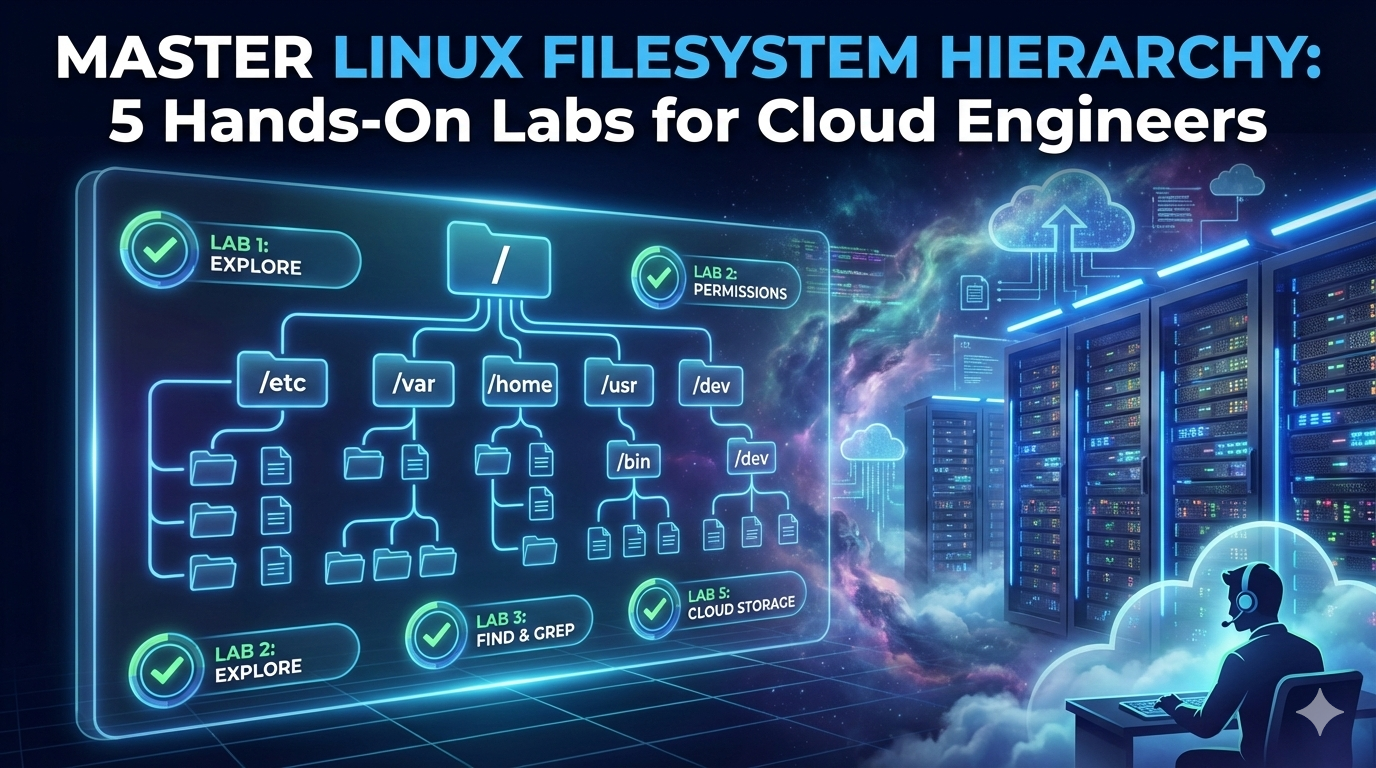
Ever wondered why your Nginx config lives in /etc but logs are in /var/log? Understanding the Linux Filesystem Hierarchy Standard (FHS) is the difference between fumbling through directories and confidently troubleshooting production issues in minutes. These 5 hands-on labs teach you to navigate Linux like cloud engineers do – by actually touching the filesystem.
What You’ll Learn:
✓ Navigate /, /etc, /var, /usr, /bin, /tmp, /srv with confidence
✓ Apply the “check config → check logs” workflow used in 90% of support tickets
✓ Locate commands, configuration files, and service data instantly
✓ Simulate real troubleshooting scenarios (Nginx errors, app failures)
✓ Build muscle memory for daily Linux admin tasks
Prerequisites
Before starting these labs, ensure you have:
- Linux VM running (Rocky Linux, Ubuntu, CentOS, or AWS EC2 instance)
- Terminal access (SSH or local console)
- Basic command familiarity:
cd,ls,pwd(we’ll reinforce these) - User privileges: Regular user account (no root required for most labs)
- Text editor:
nanoorviminstalled (optional for viewing files)
💡 Pro Tip: Use a disposable VM (VirtualBox snapshot or AWS free tier) so you can experiment without breaking production systems.
Lab 1: Tour of Root (/) – Understanding the “Main Rooms” of Linux
Goal: Map the top-level directories and understand their purposes.
The Linux filesystem follows a tree structure governed by the Filesystem Hierarchy Standard (FHS), maintained by the Linux Foundation. Everything starts at root (/), and all directories branch from there.
Step 1: Navigate to Root and List Contents
cd /
pwd
ls
Expected Output:
/
bin   dev  home  lib64  mnt  proc  run   srv  tmp  var
boot  etc  lib   media  opt  root  sbin  sys  usr
What You’re Seeing:
Each directory serves a specific purpose defined by FHS:
Step 2: Inspect Key Directories
ls /etc
ls /var
ls /usr
ls /bin
What This Shows:
/etccontains.conffiles for services likenginx.conf,ssh_config/varhas subdirectories like/var/log(logs),/var/www(web files)/usrholds most user-facing programs in/usr/bin
Step 3: Answer Real-World Questions
Create a notes file and answer (we’ll verify in Lab 2):
nano ~/fhs-notes.txt
Questions:
- If Nginx config is wrong, which folder would you check first?
- If a website is returning 500 errors, which folder likely has logs?
⚠️ Warning: Never run
rm -rf /or delete files in/etcor/binwithout backups. These are critical system directories.
Expected Answers:
Lab 2: Config vs Logs – The Real IT Troubleshooting Workflow
Goal: Practice the “check config → check logs” pattern used in 90% of support/SRE tickets.
When services fail, cloud engineers follow this workflow: inspect configuration files in /etc, then examine logs in /var/log. This lab simulates that process safely.
Step 1: Create a Safe Practice Environment
cd ~
mkdir fhs-labs
cd fhs-labs
pwd
Expected Output:
/home/yourusername/fhs-labs
Why This Matters: You’re replicating the /etc and /var structure in your home directory to practice without touching production files.
Step 2: Simulate Service Configuration and Logs
mkdir etc var
mkdir var/log
echo "PORT=8080" > etc/myapp.conf
echo "ERROR: app failed to start" > var/log/myapp.log
What You Created:
~/fhs-labs/
├── etc/
│   └── myapp.conf (config file)
└── var/
    └── log/
        └── myapp.log (log file)
This mirrors real systems where configs live in /etc and logs in /var/log.
Step 3: Troubleshoot Like a Cloud Engineer
Scenario: Your application won’t start. Follow the workflow:
- Check Configuration:
cat etc/myapp.conf
Output: PORT=8080
(Verify port isn’t already in use)
- Check Logs for Errors:
cat var/log/myapp.log
grep "ERROR" var/log/myapp.log
Output: ERROR: app failed to start
- Search Logs with Context:
grep -i "error" var/log/myapp.log
✅ Real-World Application: In production, you’d run
sudo tail -f /var/log/nginx/error.logto monitor logs in real-time during deployment.
Practice Exercise:
Add another error line and search for it:
echo "ERROR: Port 8080 already in use" >> var/log/myapp.log
grep "Port" var/log/myapp.log
Lab 3: Where Is My Command? (/bin vs /usr/bin)
Goal: Understand how Linux organizes executables and troubleshoot “command not found” errors.
Linux separates essential system binaries (/bin, /sbin) from user programs (/usr/bin). This distinction matters during system recovery when /usr might not be mounted.
Step 1: Explore Binary Directories
ls /bin
ls /usr/bin
Expected Output (partial):
/bin: bash, cat, chmod, cp, date, grep, ls, mkdir, mv, rm
/usr/bin: awk, curl, git, python3, ssh, vim, wget
Key Difference:
/bin: Commands needed to boot and repair the system/usr/bin: Additional user utilities installed later
Step 2: Locate Commands You Use Daily
which ls
which cat
which grep
which python3
which git
Expected Output:
/usr/bin/ls
/usr/bin/cat
/usr/bin/grep
/usr/bin/python3
/usr/bin/git
💡 Pro Tip: Use
whichto troubleshoot PATH issues. Ifwhich mycommandreturns nothing, the binary isn’t in your$PATH.
Step 3: Verify Command Functionality
/usr/bin/ls /etc | head -5
/usr/bin/grep "root" /etc/passwd
Why This Matters:
When scripts fail with “command not found,” you can use full paths (/usr/bin/python3 script.py) to bypass PATH issues.
Practice Exercise:
Find where systemctl lives (hint: it’s in /usr/bin or /bin depending on your distro):
which systemctl
ls -lh $(which systemctl)
Lab 4: Variable Data (/var) and Temporary Data (/tmp)
Goal: Differentiate between persistent variable data and disposable temporary files.
Understanding /var vs /tmp prevents data loss and helps troubleshoot disk space issues.
Step 1: Explore Variable Data
ls /var
ls /var/log
Expected Output:
/var: cache, lib, log, mail, spool, tmp, www
/var/log: auth.log, dmesg, syslog, nginx/, apache2/
What Lives in /var:
- Logs (
/var/log): System and application logs - Databases (
/var/lib/mysql): Persistent database files - Websites (
/var/www): Web server document roots - Email queues (
/var/mail): Undelivered mail
Step 2: Understand Temporary Storage
ls /tmp
df -h /tmp
- Cleared on reboot (not guaranteed to persist)
- Writable by all users (use unique filenames)
- Often has size limits (check with
df -h)
Step 3: Practice Safe Temporary File Operations
echo "temp data" > /tmp/test-$USER-$$.txt
ls /tmp | grep test
cat /tmp/test-$USER-$$.txt
rm /tmp/test-$USER-$$.txt
Breakdown:
$USER: Your username (prevents conflicts)$$: Current process ID (makes filename unique)
⚠️ Security Warning: Never store passwords or sensitive data in
/tmp– it’s world-readable. Use~/.config/for user-specific configs.
Real-World Scenario:
Check disk usage when /var/log fills up:
du -sh /var/log/*
sudo find /var/log -type f -name "*.log" -mtime +30 -exec ls -lh {} \;
Lab 5: Service Data (/srv) – Thinking Like a Cloud Engineer
Goal: Organize application data using the FHS-recommended /srv directory.
While /var/www is common for web content, /srv is the official FHS location for “data served by the system”. Cloud engineers use this for scalable deployments.
Step 1: Create a Simulated Web Application Structure
cd ~/fhs-labs
mkdir srv
mkdir -p srv/www
mkdir -p srv/api
mkdir -p srv/static
What You Built:
~/fhs-labs/srv/
├── www/      (main website)
├── api/      (API endpoints)
└── static/   (CSS, JS, images)
Step 2: Add Mock Application Files
echo "<h1>Hello from /srv/www</h1>" > srv/www/index.html
echo '{"status":"ok"}' > srv/api/health.json
echo "/* CSS styles */" > srv/static/style.css
Step 3: Simulate Web Server Access
cat srv/www/index.html
cat srv/api/health.json
find srv/ -type f
Expected Output:
srv/www/index.html
srv/api/health.json
srv/static/style.css
✅ Real-World Application: In production, you’d configure Nginx to serve from
/srv/www:server {
root /srv/www;
location / { try_files $uri $uri/ =404; }
}
Step 4: Verify Directory Permissions
ls -ld srv/www
Good Practice:
- Web server user (e.g.,
www-data) needs read access - Application user needs write access for uploads
- Set permissions:
chmod 755 srv/www(read/execute for all, write for owner)
Practice Exercise:
Create a logs subdirectory for this service:
hmkdir -p srv/www/logs
echo "$(date) - Server started" > srv/www/logs/access.log
tail srv/www/logs/access.log
Key Takeaways
- FHS Structure:
/→/etc(config) →/var(logs/data) →/usr(programs) →/tmp(disposable) - Troubleshooting Workflow: Config first (
/etc/nginx/nginx.conf), then logs (/var/log/nginx/error.log) - Command Locations: Use
whichto find binaries;/binfor essentials,/usr/binfor user tools - Data Persistence:
/varpersists across reboots;/tmpdoes not - Service Organization: Use
/srvfor application data in production environments
FAQ
Q: What’s the difference between /usr/bin and /usr/local/bin?
A: /usr/bin holds distribution-packaged software (via apt/yum). /usr/local/bin is for manually compiled programs that shouldn’t conflict with package managers.
Q: Why do I see both /var/log/syslog and /var/log/messages?
A: Different distros use different names. Debian/Ubuntu use syslog; RHEL/CentOS use messages. Both contain system-wide logs.
Q: Can I delete files in /tmp to free space?
A: Yes, but check if processes are using them (lsof /tmp). Most systems auto-clean /tmp on reboot. Use tmpreaper for scheduled cleanup.
Q: Where should I install custom scripts?
A: User-specific: ~/bin (add to PATH). System-wide: /usr/local/bin. Never modify /bin or /usr/bin directly.
Q: How do I view logs if journalctl fails?
A: Fall back to raw log files: sudo tail -f /var/log/syslog or less /var/log/auth.log.
Share Your Progress:
📸 Screenshot your lab completion and tag #LinuxFHS #DevOpsLearning
💬 Comment below: Which lab challenged you most?
🔔 Subscribe for AWS/Azure Linux administration tutorials
“The filesystem is the map. Logs are the compass. Configuration is the destination.” – Every senior Linux admin
Start with Lab 1 today and build the muscle memory that separates junior techs from confident cloud engineers. Your future production troubleshooting self will thank you.