When you type “google.com” into your browser and hit enter, an intricate choreography of protocols springs into action: DNS resolves the domain name to an IP address, TCP establishes a reliable connection on port 443, HTTPS encrypts your traffic using TLS, and HTTP fetches the web page—all in milliseconds. Understanding these protocols and their associated port numbers isn’t just exam knowledge for CompTIA A+ certification—it’s the foundation for troubleshooting network issues, configuring services, and comprehending how the modern internet functions.
This comprehensive guide covers the essential networking protocols, port numbers, and concepts you need to master for IT support roles and certification success. You’ll learn not just what each protocol does, but why specific ports are used, how to verify connections with command-line tools, and when security concerns require protocol alternatives.
Reading Time: 22 minutes
What You’ll Learn:
- TCP/IP fundamentals and how computers communicate
- TCP vs UDP: connection-oriented vs connectionless protocols
- Essential port numbers for CompTIA A+ (21, 22, 23, 25, 53, 80, 110, 143, 443, 389, 636, 3389, 445, 161/162, 67/68, 548, 587, 465, 993, 995, 989/990)
- HTTP vs HTTPS security differences and SSL/TLS encryption
- Email protocols: SMTP, POP3, IMAP configuration
- File transfer: FTP, FTPS, SFTP, SSH, Telnet
- Network services: DNS, DHCP, LDAP, RDP
- File sharing: SMB, CIFS, AFP
- Network management: SNMP
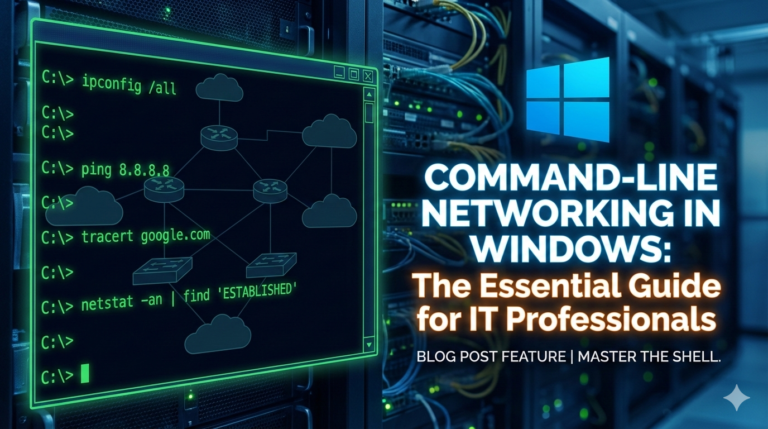
- Hands-on verification with
netstat,ping,ipconfig,nslookup
Prerequisites: Basic computer literacy. Familiarity with IP addresses helpful but not required—we’ll cover fundamentals.
Introduction to Computer Networking
A computer network is simply two or more computers that communicate by exchanging data. This definition extends beyond traditional PCs to include any device with an IP address: laptops, smartphones, printers, servers, IoT devices, and network infrastructure itself.
Anatomy of a Local Area Network (LAN)
Typical small office/home office network components:
Endpoints (clients):
- Desktop computers
- Laptops
- Mobile devices (smartphones, tablets)
- Printers and scanners
- Servers
Network infrastructure:
- Switch: Connects wired devices together within the local network
- Wireless Access Point (WAP): Provides Wi-Fi connectivity for wireless devices
- Router/Gateway: Connects the local network to the internet
- Firewall: Protects the network from external threats (often integrated with router)
Typical connection flow:
textPC/Laptop → Switch → Router/Firewall → Internet
                ↓
Mobile Device → Wireless AP → Switch → Router/Firewall → Internet
The Purpose of IT Infrastructure
The fundamental purpose of IT infrastructure is to manipulate the processing and transmission of data to make organizations more productive and customers happy. As IT technicians, we must constantly remind ourselves: technology exists to serve people and business objectives—not for its own sake.
Focus hierarchy:
- People (users, customers, stakeholders)
- Purpose (business goals, productivity outcomes)
- Technology (tools to achieve the above)
💡 Mindset Shift: When troubleshooting network issues, always ask: “How is this affecting users’ ability to do their work?” This keeps you focused on business impact rather than just technical details.
TCP/IP: The Foundation of Internet Communication
TCP/IP (Transmission Control Protocol/Internet Protocol) is a suite of communication protocols governing how computers talk to each other across networks. Every device using TCP/IP receives a unique IP address distinguishing it from other systems.
IP Addresses: Digital Identity
IPv4 format: Four octets separated by periods (e.g., 192.168.1.100)
Example network:
- PC #1:
192.168.1.73 - PC #2:
192.168.1.142 - Gateway/Router:
192.168.1.1
What’s different? The last octet (last number) uniquely identifies each device on the same network. The first three octets (192.168.1) identify the network itself.
Alternative network:
- PC #1:
10.0.2.101 - PC #2:
10.0.2.102 - Gateway:
10.0.2.1
Both examples follow the same pattern—devices on the same network share the network portion of their IP addresses and differ only in the host portion.
Viewing Your IP Configuration
Windows (Command Prompt or PowerShell):
textipconfig /all
Expected output:
textEthernet adapter Local Area Connection:

   Connection-specific DNS Suffix  . :
   IPv4 Address. . . . . . . . . . . : 192.168.122.63
   Subnet Mask . . . . . . . . . . . : 255.255.255.0
   Default Gateway . . . . . . . . . : 192.168.122.1
   DNS Servers . . . . . . . . . . . : 192.168.122.1
Key information:
- IPv4 Address: Your computer’s unique identifier on the network
- Subnet Mask: Defines network boundaries (which addresses are local)
- Default Gateway: Router address for reaching other networks/internet
- DNS Servers: Translate domain names to IP addresses
macOS:
bashifconfig
Linux:
baship a
# or older command
ifconfig
Example Linux output:
texteth0: flags=4163<UP,BROADCAST,RUNNING,MULTICAST>
    inet 10.0.2.56  netmask 255.255.255.0  broadcast 10.0.2.255
Testing Network Connectivity
Ping command tests if remote hosts are reachable and measures round-trip time.
Test gateway (local network):
textping 192.168.1.1
Expected output:
textReply from 192.168.1.1: bytes=32 time<1ms TTL=64
Reply from 192.168.1.1: bytes=32 time<1ms TTL=64
Reply from 192.168.1.1: bytes=32 time<1ms TTL=64
Reply from 192.168.1.1: bytes=32 time<1ms TTL=64
Test internet connectivity:
textping example.com
Interpretation:
- Reply: Host is reachable
- Time: Round-trip latency (lower is better)
- TTL: Time To Live (hops remaining before packet discarded)
- Request timed out: Host unreachable or blocking ICMP
Advanced Linux Network Tools
Check internet speed:
bashspeedtest-cli
Expected output:
textDownload: 300.00 Mbit/s
Upload:   17.00 Mbit/s
Monitor real-time network traffic:
bashnload
Displays current bandwidth usage, average rates, and traffic graphs for all network interfaces.
⚠️ Troubleshooting Tip: Can’t ping? First verify you’re getting replies from your default gateway. If that fails, the problem is local (your network). If gateway works but internet fails, the problem is external (ISP or remote host).
TCP vs UDP: Two Transport Protocols
The Transport layer provides two fundamentally different approaches to data transmission: TCP (connection-oriented, reliable) and UDP (connectionless, fast).
TCP: Transmission Control Protocol
Characteristics:
- Connection-oriented: Establishes session before transmitting data
- Reliable: Guarantees every packet arrives in correct order
- Error checking: Missing packets automatically retransmitted
- Flow control: Adjusts transmission speed based on network conditions
- Slower: Extra overhead from reliability mechanisms
How TCP ensures reliability:
- Message breakdown: Large data divided into numbered packets
- Transmission: Packets sent with sequence IDs
- Acknowledgment: Receiver confirms each packet received
- Retransmission: Sender resends any missing packets
- Reassembly: Receiver reconstructs original message from all packets
Example: Email message broken into 50 packets. If packet #27 doesn’t arrive, receiver requests retransmission of only packet #27. Once all 50 arrive, message is reconstructed perfectly.
Protocols using TCP:
- HTTP (port 80): Web browsing
- HTTPS (port 443): Secure web browsing
- FTP (port 21): File transfers
- SMTP (port 25/587/465): Sending email
- POP3 (port 110/995): Receiving email
- IMAP (port 143/993): Email synchronization
- SSH (port 22): Secure remote access
Why TCP for web browsing: Missing data would render web pages unusable (broken images, incomplete text). TCP guarantees completeness.
UDP: User Datagram Protocol
Characteristics:
- Connectionless: No session establishment
- Unreliable: No delivery guarantee
- No error checking: Lost packets never retransmitted
- Fast: Minimal overhead
- Low latency: Critical for real-time applications
When UDP is appropriate:
Streaming media (video/audio):
- Missing one frame causes brief glitch
- Glitch lasts milliseconds, then playback continues
- Retransmitting old data wastes bandwidth
- Better to skip and continue than delay entire stream
Online gaming:
- Extremely latency-sensitive (milliseconds matter)
- Outdated position data useless (player already moved)
- Better to occasionally miss updates than introduce lag
DNS queries:
- Simple request-response
- Can retry if no response
- Overhead of TCP connection unnecessary
VoIP (Voice over IP):
- Real-time conversation
- Brief audio dropout tolerable
- Delay from retransmission unacceptable
Protocols using UDP:
- DNS (port 53): Domain name resolution
- DHCP (ports 67/68): IP address assignment
- TFTP (port 69): Trivial File Transfer Protocol
- SNMP (ports 161/162): Network monitoring
- VoIP protocols: Real-time voice
- Online games: Real-time multiplayer
Viewing TCP and UDP Connections
Windows command:
textnetstat -an
Sample output:
textProto  Local Address          Foreign Address        State
TCP    192.168.1.100:3515     216.97.236.245:80      ESTABLISHED
TCP    192.168.1.100:54892    151.101.1.69:443       ESTABLISHED
UDP    192.168.1.100:137      *:*
UDP    192.168.1.100:138      *:*
Interpretation:
- TCP connections: Show remote address and state (ESTABLISHED, LISTENING, etc.)
- UDP connections: Show asterisks (:) because UDP is connectionless
- Local Address: Your computer’s IP and ephemeral port
- Foreign Address: Remote server’s IP and service port
Example breakdown:
textTCP 192.168.1.100:3515 216.97.236.245:80 ESTABLISHED
Reading this:
- Your computer (192.168.1.100) using port 3515
- Connected to web server (216.97.236.245) on port 80 (HTTP)
- Connection established (active TCP session)
🔍 Port Selection: Your computer randomly selects high-numbered ports (ephemeral ports 1024-65535) for outbound connections. The remote server uses well-known service ports (0-1023). This allows multiple simultaneous connections to the same server.
HTTP and HTTPS: Web Protocols
When you visit a website, your browser initiates either HTTP or HTTPS protocol. While HTTP dominated for decades, 98% of U.S. internet traffic now uses HTTPS due to security requirements.
HTTP: Hypertext Transfer Protocol
Port: 80 (TCP)
Characteristics:
- Unencrypted: All data transmitted in plain text
- Insecure: Credentials, session tokens, personal data readable by attackers
- Legacy: Largely replaced by HTTPS
- Browser warnings: Modern browsers display “Not Secure” for HTTP sites
When HTTP was acceptable:
- Static information websites (no user input)
- Public content with no privacy concerns
- Internal networks (not exposed to internet)
Why HTTP is obsolete:
- Eavesdropping: Anyone on the network can read all traffic
- Tampering: Attackers can modify content in transit
- Impersonation: No verification of server identity
- Credential theft: Usernames/passwords captured in plain text
HTTPS: HTTP Secure
Port: 443 (TCP)
Characteristics:
- Encrypted: SSL/TLS protects all communication
- Authenticated: Certificates verify server identity
- Integrity: Detects tampering attempts
- Required: Mandatory for forms, payments, login pages
How HTTPS works:
- Connection: Browser connects to server on port 443
- Handshake: SSL/TLS negotiation establishes encryption
- Certificate exchange: Server presents SSL/TLS certificate
- Validation: Browser verifies certificate legitimacy
- Encryption: Session keys generated for encrypted communication
- Secure transmission: All HTTP traffic encrypted with TLS
What’s encrypted:
- ✅ URL paths and query parameters
- ✅ HTTP headers (cookies, user agents)
- ✅ Form data (passwords, credit cards, personal information)
- ✅ Request/response body content
- ❌ Domain name (visible during DNS lookup)
- ❌ Destination IP address (required for routing)
Identifying Secure Connections
Firefox indicators:
- Green padlock: Secure HTTPS connection
- Certificate details: Click padlock → “More information”
- Connection info: View TLS version, cipher suite, certificate issuer
Example Firefox certificate details:
textConnection: Encrypted (TLS 1.3)
Certificate: RSA 2048-bit
Cipher: AES_256_GCM
Issuer: DigiCert
Chrome indicators:
- Gray padlock: Secure HTTPS (no color because it’s expected)
- “Not Secure” warning: HTTP connection (not encrypted)
- No explicit green: Chrome considers HTTPS the baseline standard
Example secure connection (Chrome/Firefox):
- URL begins with
https:// - Padlock icon displayed (locked position)
- No browser warnings
Example insecure connection:
- URL shows
http://(may be hidden) - “Not Secure” warning prominently displayed
- No padlock or broken padlock icon
HTTPS Connection Example
Connection details:
textClient IP:        10.252.0.141 (private internal address)
Client Port:      3515 (dynamically assigned ephemeral port)
Server IP:        216.97.236.245 (public internet address)
Server Port:      443 (HTTPS standard port)
Protocol:         TCP
Encryption:       TLS 1.3 with AES-256 cipher
Why port numbers matter:
- Client port (3515): Random high port for this specific session
- Server port (443): Must be open on firewall for HTTPS traffic
- Dynamic assignment: Each new connection gets different client port
- Firewall rules: Servers must allow inbound port 443
🔒 Security Mandate: Never enter passwords, payment information, or personal data on HTTP sites. The “Not Secure” warning means data is vulnerable to interception. Always verify HTTPS before submitting sensitive information.
Email Protocols: SMTP, POP3, IMAP
Email communication requires multiple protocols: one for sending (SMTP) and others for receiving (POP3 or IMAP).
SMTP: Simple Mail Transfer Protocol
Purpose: Sending email from client to server and between servers
Ports:
- 25: Original SMTP (unencrypted, mostly deprecated for client-to-server)
- 587: Modern standard (TLS via STARTTLS)
- 465: SMTP over SSL (implicit encryption)
How SMTP works:
- Compose: User creates email in client (Outlook, Thunderbird, Gmail app)
- Submit: Client connects to SMTP server on port 587 or 465
- Authenticate: Username/password verified
- Transfer: Email sent to SMTP server
- Relay: SMTP server forwards to recipient’s mail server
- Delivery: Recipient’s server stores message for retrieval
Mnemonic device: SMTP = Send Mail To People
Modern SMTP configuration:
- Server: smtp.example.com or mail.example.com
- Port: 587 (TLS) or 465 (SSL)
- Encryption: Required (SSL/TLS)
- Authentication: Required (username/password)
Why port 25 is deprecated:
- ISPs block port 25 to prevent spam (infected computers sending mass email)
- No encryption by default (credentials transmitted in plain text)
- Modern servers reject unauthenticated port 25 relay
Port selection guidance:
- Port 587 (STARTTLS): Most common, connects unencrypted then upgrades to TLS
- Port 465 (SSL): Encrypted from start, preferred by some providers
- Port 25: Only for server-to-server relay (not client submission)
POP3: Post Office Protocol Version 3
Purpose: Downloading email from server to client
Ports:
- 110: Original POP3 (unencrypted, insecure)
- 995: Secure POP3 (SSL/TLS encryption)
How POP3 works:
- Connect: Client connects to POP3 server on port 995
- Authenticate: Login with username/password
- Download: All new messages downloaded to client
- Delete: Messages typically deleted from server (configurable)
- Local storage: Email stored on client computer/device
POP3 characteristics:
- Download and delete: Default behavior (messages removed from server)
- Single device: Email lives on one computer
- Offline access: Full email available without internet
- Simple: Straightforward protocol, minimal overhead
POP3 limitations:
- ❌ Multi-device synchronization difficult
- ❌ No folder synchronization (all email in inbox)
- ❌ Sent items not synced across devices
- ❌ Deleting email on one device doesn’t affect others
Configuration options:
- Leave copy on server: Keep messages server-side after download
- Delete after X days: Automatic server cleanup
- Better for: Single-device email access, limited server storage scenarios
IMAP: Internet Message Access Protocol
Purpose: Synchronizing email across multiple devices
Ports:
- 143: Original IMAP (unencrypted, insecure)
- 993: Secure IMAP (SSL/TLS encryption)
How IMAP works:
- Connect: Client connects to IMAP server on port 993
- Authenticate: Login with credentials
- Synchronize: Client syncs with server state
- Server storage: Messages remain on server
- Two-way sync: Changes reflected across all devices
IMAP characteristics:
- Server-side storage: Email stays on server permanently
- Multi-device sync: Access from phone, tablet, laptop, webmail
- Folder support: Full folder hierarchy synchronized
- Selective download: Download only what’s needed
- Modern standard: Preferred for contemporary email usage
IMAP advantages:
- ✅ Read on phone → marked read everywhere
- ✅ Delete on laptop → deleted on all devices
- ✅ Create folder on desktop → appears on mobile
- ✅ Sent items synchronized automatically
- ✅ Flag important email → flagged everywhere
IMAP vs POP3 decision:
| Scenario | Recommended Protocol |
|---|---|
| Multiple devices (phone, laptop, tablet) | IMAP |
| Single computer access | POP3 or IMAP |
| Limited server storage | POP3 (download and delete) |
| Webmail access needed | IMAP |
| Offline email access priority | POP3 |
| Modern usage patterns | IMAP |
Email Client Configuration Examples
Microsoft Outlook (POP3):
Incoming mail server (POP3):
textServer:     secure.example.com
Port:       995
Encryption: SSL/TLS (required)
Outgoing mail server (SMTP):
textServer:     secure.example.com
Port:       465
Encryption: SSL/TLS (required)
Authentication: Required (same credentials)
Gmail app (Adding external POP3 account):
POP3 settings:
textEmail:      webmaster@example.com
Password:   account-password
POP Server: secure.example.com
Port:       995
SSL:        Always use secure connection (checked)
SMTP settings (for sending):
textSMTP Server: secure.example.com
Port:        587 (TLS) or 465 (SSL)
Encryption:  TLS or SSL (depending on port)
Username:    webmaster@example.com
Password:    account-password
Port variations by provider:
- Gmail: SMTP uses 587 (TLS) or 465 (SSL)
- Outlook.com: SMTP uses 587 (TLS)
- Yahoo: SMTP uses 587 (TLS) or 465 (SSL)
- Custom domains: Check hosting provider documentation
📧 Email Setup Tip: Outlook attempts auto-configuration based on email domain. If it fails, manually enter server names and port numbers. Always use secure ports (995 for POP3, 993 for IMAP, 587/465 for SMTP) to encrypt credentials and email content.
File Transfer Protocols: FTP, SFTP, FTPS, SSH, Telnet
Moving files between systems and remotely controlling servers requires protocols with varying security levels.
FTP: File Transfer Protocol
Port: 21 (TCP) – control connection
Additional: Port 20 (active mode) or ephemeral ports (passive mode) for data
Purpose: Transfer files between client and server
FTP clients:
- Command-line: Built into Windows/Linux/macOS (
ftpcommand) - GUI applications: FileZilla, WinSCP, Cyberduck, Transmit
- Web browsers: Limited FTP support (mostly deprecated)
Command-line FTP example:
textC:\> ftp
ftp> open davidlprouse.com
Connected to davidlprouse.com
220 Welcome to FTP server
User: test@davidlprouse.com
Password: ********
230 User logged in
ftp> ?
Common FTP commands:
textls          - List files in current directory
cd dirname  - Change directory
pwd         - Print working directory
get file    - Download file from server
put file    - Upload file to server
delete file - Delete file on server
mkdir dir   - Create directory
bye         - Disconnect and exit
FileZilla example:
Connection log:
textStatus: Connecting to 216.97.236.245:21...
Status: Connection established
Response: 220 Welcome to FTP Server
Status: Initializing TLS...
Status: Verifying certificate...
Status: TLS connection established
Command: USER test@davidlprouse.com
Response: 331 Password required
Command: PASS ********
Response: 230 User logged in
What happened:
- Connected to port 21 (FTP control)
- Server welcomed connection
- TLS initialized (upgrading to secure FTPS)
- Certificate verified
- Username/password authenticated
- File transfer ready
The FTP Security Problem
FTP is fundamentally insecure:
❌ Unencrypted credentials: Username/password sent in plain text
❌ Unencrypted data: File contents readable during transmission
❌ No server authentication: Can’t verify server identity
❌ Vulnerable to interception: Anyone on network path can capture credentials and data
Attack scenario:
- User connects to FTP server on public Wi-Fi
- Attacker running Wireshark captures network traffic
- Attacker filters for port 21 traffic
- Username and password visible in plain text
- File contents readable in captured packets
Modern recommendation: Never use standard FTP for sensitive data. Use secure alternatives (SFTP or FTPS).
FTPS: FTP Secure
Ports:
- 989: FTPS data connection (SSL/TLS)
- 990: FTPS control connection (SSL/TLS)
- Alternative: Port 21 with explicit TLS upgrade
How FTPS improves security:
- ✅ Encrypted credentials (username/password protected)
- ✅ Encrypted file contents (data protected during transmission)
- ✅ Server authentication (SSL/TLS certificates verify identity)
- ✅ Data integrity (tampering detected)
FTPS modes:
Implicit FTPS (port 990):
- Encryption required from initial connection
- Connection fails if TLS unavailable
- Older method, less flexible
Explicit FTPS (port 21):
- Connects to standard port 21 initially
- Client issues
AUTH TLScommand to upgrade - More flexible, widely supported
- Example shown in FileZilla connection above
SSH: Secure Shell
Port: 22 (TCP)
Purpose: Encrypted remote access and secure file transfer
SSH capabilities:
- Remote terminal access: Command-line control of remote systems
- Secure file transfer: SFTP rides on SSH
- Port forwarding: Tunnel other protocols through SSH
- Secure copy: SCP for one-off file transfers
SSH authentication methods:
Password authentication:
- Traditional username/password
- Simpler but less secure
- Vulnerable to brute force if weak passwords used
Public key authentication:
- Uses asymmetric cryptography
- Private key stays on client (protected by passphrase)
- Public key uploaded to server
- More secure: Immune to password guessing
- Recommended for production systems
PuTTY example (Windows SSH client):
Configuration:
textHost Name:  192.168.1.50
Port:       22
Connection: SSH
Session:
textlogin as: administrator
administrator@192.168.1.50's password: ********

Welcome to Ubuntu 22.04.3 LTS
Last login: Thu Dec 18 10:30:15 2025 from 192.168.1.100

administrator@linuxserver:~$ ls -la
administrator@linuxserver:~$ sudo systemctl status apache2
administrator@linuxserver:~$ exit
Windows built-in SSH (Windows 10/11):
textssh administrator@192.168.1.50
No PuTTY required—modern Windows includes OpenSSH client.
SFTP: SSH File Transfer Protocol
Port: 22 (TCP) – same as SSH
Important distinction: SFTP is NOT “Secure FTP.” It’s a completely different protocol that rides on SSH, unrelated to FTP/FTPS.
SFTP advantages:
Security:
- Always encrypted: No unencrypted mode exists
- Strong cryptography: Same encryption as SSH
- Public key authentication: Available (more secure than passwords)
Firewall simplicity:
- Single port: Only port 22 needed
- No active/passive modes: Simpler than FTP’s dual-port approach
- NAT-friendly: Single connection easier to manage
Reliability:
- Connection persistence: More stable than FTP
- Resume capability: Interrupted transfers can resume
- Better error handling: More robust protocol design
FileZilla SFTP configuration:
textProtocol:   SFTP
Host:       server.example.com
Port:       22
User:       username
Password:   password (or use key file)
Command-line SFTP:
bashsftp user@server.com
sftp> ls
sftp> get remotefile.txt
sftp> put localfile.txt
sftp> bye
Industry adoption: Most organizations have migrated from FTP/FTPS to SFTP due to superior security and simplicity. Publishers, web hosts, and software distributors typically require SFTP.
Telnet: The Deprecated Protocol
Port: 23 (TCP)
Purpose: Remote command-line access (insecure)
Status: Deprecated and insecure—never use for authentication
Why Telnet is insecure:
❌ Plain text everything: All communication unencrypted
❌ Exposed credentials: Username/password visible to network sniffers
❌ Visible commands: Every command readable
❌ No authentication: Can’t verify server identity
❌ Session hijacking: Active sessions easily compromised
Attack scenario:
- Administrator connects via Telnet to router
- Enters username:
admin - Enters password:
P@ssw0rd123 - Executes commands:
show run,configure terminal - Attacker on same network captures ALL of this in plain text
Limited legitimate uses:
Testing port connectivity:
texttelnet google.com 80
Expected response:
textTrying 142.250.185.46...
Connected to google.com.
This confirms port 80 is open and reachable (doesn’t authenticate).
Testing SMTP server:
texttelnet mail.example.com 25
Verifies SMTP service responding (troubleshooting, not actual email sending).
Legacy equipment:
- Very old routers/switches without SSH support
- Only on isolated management networks (never internet-facing)
- Should be replaced with SSH-capable equipment
Checking Telnet Status (Windows)
Services Console:
text1. Windows + R
2. Type: services.msc
3. Press Enter
4. Scroll to "T"
5. Look for "Telnet" service
If Telnet is disabled (recommended): Service won’t appear in list.
Windows Features:
text1. Control Panel → Programs and Features
2. Click "Turn Windows features on or off"
3. Locate "Telnet Client"
4. Unchecked = disabled (recommended)
5. Checked = enabled
Default: Telnet is disabled by default on Windows 10/11 for security reasons.
⚠️ Security Rule: SSH replaces every legitimate Telnet use case with encryption. Never use Telnet on production systems, over untrusted networks, or for authentication. Port 23 should be blocked at firewalls.
DNS: Domain Name System
DNS (Domain Name System) translates human-readable domain names (google.com) into machine-readable IP addresses (142.250.185.46), enabling computers to communicate while humans use memorable names.
How DNS Works
Port: 53 (UDP for queries, TCP for zone transfers)
DNS hierarchy:
textRoot DNS Servers (.)
    ↓
Top-Level Domain servers (.com, .org, .net)
    ↓
Authoritative Name Servers (example.com)
    ↓
Your DNS Resolver (ISP or 8.8.8.8)
    ↓
Your Computer
DNS resolution process:
- User enters:
google.comin browser - Computer checks: Local DNS cache for existing entry
- If not cached: Query sent to configured DNS server (port 53)
- DNS server checks: Its cache for the domain
- If not cached: Recursive query up DNS hierarchy
- Root server: Directs to .com TLD server
- TLD server: Directs to google.com authoritative server
- Authoritative server: Returns IP address (142.250.185.46)
- DNS server caches: Result for future queries
- Computer receives: IP address and caches it
- Connection proceeds: HTTP request to IP address
Typical DNS configuration:
DHCP-assigned:
textPreferred DNS:  192.168.1.1 (router/gateway)
Alternate DNS:  Provided by ISP or none
Manually configured (common alternatives):
textGoogle Public DNS:       8.8.8.8 and 8.8.4.4
Cloudflare DNS:          1.1.1.1 and 1.0.0.1
Quad9:                   9.9.9.9
OpenDNS:                 208.67.222.222 and 208.67.220.220
Viewing DNS Configuration
Windows:
textipconfig /all
Look for:
textDNS Servers . . . . . . . . . . . : 10.254.254.1
                                    8.8.8.8
GUI method:
textControl Panel → Network and Sharing Center
→ Change adapter settings
→ Right-click adapter → Properties
→ Internet Protocol Version 4 (TCP/IPv4) → Properties
→ View "Preferred DNS server" field
DNS in Action
Ping with domain name:
textping davidlprouse.com
Output:
textPinging davidlprouse.com [216.97.236.245] with 32 bytes of data:
Reply from 216.97.236.245: bytes=32 time=15ms TTL=54
Reply from 216.97.236.245: bytes=32 time=14ms TTL=54
What happened:
- Command used domain name
davidlprouse.com - DNS resolved it to IP
216.97.236.245 - Ping sent ICMP packets to IP address
- Reply received (host is reachable)
DNS lookup tool:
textnslookup davidlprouse.com
Output:
textServer:  UnKnown
Address:  192.168.1.1

Non-authoritative answer:
Name:    davidlprouse.com
Address:  216.97.236.245
Interpretation:
- Server: DNS server that answered query (192.168.1.1 – your router)
- Non-authoritative: Answer came from cache, not authoritative server
- Name: Domain requested
- Address: Resolved IP address
💡 DNS Troubleshooting: If websites won’t load but IP addresses work (e.g.,
ping 8.8.8.8succeeds butping google.comfails), DNS is the problem. Try changing DNS servers to 8.8.8.8 and 8.8.4.4 (Google) to test.
DHCP: Dynamic Host Configuration Protocol
DHCP automatically assigns IP addresses and network configuration to devices joining a network, eliminating manual configuration.
How DHCP Works
Ports:
- 67: DHCP server (UDP)
- 68: DHCP client (UDP)
DORA process (four-step):
- Discover: Client broadcasts “I need an IP address” to network
- Offer: DHCP server responds with available IP address
- Request: Client requests the offered IP address
- Acknowledgment: Server confirms and assigns IP
Example DHCP transaction:
textClient:  DHCP Discover (broadcast to 255.255.255.255)
         "I'm MAC 00:1A:2B:3C:4D:5E, I need an IP address"

Server:  DHCP Offer
         "192.168.1.100 is available, 24-hour lease"

Client:  DHCP Request
         "I want 192.168.1.100"

Server:  DHCP Acknowledgment
         "192.168.1.100 assigned to you for 24 hours"
         IP: 192.168.1.100
         Mask: 255.255.255.0
         Gateway: 192.168.1.1
         DNS: 192.168.1.1, 8.8.8.8
DHCP Configuration
Small office/home:
- DHCP server: Integrated into router/gateway
- Typical range: 192.168.1.100-192.168.1.200
- Gateway IP: 192.168.1.1
- Configuration: Web interface (http://192.168.1.1)
Enterprise networks:
- DHCP server: Windows Server or Linux server
- Scope: Defined IP ranges per subnet/VLAN
- Reservations: Specific IPs for specific MAC addresses
- Options: Advanced configuration (NTP servers, domain name, etc.)
Client Configuration
Windows automatic DHCP:
textControl Panel → Network and Sharing Center
→ Change adapter settings
→ Right-click adapter → Properties
→ Internet Protocol Version 4 (TCP/IPv4) → Properties
→ Select: "Obtain an IP address automatically"
→ Select: "Obtain DNS server address automatically"
Verifying DHCP assignment:
textipconfig /all
Look for:
textEthernet adapter:
   DHCP Enabled. . . . . . . . . . . : Yes
   IPv4 Address. . . . . . . . . . . : 10.102.82.128
   Subnet Mask . . . . . . . . . . . : 255.255.255.0
   Default Gateway . . . . . . . . . : 10.102.80.1
   DHCP Server . . . . . . . . . . . : 10.102.80.2
   Lease Obtained. . . . . . . . . . : Wednesday, December 18, 2025 10:00:00 AM
   Lease Expires . . . . . . . . . . : Thursday, December 19, 2025 10:00:00 AM
Key information:
- DHCP Enabled: Yes – Computer configured for automatic IP
- IPv4 Address – IP assigned by DHCP server
- DHCP Server – IP of server that assigned address
- Lease Obtained/Expires – How long IP address is valid
DHCP Renewal
Manual renewal (Windows):
textipconfig /release
ipconfig /renew
Release: Returns current IP to DHCP server
Renew: Requests new IP from DHCP server (may get same IP back)
Automatic renewal: Client attempts renewal at 50% of lease duration. If 24-hour lease, client tries renewing after 12 hours.
🔧 Troubleshooting Tip: If DHCP fails, computers self-assign APIPA addresses (169.254.x.x). Seeing 169.254 address indicates DHCP server unreachable. Check DHCP server status and network connectivity.
LDAP and RDP: Directory Services and Remote Access
LDAP (Lightweight Directory Access Protocol) manages distributed user/computer directories, while RDP (Remote Desktop Protocol) enables remote system control.
LDAP: Lightweight Directory Access Protocol
Purpose: Access and maintain distributed directories (user accounts, computers, groups, permissions)
Ports:
- 389: Standard LDAP (TCP/UDP)
- 636: Secure LDAP (LDAPS with SSL/TLS)
Microsoft implementation: Active Directory
Active Directory Domain Services (AD DS) uses LDAP to store and manage:
- User accounts: Employee login credentials
- Computer accounts: Domain-joined machines
- Groups: Organizational units and security groups
- Authentication: Centralized login verification
- Permissions: File, folder, and resource access control
Domain controller requirements:
- Windows Server promoted to domain controller role
- DNS server (preferably separate but can be same server)
- LDAP installed automatically during domain controller promotion
Active Directory structure:
textDomain: company.com
├── Users
│   ├── John Doe
│   ├── Jane Smith
│   └── Admin Account
├── Computers
│   ├── DESKTOP-001
│   ├── LAPTOP-042
│   └── SERVER-01
└── Groups
    ├── IT Admins
    ├── Sales Team
    └── All Users
Verifying LDAP with netstat:
powershellnetstat -an | findstr 389
Expected output:
textTCP    0.0.0.0:389            0.0.0.0:0              LISTENING
TCP    0.0.0.0:636            0.0.0.0:0              LISTENING
Interpretation:
- Port 389 open and listening (standard LDAP)
- Port 636 open and listening (secure LDAPS)
- Server accepting directory service connections
RDP: Remote Desktop Protocol
Purpose: Remote control of Windows systems
Port: 3389 (TCP)
RDP capabilities:
Limited application access:
- Users granted access to specific applications only
- RemoteApp technology publishes individual programs
- Applications appear on local desktop but run on server
Full administrative access:
- Administrators given complete system control
- Troubleshoot remotely without physical access
- Manage servers in data centers from anywhere
Remote Assistance:
- Users invite technicians to view their desktop
- Invitation sent via email or file
- Technician can view screen, request control, troubleshoot issues
- Session ends when user closes connection
RDP connection example:
Windows Remote Desktop client:
textComputer: 10.252.0.103
Username: administrator
Password: ********
Connection established:
textConnected to: server2012.company.com (10.252.0.103)
Session: Full administrative access
Display: 1920x1080
Verifying RDP connection:
powershellnetstat -an
Look for:
textTCP    10.252.0.103:3389      10.252.0.254:54892    ESTABLISHED
TCP    0.0.0.0:3389           0.0.0.0:0             LISTENING
Interpretation:
- LISTENING: Server waiting for RDP connections on port 3389
- ESTABLISHED: Active RDP session from 10.252.0.254 (workstation) to server
- Local port 3389: RDP service port
- Remote port (54892): Workstation’s ephemeral port
Enhanced security options:
- FIPS compliance: Federal Information Processing Standards encryption
- TLS (port 443): Tunnel RDP through HTTPS for additional security
- Network Level Authentication (NLA): Authenticate before session established
- VPN requirement: Restrict RDP to VPN-connected users only
🔐 Security Warning: Never expose RDP (port 3389) directly to the internet. Always use VPN, restrict to specific IPs, or tunnel through secure connections. RDP is heavily targeted by attackers for brute-force password attacks.
File Sharing and Network Management Protocols
Several additional protocols handle file sharing across platforms and network device management.
SMB: Server Message Block
Port: 445 (TCP) for modern Windows
Legacy ports: 137-139 (NetBIOS)
Purpose: Windows file and printer sharing
SMB functionality:
- Access shared folders on Windows networks
- Share printers across network
- Authenticate users through Inter-Process Communication (IPC)
- Directory services integration
SMB evolution:
- SMB 1.0: Original, insecure (disabled in modern Windows)
- SMB 2.0: Windows Vista/Server 2008, performance improvements
- SMB 3.0: Windows 8/Server 2012, encryption support
- SMB 3.1.1: Windows 10/Server 2016, improved security
Modern SMB:
- Uses TCP port 445 directly
- No NetBIOS required
- AES encryption available
- Pre-authentication integrity checking
IANA registry entry:
textPort: 445
Service: microsoft-ds (Directory Services)
Protocol: TCP/UDP
Usage: SMB/CIFS file sharing
Alternative: SMB Direct
- Port: 5445
- Purpose: Remote Direct Memory Access (RDMA)
- Benefit: High-performance storage networking
CIFS: Common Internet File System
Port: 3020 (legacy)
Relationship to SMB:
- CIFS is older terminology for SMB
- Originally SMB over NetBIOS
- Samba on Linux systems historically called it CIFS
- Modern usage: “SMB” preferred over “CIFS”
Current status: Term largely deprecated in favor of “SMB”
AFP: Apple Filing Protocol
Ports:
- 548: AFP file services
- 427: Service Location Protocol (SLP) for AFP discovery
Purpose: File sharing for macOS systems
AFP characteristics:
- Native macOS file sharing protocol
- Supports Mac metadata (resource forks, extended attributes)
- HFS+ and APFS filesystem features preserved
- Bonjour/Zeroconf discovery via SLP (port 427)
Modern macOS: Also supports SMB for cross-platform compatibility
SLP (Service Location Protocol):
- Port 427 (UDP/TCP)
- Enables network service discovery without configuration
- URL-based service naming:
service:printer:lpr://hostname - Used by AFP, various network services
SNMP: Simple Network Management Protocol
Purpose: Monitor and manage network devices (routers, switches, servers, printers)
Ports:
- 161: SNMP queries/commands (UDP)
- 162: SNMP traps (UDP)
SNMP architecture:
Network Management System (NMS):
- Centralized management software
- Runs on management server
- Uses port 161 to query devices
- Displays device status, performance, alerts
Managed devices:
- Network equipment being monitored
- Routers, switches, servers, printers, UPS systems
- Run SNMP agent software
Agent:
- Small software component on managed device
- Collects device statistics
- Responds to NMS queries
- Reports to management system
Traps:
- Unsolicited alerts from devices
- “Something important happened” notifications
- Sent to NMS on port 162
- Examples: interface down, high CPU, disk full
SNMP versions:
- SNMPv1: Original, weak security (community strings)
- SNMPv2c: Performance improvements, still weak security
- SNMPv3: Strong security (encryption, authentication)
Use cases:
- Monitoring: CPU, memory, bandwidth utilization
- Alerting: Device failures, threshold violations
- Configuration: Remote device management
- Reporting: Network performance trending
Port Summary Table
| Protocol | Port(s) | TCP/UDP | Purpose |
|---|---|---|---|
| HTTP | 80 | TCP | Web browsing (insecure) |
| HTTPS | 443 | TCP | Secure web browsing |
| SMTP | 25, 587, 465 | TCP | Sending email |
| POP3 | 110, 995 | TCP | Receiving email (download) |
| IMAP | 143, 993 | TCP | Receiving email (sync) |
| FTP | 20, 21 | TCP | File transfer (insecure) |
| FTPS | 989, 990 | TCP | Secure file transfer |
| SSH/SFTP | 22 | TCP | Secure remote access, file transfer |
| Telnet | 23 | TCP | Remote access (insecure, deprecated) |
| DNS | 53 | UDP/TCP | Domain name resolution |
| DHCP | 67, 68 | UDP | Automatic IP address assignment |
| LDAP | 389 | TCP/UDP | Directory services |
| LDAPS | 636 | TCP | Secure directory services |
| RDP | 3389 | TCP | Windows Remote Desktop |
| SMB/CIFS | 445 | TCP | Windows file sharing |
| AFP | 548, 427 | TCP | macOS file sharing |
| SNMP | 161, 162 | UDP | Network device management |
Key Takeaways
🌐 TCP/IP provides the foundation for all internet communication with TCP offering reliable, ordered delivery for applications requiring data integrity (web, email, file transfer) while UDP sacrifices guarantees for speed in real-time applications (streaming, gaming, DNS).
🔒 Security protocols are mandatory in 2025—use HTTPS (443) instead of HTTP (80), SFTP (22) or FTPS (989/990) instead of FTP (21), SSH (22) instead of Telnet (23), and secure email ports (587/465 for SMTP, 995 for POP3, 993 for IMAP) to protect credentials and data from interception.
📧 Email requires multiple protocols: SMTP (ports 25/587/465) sends mail while POP3 (110/995) downloads for single-device access and IMAP (143/993) synchronizes across multiple devices—modern usage demands IMAP for phones, tablets, and laptops to stay in sync.
🔍 Network troubleshooting commands are essential IT skills—use ipconfig (Windows) or ip a (Linux) to view network configuration, ping to test connectivity, netstat -an to view active connections and open ports, and nslookup to troubleshoot DNS resolution issues.
💼 Enterprise protocols enable centralized management: LDAP (389/636) maintains user directories in Active Directory, RDP (3389) provides Windows remote access, SMB (445) enables Windows file sharing, and SNMP (161/162) monitors network infrastructure—all critical for corporate IT operations.
Frequently Asked Questions
Q: Why does my browser show both HTTP and HTTPS options for some sites?
A: The server supports both but you should always choose HTTPS. Modern browsers automatically upgrade HTTP to HTTPS when available. If a site only offers HTTP, avoid entering sensitive information—your data isn’t encrypted.
Q: What’s the difference between FTPS and SFTP if both are secure?
A: FTPS adds SSL/TLS encryption to FTP protocol (uses ports 989/990), while SFTP is completely different—it runs over SSH on port 22. SFTP is generally preferred because it’s simpler (single port), always encrypted, and firewall-friendly. FTPS works with existing FTP infrastructure.
Q: Why can’t I send email using port 25?
A: ISPs block port 25 to prevent spam from infected computers. Use port 587 (TLS) or 465 (SSL) for client email submission—these ports require authentication, preventing unauthorized email relay. Port 25 is only for server-to-server mail transfer.
Q: Should I use POP3 or IMAP for my email?
A: Use IMAP (port 993) if you access email from multiple devices (phone, tablet, laptop). IMAP keeps everything synchronized—reading email on your phone marks it read everywhere. Use POP3 (port 995) only if you access email from a single computer and want local storage with server deletion.
Q: What does “Connection timed out” mean when I ping?
A: The destination host didn’t respond within the timeout period (usually 1-4 seconds). Possible causes: host is offline, firewall blocking ICMP packets, network path broken, or IP address incorrect. Try pinging your gateway first to isolate whether the problem is local or external.
Q: How do I find which program is using a specific port?
A: Use netstat -anob (Windows, requires admin) or netstat -tulpn (Linux, requires sudo). This shows programs listening on each port. Example: If port 80 is in use, netstat reveals whether it’s Apache, IIS, or another application.
Q: Why is Telnet still mentioned if it’s insecure?
A: Telnet remains useful for testing port connectivity without authentication (like telnet google.com 80 to verify web server reachable). It’s also used to manage ancient equipment lacking SSH support. Never use Telnet for actual authentication or on production systems—SSH replaces it entirely.
Next Steps: Advancing Your Networking Skills
Week 1-2: Hands-on protocol exploration
- Install Wireshark (packet capture tool)
- Observe HTTP vs HTTPS traffic differences
- Practice
netstat,ping,nslookup,tracert - Set up email client (Outlook or Thunderbird) manually
Week 3-4: Server configuration
- Install FileZilla Server (FTP/FTPS practice)
- Set up OpenSSH server on Linux VM
- Configure Windows file sharing (SMB)
- Test connections from different clients
Week 5-6: Security focus
- Compare encrypted vs unencrypted protocols in Wireshark
- Configure SSL/TLS certificates
- Implement SSH key authentication
- Harden services (disable Telnet, enforce HTTPS)
Week 7-8: Troubleshooting scenarios
- Can’t browse web but can ping IPs → DNS issue
- Can’t send email but can receive → SMTP problem
- Can’t access file shares → SMB/firewall issue
- Practice systematic troubleshooting methodology
Certifications covering these topics:
- CompTIA A+ (220-1101): Core networking, ports, protocols
- CompTIA Network+: Advanced TCP/IP, routing, switching
- CompTIA Security+: Protocol security, encryption, hardening
- Cisco CCNA: Enterprise networking, routing protocols
Related Topics:
- “Wireshark Tutorial: Analyzing Network Protocols and Troubleshooting Traffic”
- “SSL/TLS Certificates Explained: How HTTPS Encryption Works”
- “Active Directory Fundamentals: LDAP, Kerberos, and Domain Controllers”
- “SSH Key Authentication Setup: Secure Linux Server Access Without Passwords”
Have questions about specific protocols or troubleshooting network connectivity? Drop a comment with your scenario—I respond to every question and help diagnose networking issues!
Network protocols are the invisible languages enabling global communication across billions of devices. Master these fundamentals—TCP/IP operation, essential port numbers, security protocols, and troubleshooting commands—and you’ll possess the knowledge to configure services, diagnose connectivity problems, and pass CompTIA A+ certification. Share this guide with others learning networking essentials!