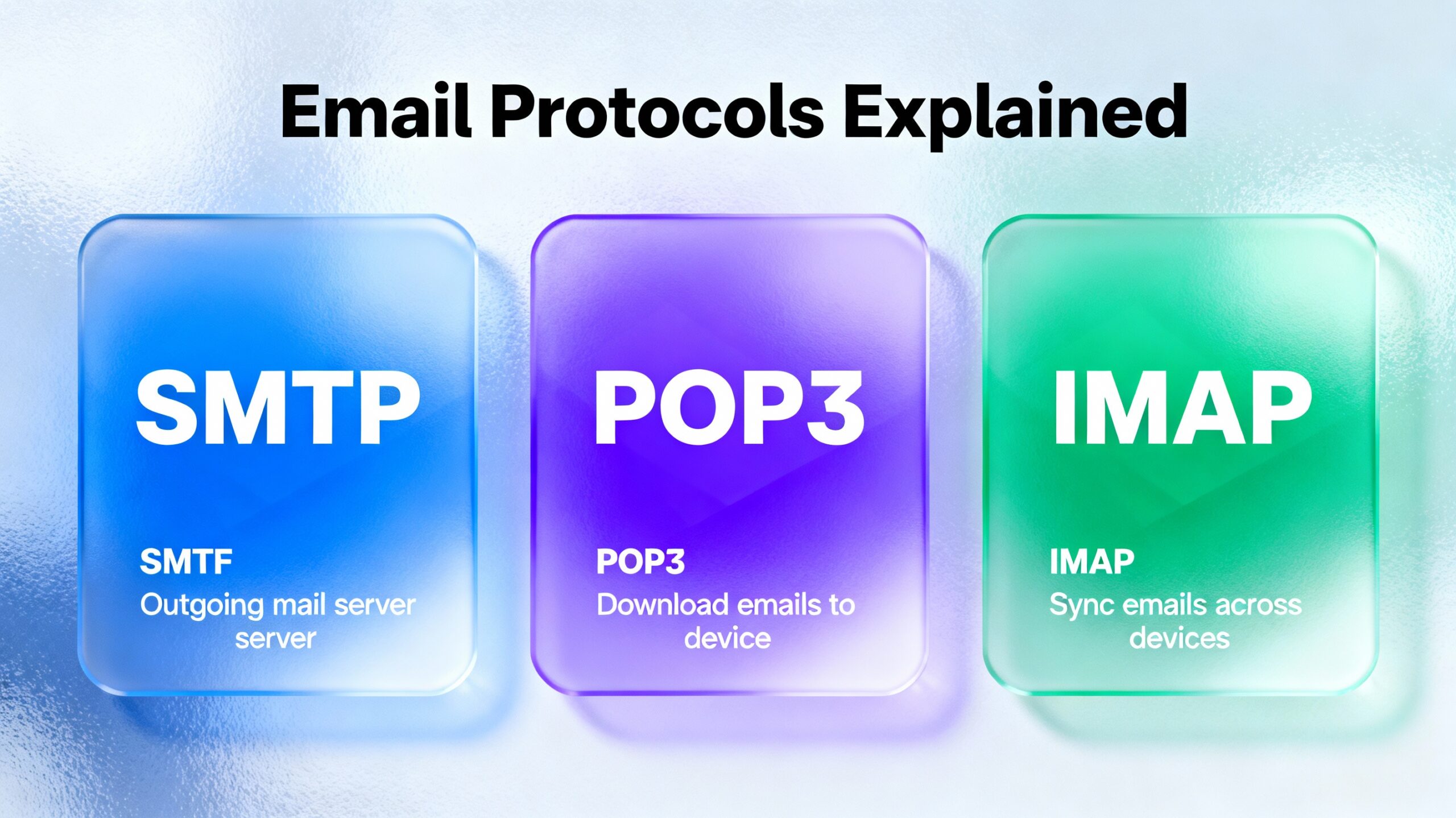
Every email you send travels through a complex choreography of protocols and ports, each serving a specific purpose in the journey from your computer to the recipient’s inbox. While web-based Gmail and Yahoo accounts hide this complexity behind HTTPS connections, corporate environments and dedicated email clients like Microsoft Outlook require understanding the underlying protocols: SMTP, POP3, and IMAP.
Whether you’re preparing for CompTIA A+ certification, troubleshooting email connectivity issues, or configuring email clients for your organization, mastering these protocols and their associated port numbers is essential. This guide breaks down each protocol, explains when to use which ports, and provides practical configuration examples in Outlook and Gmail.
Reading Time: 14 minutes
What You’ll Learn:
- The three essential email protocols: SMTP, POP3, and IMAP
- Port numbers for standard and secure email connections
- Difference between POP3 and IMAP for receiving mail
- How SSL/TLS encryption secures email communications
- Step-by-step configuration in Microsoft Outlook and Gmail
- When to use port 25, 587, 465, 110, 995, 143, and 993
- Troubleshooting common email connection issues
Prerequisites: Basic understanding of networking concepts and email usage. Familiarity with email clients helpful but not required.
Email Communication Methods
Modern email connections operate through two primary approaches, each suited to different scenarios.
Web-Based Email (Webmail)
How it works: Access email through web browsers using HTTPS connections.
Popular services:
- Gmail (mail.google.com)
- Yahoo Mail
- Outlook.com
- ProtonMail
Protocol used: HTTPS (port 443) handles all communication—sending, receiving, and accessing email.
Advantages:
- No client configuration required
- Access from any device with a browser
- Automatic updates and maintenance
- Built-in spam filtering and security
Limitations:
- Requires constant internet connection
- Limited offline access (though some services offer offline mode)
- Less integration with desktop productivity tools
- Dependent on service provider’s uptime
Email Clients (Desktop/Mobile Applications)
How it works: Dedicated applications connect directly to email servers using specific protocols.
Popular email clients:
- Microsoft Outlook (Windows/macOS)
- Mozilla Thunderbird (cross-platform)
- Apple Mail (macOS/iOS)
- Microsoft Mail (Windows 11)
- Gmail app (mobile—can access non-Gmail accounts)
Protocols used: SMTP (sending), POP3 or IMAP (receiving)
Advantages:
- Offline email access (depending on protocol)
- Integration with calendars, contacts, and tasks
- Advanced organization and automation features
- Better for managing multiple email accounts
- Corporate policy enforcement and compliance features
When email clients are required:
- Corporate environments with on-premises Exchange servers
- Organizations with compliance requirements
- Users managing multiple email accounts
- Scenarios requiring advanced filtering and automation
- Offline email access requirements
💡 Enterprise Reality: Large organizations typically deploy Microsoft Outlook with Exchange Server or Exchange Online (Microsoft 365), requiring IT professionals to understand proper protocol configuration for thousands of users.
SMTP: Sending Email
SMTP (Simple Mail Transfer Protocol) is the universal standard for sending email from clients to servers and between mail servers.
How SMTP Works
Email sending flow:
- Compose: User writes email in client application
- Send: User clicks “Send”
- Client to SMTP server: Email client connects to configured SMTP server
- Server relay: SMTP server relays message toward destination
- Recipient server: Destination mail server receives and stores message
- Retrieval: Recipient retrieves email using POP3 or IMAP
Key characteristic: SMTP is a push protocol—it pushes email from sender to mail server and between servers, but recipients pull email using different protocols (POP3/IMAP).
SMTP Port Numbers
SMTP operates on multiple ports depending on encryption and use case.
Port 25: Original SMTP (Legacy/Insecure)
Use case: Server-to-server email relay
Security: Unencrypted (plain text)
Current status:
- Still used for server-to-server communication
- Increasingly blocked by ISPs to prevent spam
- Not recommended for client-to-server connections
- Never use for client email submission (credentials transmitted in plain text)
Why ISPs block port 25:
- Spam prevention (botnets can’t easily send spam)
- Forces users to authenticate through legitimate mail servers
- Reduces email abuse originating from residential IP addresses
Port 587: Secure Submission (Modern Standard)
Use case: Email client to SMTP server (submission)
Security: TLS encryption via STARTTLS
Current status:
- Recommended modern standard for client email submission
- Requires authentication before accepting mail
- Encrypted connection protects credentials and content
- Widely supported by email providers and ISPs
How STARTTLS works:
- Client connects to port 587 unencrypted initially
- Client issues STARTTLS command
- Connection upgrades to TLS encryption
- Client authenticates with username/password
- Encrypted email transmission proceeds
Why port 587 is preferred:
- Designed specifically for authenticated mail submission
- Separate from server-to-server relay (port 25)
- Better security model than port 25
- ISPs rarely block port 587
Port 465: SMTPS (SSL/TLS Wrapper)
Use case: Email client to SMTP server with immediate SSL/TLS
Security: Implicit SSL/TLS (connection encrypted from start)
Current status:
- Was deprecated, now officially sanctioned again
- Some providers prefer it over port 587
- Immediate encryption (no STARTTLS negotiation)
- Slightly older security model but still secure
Difference from port 587:
- Port 587: Connects unencrypted, then upgrades to TLS
- Port 465: Encrypted from initial connection (SSL wrapper)
Which to use? Depends on your email provider:
- Some ISPs/providers configure port 587 (TLS via STARTTLS)
- Others use port 465 (implicit TLS)
- Check your provider’s documentation or let email client auto-configure
SMTP Configuration Example
Typical SMTP settings for sending email:
textOutgoing Mail Server (SMTP): smtp.example.com
Port: 587 (TLS) or 465 (SSL)
Encryption: TLS/SSL (required)
Authentication: Required
Username: your-email@example.com
Password: your-password
Mnemonic Device for SMTP
Remember: SMTP = Send Mail To People
This simple memory trick helps recall that SMTP specifically handles sending email, distinguishing it from receiving protocols (POP3/IMAP).
🔐 Security Requirement: Modern email servers require authentication (username/password) before accepting outbound email via SMTP. This prevents unauthorized relay and spam.
POP3: Retrieving Email (Download and Delete)
POP3 (Post Office Protocol Version 3) is one of two common protocols for receiving email from mail servers to client applications.
How POP3 Works
Email retrieval flow:
- Client connects: Email client contacts POP3 server
- Authentication: Provides username and password
- Download: Client downloads all new messages from server
- Storage: Messages saved to local computer
- Deletion: Messages typically deleted from server (configurable)
- Disconnect: Client closes connection
Key characteristic: POP3 is a download-focused protocol designed for single-device email access with local storage.
POP3 Behavior and Limitations
Default behavior:
- Downloads email from server to client
- Deletes email from server after download (default, but configurable)
- Email stored locally on one computer/device
- Limited folder/organization support on server
Configuration options:
- Leave copy on server: Can be configured to keep messages server-side
- Delete after X days: Automatic cleanup of server copies
Advantages:
- Simple and straightforward
- Email accessible offline after download
- Reduces server storage requirements
- Faster synchronization (just downloads new messages)
Disadvantages:
- Email exists on only one device (unless configured otherwise)
- No folder synchronization between devices
- Deleted messages on one device not reflected elsewhere
- Difficult to manage email from multiple devices
- Sent items not synced across devices
Best use cases:
- Single computer email access
- Limited server storage space
- Users preferring local email storage
- Offline email access requirements
- Simple email needs without multi-device access
POP3 Port Numbers
Port 110: Standard POP3 (Insecure)
Security: Unencrypted (plain text)
Status:
- Legacy port, still functional
- Credentials and email content transmitted in clear text
- Vulnerable to eavesdropping
- Not recommended for modern use
Port 995: Secure POP3 (SSL/TLS)
Security: SSL/TLS encrypted connection
Status:
- Modern standard for POP3 connections
- Encrypts authentication credentials
- Encrypts email content during transmission
- Required by most modern email providers
How it works:
- Client connects to port 995
- SSL/TLS handshake establishes encryption
- All communication encrypted end-to-end
- Credentials and email protected from interception
POP3 Configuration Example
Typical POP3 settings:
textIncoming Mail Server (POP3): pop.example.com
Port: 995 (SSL/TLS required)
Encryption: SSL/TLS
Username: your-email@example.com
Password: your-password
Leave messages on server: Optional (checkbox)
📱 Multi-Device Problem: POP3’s download-and-delete model creates synchronization issues. Email downloaded on your desktop won’t appear on your phone or tablet, making IMAP a better choice for modern multi-device usage.
IMAP: Retrieving Email (Synchronized Access)
IMAP (Internet Message Access Protocol) is the more advanced protocol for receiving email, designed for multi-device access with server-side message storage and folder synchronization.
How IMAP Works
Email access flow:
- Client connects: Email client contacts IMAP server
- Authentication: Provides username and password
- Synchronization: Client syncs with server state (folders, messages, flags)
- Server-side storage: Messages remain on server
- Selective download: Client downloads message headers or full content as needed
- Two-way sync: Changes on client reflected on server and vice versa
- Persistent connection: Client maintains connection for real-time updates
Key characteristic: IMAP is a synchronization protocol where the server is the master copy and all devices stay synchronized with server state.
IMAP Capabilities and Advantages
Server-side features:
- Folder support: Create, rename, delete folders on server
- Message organization: Move, copy, flag messages across devices
- Search capabilities: Server-side search without downloading all messages
- Selective sync: Download only messages you want to read
- Partial downloads: Fetch headers first, download full content on-demand
Multi-device synchronization:
- Read email on phone → marked as read on computer and tablet
- Delete message on laptop → disappears from all devices
- Create folder on desktop → appears on mobile app
- Flag important email on tablet → flagged everywhere
Advantages over POP3:
- Access email from unlimited devices
- Consistent email state across all devices
- Better for mobile users
- Efficient bandwidth usage (selective downloads)
- Server-side backup of all email
- Sophisticated folder organization
Disadvantages:
- Requires server storage for all email
- Consumes more bandwidth initially (synchronization)
- Slightly more complex configuration
- Depends on constant server availability
Best use cases:
- Multi-device email access (phone, tablet, laptop)
- Corporate environments
- Users who read email on multiple devices
- Mobile-first users
- Collaborative email management
- Any modern email usage scenario
IMAP Port Numbers
Port 143: Standard IMAP (Insecure)
Security: Unencrypted (plain text)
Status:
- Legacy port, still supported
- Credentials and email exposed without encryption
- Not recommended for security reasons
Port 993: Secure IMAP (SSL/TLS)
Security: SSL/TLS encrypted connection
Status:
- Modern standard for IMAP connections
- Encrypts authentication and all email data
- Required by most email providers
- Default for new configurations
How it works:
- Client connects to port 993
- Immediate SSL/TLS encryption (implicit)
- All IMAP commands and email content encrypted
- Complete protection during transmission
IMAP Configuration Example
Typical IMAP settings:
textIncoming Mail Server (IMAP): imap.example.com
Port: 993 (SSL/TLS required)
Encryption: SSL/TLS
Username: your-email@example.com
Password: your-password
Folder subscription: All folders (or selective)
POP3 vs IMAP Comparison
| Feature | POP3 | IMAP |
|---|---|---|
| Email storage | Downloaded to local device | Remains on server |
| Multi-device access | Difficult (single device focus) | Excellent (designed for it) |
| Folder synchronization | No | Yes (full two-way sync) |
| Offline access | Excellent (after download) | Good (cached messages) |
| Server storage | Minimal (messages deleted) | Requires space for all email |
| Sent items sync | No | Yes |
| Message flags/status | Local only | Synced across devices |
| Search | Local only | Server-side and local |
| Bandwidth | Downloads everything | Selective (more efficient) |
| Complexity | Simple | More complex |
| Modern use | Legacy/specific scenarios | Recommended standard |
🎯 Modern Recommendation: Use IMAP for nearly all scenarios unless you have specific requirements for POP3 (single-device access, limited server storage). IMAP’s multi-device synchronization aligns with how people use email today—across phones, tablets, and computers.
Port Numbers Summary
Memorizing email ports is essential for A+ certification and email troubleshooting.
Quick Reference Table
| Protocol | Purpose | Insecure Port | Secure Port | Encryption |
|---|---|---|---|---|
| SMTP | Send email (client to server) | 25 (avoid) | 587 (TLS) or 465 (SSL) | TLS/SSL required |
| POP3 | Receive email (download) | 110 (avoid) | 995 (SSL/TLS) | SSL/TLS required |
| IMAP | Receive email (sync) | 143 (avoid) | 993 (SSL/TLS) | SSL/TLS required |
Port Number Memory Tricks
SMTP ports (sending):
- 587: Think “5-8-7” = modern TLS standard (STARTTLS)
- 465: Four-six-five = older but still secure (implicit SSL)
- 25: Two-five = too insecure (legacy server-to-server)
POP3 ports (receiving – download):
- 995: Nine-nine-five = secure POP3 (SSL/TLS)
- 110: One-one-zero = plain text POP3 (insecure)
IMAP ports (receiving – sync):
- 993: Nine-nine-three = secure IMAP (SSL/TLS)
- 143: One-four-three = plain text IMAP (insecure)
Pattern recognition:
- Secure ports are in the 900s (993, 995)
- SMTP secure ports are in the 400-500s (465, 587)
- Insecure ports are lower numbers (25, 110, 143)
📚 Exam Tip: CompTIA A+ exams frequently ask about email ports. Know the secure versions cold: 587/465 (SMTP), 995 (POP3), 993 (IMAP). If asked about insecure ports, remember 25 (SMTP), 110 (POP3), 143 (IMAP).
Email Server Infrastructure
While server configuration exceeds A+ exam scope, understanding the server side clarifies how email systems work.
Server-Side Components
Email server software options:
Microsoft Exchange Server:
- On-premises: Installed in organization’s data center
- Exchange Online: Cloud-based (part of Microsoft 365)
- Protocols supported: SMTP, POP3, IMAP, HTTPS (Outlook Web Access)
- Additional features: ActiveSync (mobile), Outlook Anywhere, calendar/contacts sync
- Use case: Corporate environments, enterprise email
Linux mail servers:
- Postfix: Popular SMTP server
- Dovecot: IMAP and POP3 server
- Sendmail: Legacy but still used SMTP server
- Zimbra: Complete email suite (open-source and commercial)
- Use case: Web hosting, ISPs, cost-conscious organizations
Cloud email providers:
- Google Workspace (Gmail): POP3, IMAP, SMTP access available
- Microsoft 365 (Exchange Online): Full protocol support
- Zoho Mail: IMAP, POP3, SMTP
- ProtonMail: IMAP/SMTP bridge for encrypted email
Server Configuration Requirements
Email servers must be configured for:
- Inbound connections: POP3/IMAP ports (995/993) open for client retrieval
- Outbound acceptance: SMTP ports (587/465) open for client submission
- Authentication: User credential validation before accepting/delivering mail
- Encryption: SSL/TLS certificate installation and configuration
- DNS records: MX records pointing to mail server, SPF/DKIM/DMARC for authentication
- Spam filtering: Protection against inbound spam and outbound abuse
- Backup and redundancy: Email storage protection and high availability
🏢 Enterprise Note: Microsoft Exchange Server with Outlook clients dominates corporate environments. Exchange ActiveSync enables mobile device synchronization, and Exchange Online (cloud) reduces on-premises infrastructure requirements.
Configuring Email Clients: Practical Examples
Understanding configuration steps in popular email clients prepares you for real-world setup and troubleshooting.
Microsoft Outlook Configuration
Microsoft Outlook (desktop application) requires proper protocol and port configuration for each email account.
Outlook Auto-Configuration
Automatic setup (preferred):
- Open Outlook and navigate to account setup
- Enter email address: youremail@example.com
- Outlook autodiscover: Scans DNS for mail server configuration
- If successful: Account configures automatically
- Enter password: Authenticate and begin using account
How autodiscovery works:
- Outlook queries DNS for autodiscover records
- Finds mail server addresses and configuration
- Automatically sets ports and protocols
- Works well with Exchange, Microsoft 365, and many hosted providers
Manual Outlook Configuration
When autodiscovery fails or manual control needed:
- File → Add Account → Manual setup or additional server types
- Select: POP or IMAP
- Enter account information:
User Information:
- Your Name: Display name for sent messages
- Email Address: full email address
Server Information (POP3 example):
textAccount Type: POP3
Incoming mail server: secure.example.com
Outgoing mail server (SMTP): secure.example.com
Logon Information:
- Username: usually full email address
- Password: email account password
- Click “More Settings” → Advanced tab:
Incoming server (POP3):
- Port: 995
- ☑ This server requires an encrypted connection (SSL/TLS)
Outgoing server (SMTP):
- Port: 465 (or 587 depending on provider)
- Encryption method: SSL/TLS (or TLS/STARTTLS)
- Outgoing Server tab:
- ☑ My outgoing server (SMTP) requires authentication
- Select: Use same settings as incoming mail server
- Test Account Settings: Outlook sends test messages to verify configuration
- Finish: Account ready for use
Outlook IMAP Configuration
For IMAP instead of POP3:
Incoming server (IMAP):
textAccount Type: IMAP
Incoming mail server: imap.example.com
Port: 993
☑ This server requires an encrypted connection (SSL/TLS)
Outgoing server (SMTP): Same as POP3 configuration (587 or 465)
Root folder path: Leave blank unless provider specifies (e.g., “INBOX”)
Gmail App Configuration (Adding External Accounts)
Gmail’s mobile and web app can access external POP3 and IMAP accounts, consolidating multiple email addresses in one interface.
Adding POP3 Account to Gmail
- Open Gmail app or website
- Settings → Accounts and Import → Add a mail account
- Enter email address: webmaster@example.com
- Select: Import emails from my other account (POP3)
- Configure POP3 settings:
textUsername: webmaster@example.com
Password: account-password
POP Server: secure.example.com
Port: 995
☑ Always use a secure connection (SSL) when retrieving mail
- Options:
- ☑ Label incoming messages (optional: create Gmail label)
- ☑ Archive incoming messages (skip inbox if desired)
- Add Account: Gmail begins importing email
Adding SMTP for Sending (Optional)
After adding POP3, configure sending through that account:
- Gmail asks: “Do you also want to be able to send mail as webmaster@example.com?”
- Select: Yes, I want to send mail as…
- Configure SMTP:
textSMTP Server: secure.example.com
Port: 587 (TLS) or 465 (SSL)
Username: webmaster@example.com
Password: account-password
Secured connection: TLS or SSL (select based on port)
- Verification: Gmail sends verification email to that address
- Confirm: Click link in verification email
- Complete: Can now send and receive through Gmail interface
Configuration Variables by Provider
Different email providers use different port combinations:
TLS (Port 587) preferred:
- Many modern ISPs and providers
- STARTTLS upgrade from plain text
- Generally considered more modern
SSL (Port 465) preferred:
- Some providers (Office 365, certain hosts)
- Immediate SSL wrapper connection
- Slightly older but equally secure
Check provider documentation or use these common configurations:
Gmail:
- SMTP: smtp.gmail.com:587 (TLS) or :465 (SSL)
- IMAP: imap.gmail.com:993
- POP3: pop.gmail.com:995
Outlook.com / Hotmail:
- SMTP: smtp-mail.outlook.com:587 (TLS)
- IMAP: outlook.office365.com:993
- POP3: outlook.office365.com:995
Yahoo Mail:
- SMTP: smtp.mail.yahoo.com:587 (TLS) or :465 (SSL)
- IMAP: imap.mail.yahoo.com:993
- POP3: pop.mail.yahoo.com:995
🔧 Troubleshooting Tip: If email client won’t connect, try alternate secure port. If port 587 fails, try 465, and vice versa. Provider may support both but configure one as default.
Security Considerations
Email protocol security extends beyond encryption to authentication and best practices.
SSL vs TLS: Modern Encryption
SSL (Secure Sockets Layer):
- SSL 2.0: Deprecated, insecure
- SSL 3.0: Deprecated 2015 (POODLE vulnerability)
- Current status: SSL as a protocol is outdated
TLS (Transport Layer Security):
- TLS 1.0: Deprecated 2020
- TLS 1.1: Deprecated 2020
- TLS 1.2: Current standard, widely supported
- TLS 1.3: Latest version, improved performance and security
Terminology confusion: People often say “SSL” when they mean TLS. Modern email encryption uses TLS 1.2 or TLS 1.3, but configuration interfaces may still say “SSL/TLS” or just “SSL.”
Authentication Requirements
Modern email servers require authentication before accepting outbound mail:
Why authentication matters:
- Prevents unauthorized email relay (spam prevention)
- Links sent email to specific user accounts
- Enables logging and accountability
- Required by virtually all email providers
SMTP authentication methods:
- Username/password: Most common (often same as POP3/IMAP credentials)
- OAuth2: Modern token-based authentication (Gmail, Office 365)
- App-specific passwords: For accounts with 2FA enabled
Application-Specific Passwords
Accounts with two-factor authentication (2FA) may require app-specific passwords for email clients:
How it works:
- Enable 2FA on email account (Google, Microsoft, etc.)
- Generate app-specific password through account security settings
- Use this unique password in email client instead of account password
- Each app/device can have separate password for easy revocation
Benefits:
- Maintains 2FA security
- Allows legacy applications to authenticate
- Granular control (revoke individual devices)
- Primary password remains protected
Troubleshooting Common Email Issues
Understanding protocols helps diagnose connection problems systematically.
Can’t Send Email (SMTP Issues)
Symptoms:
- Emails stuck in Outbox
- “Cannot connect to SMTP server” errors
- “Relay access denied” messages
Troubleshooting steps:
- Verify SMTP server address: Check for typos
- Confirm port number: Try alternate port (587 vs 465)
- Check encryption setting: Must match server (TLS vs SSL)
- Verify authentication: Ensure “SMTP authentication required” is enabled
- Test credentials: Confirm username/password correct
- Check firewall: Ensure outbound ports 587/465 not blocked
- ISP blocking: Some ISPs block port 25, use 587/465 instead
Netstat verification:
textnetstat -an | findstr :587
If no connection appears when sending email, firewall or wrong port likely.
Can’t Receive Email (POP3/IMAP Issues)
Symptoms:
- No new messages appear
- “Cannot connect to server” errors
- Authentication failures
Troubleshooting steps:
- Verify incoming server address: Check spelling
- Confirm port number: 995 (POP3) or 993 (IMAP)
- Check encryption: SSL/TLS must be enabled
- Test credentials: Username (usually full email) and password
- Account locked: Too many failed attempts may lock account
- Protocol enabled: Some providers disable POP3 by default (must enable in settings)
- Firewall: Ensure inbound ports 995/993 accessible
Gmail-specific: POP3 and IMAP must be manually enabled in Gmail settings before external clients can connect.
Mixed Protocol Issues
Problem: Different protocols for sending vs receiving require separate configurations.
Example error: “Can send but not receive” or “Can receive but not send”
Solution: Verify both incoming (POP3/IMAP) and outgoing (SMTP) configurations separately:
- Incoming server settings correct for POP3/IMAP
- Outgoing server settings correct for SMTP
- Both using appropriate encryption and ports
Slow Email Synchronization
IMAP-specific issue: Large mailboxes take time to sync initially.
Solutions:
- Limit folder synchronization (don’t sync all folders)
- Adjust sync frequency settings
- Download headers only initially
- Use selective sync for older messages
- Increase client timeout values
Key Takeaways
📧 Three protocols handle email: SMTP sends mail (port 587/465), POP3 downloads mail to one device (port 995), and IMAP synchronizes mail across multiple devices (port 993)—each serving distinct purposes in email delivery.
🔒 Secure ports are mandatory: Modern email requires encrypted connections—SMTP port 587 or 465 with TLS/SSL, POP3 port 995, and IMAP port 993—while legacy unencrypted ports (25, 110, 143) should be avoided for security.
📱 IMAP is the modern standard for receiving email because it syncs messages, folders, and status across unlimited devices, unlike POP3’s single-device download model that creates synchronization problems in multi-device environments.
⚙️ Client configuration requires precision: Email clients need exact server names, correct ports, matching encryption types, and proper authentication—even small errors prevent connections, making systematic troubleshooting essential.
Frequently Asked Questions
Q: Should I use POP3 or IMAP?
A: Use IMAP for almost all modern scenarios. It syncs across devices (phone, tablet, laptop) and keeps email on the server. Only use POP3 if you access email from a single device and want local storage with minimal server usage.
Q: What’s the difference between port 587 and port 465 for SMTP?
A: Port 587 uses STARTTLS (upgrades connection to TLS after initial plain text), while port 465 uses implicit SSL/TLS (encrypted from start). Both are secure; use whichever your email provider specifies. Port 587 is more common for modern configurations.
Q: Why does Gmail require an app-specific password for Outlook?
A: If your Gmail account has two-factor authentication (2FA) enabled, regular password login through third-party apps is blocked for security. Generate an app-specific password through Gmail security settings and use that instead.
Q: Can I use the same server name for SMTP, POP3, and IMAP?
A: Often yes, but not always. Some providers use the same server (e.g., mail.example.com) for all protocols with different ports. Others use separate names (smtp.example.com, pop.example.com, imap.example.com). Check your provider’s documentation.
Q: My email works on webmail but not in Outlook. Why?
A: Webmail uses HTTPS (different protocol entirely) and always works if you can log in. Outlook requires separate POP3/IMAP and SMTP configuration with specific ports and encryption. Verify your email provider allows external client access (some require enabling POP3/IMAP in settings first).
Q: What if my ISP blocks port 25?
A: Use port 587 or 465 for SMTP instead. Port 25 is increasingly blocked by ISPs to prevent spam. Modern email submission should use 587 (TLS) or 465 (SSL) which require authentication and are rarely blocked.
Next Steps: Advancing Your Email Knowledge
Mastering email protocols prepares you for certification exams and real-world email administration.
Recommended learning path:
Week 1-2: Hands-on configuration
- Set up Outlook with different providers
- Configure IMAP and POP3 accounts
- Test Gmail external account access
- Practice troubleshooting connectivity
Week 3-4: Server-side understanding
- Learn basic email server concepts
- Understand MX records and DNS
- Explore SPF, DKIM, DMARC authentication
- Study spam filtering mechanisms
Week 5-6: Security deep dive
- Master TLS/SSL certificate validation
- Implement email encryption (S/MIME, PGP)
- Understand email spoofing and phishing
- Practice secure email best practices
Certifications covering these topics:
- CompTIA A+ (220-1101/220-1102): Email protocols, ports, configuration
- CompTIA Network+: Email infrastructure, DNS, protocols
- Microsoft 365 Certified: Modern Desktop Administrator: Exchange Online configuration
- CompTIA Security+: Email security, encryption, authentication
Related Topics:
- “DNS Records Explained: MX, SPF, DKIM, and DMARC for Email Authentication”
- “Microsoft Exchange Server Administration Basics”
- “Email Security: Protecting Against Phishing and Spoofing”
- “Troubleshooting Network Connectivity with Netstat and Port Scanning”
Have questions about email configuration or troubleshooting connection issues? Drop a comment below with details about your setup and error messages—I respond to every question and help diagnose email problems.
Email protocols are fundamental to modern communication infrastructure. Master SMTP, POP3, and IMAP configuration, memorize those port numbers, and you’ll confidently set up email clients, troubleshoot connectivity issues, and pass certification exams. Share this guide with others learning email systems and IT fundamentals!