Walk into any modern data center and you’ll notice something surprising: rows of physical servers, yet thousands of operating systems running simultaneously. This isn’t magic—it’s virtualization, the technology that revolutionized IT infrastructure by allowing one physical server to act like dozens of separate computers.
Whether you’re managing a small business network or preparing for cloud certifications, understanding virtualization is non-negotiable. It’s the foundation beneath Active Directory labs, cloud platforms like AWS and Azure, and enterprise data centers worldwide. This guide breaks down exactly how virtualization works, why it matters, and how it differs from cloud computing.
Reading Time: 14 minutes
What You’ll Learn:
- How virtualization transforms one physical server into many virtual machines
- The difference between physical and virtualized infrastructure
- What hypervisors are and how they manage virtual machines
- Key virtualization terminology used in corporate IT environments
- Real-world benefits: cost savings, flexibility, and disaster recovery
- How virtualization differs from dual-boot systems and cloud computing
- Major virtualization platforms (VMware, Hyper-V, Oracle VM, KVM)
Prerequisites: Basic understanding of servers and operating systems. No prior virtualization experience needed.

What is Virtualization?
Virtualization is technology that allows one physical server to run multiple independent operating systems and applications simultaneously by sharing its hardware resources—CPU, RAM, storage, and network—among multiple virtual machines (VMs).
Each virtual machine operates as if it’s a separate physical computer with its own operating system, applications, and configuration, but they all share the underlying hardware of a single physical server.
Real-world analogy: Think of an apartment building. One physical structure (the building) contains many separate living spaces (apartments). Each apartment has its own address, furniture, and residents, operating independently. Virtualization works similarly—one physical server (building) hosts many virtual machines (apartments), each with its own operating system and applications.
The Core Problem Virtualization Solves
Traditional IT infrastructure suffers from hardware underutilization—servers running at 10-30% capacity while the remaining resources sit idle, wasting money on hardware, power, and cooling.
Virtualization maximizes resource usage by consolidating multiple workloads onto fewer physical servers, dramatically improving efficiency and reducing costs.
Physical vs Virtualized Infrastructure
Understanding the difference between traditional and virtualized setups reveals why virtualization became an industry standard.
Traditional Physical Server Model
Architecture:
- One physical server (Dell PowerEdge, HP ProLiant, etc.)
- One operating system installed directly on hardware
- Applications run on top of that single OS
Resource utilization example:
Consider a physical server with:
- 16 GB RAM
- 4 CPU cores
- 500 GB storage
Typical usage:
- Operating system: 4 GB RAM, 1 CPU core
- Primary application (database or web server): 4 GB RAM, 1 CPU core
- Result: 8 GB RAM and 2 CPU cores remain mostly idle
The underutilization problem:
You purchased a powerful server but only use 50% of RAM and 50% of CPU capacity. The remaining resources sit unused while you pay for:
- Full hardware cost
- Rack space in the data center
- Power consumption
- Cooling systems
- Maintenance contracts
Scaling challenges:
Adding more applications traditionally meant:
- Purchasing additional physical servers
- More rack space requirements
- Increased power and cooling costs
- Additional management overhead
- Higher capital expenditures
This approach is expensive, inefficient, and doesn’t scale economically.
Virtualized Server Model
Architecture:
- One physical server (same 16 GB RAM / 4 CPU example)
- Hypervisor installed directly on hardware (replaces single OS)
- Multiple virtual machines run on top of the hypervisor
- Each VM has its own virtual hardware and operating system
Resource optimization example:
Same physical server (16 GB RAM / 4 CPU cores), now running:
| VM | Operating System | RAM | CPU | Application |
|---|---|---|---|---|
| VM1 | Windows Server 2025 | 4 GB | 1 core | Database server |
| VM2 | Ubuntu Linux 22.04 | 4 GB | 1 core | Web server |
| VM3 | Windows Server 2022 | 4 GB | 1 core | File server |
| VM4 | CentOS 8 | 4 GB | 1 core | Application server |
Result: 16 GB RAM and 4 CPU cores are actively utilized instead of sitting idle. You’re running four independent servers on hardware that previously ran one.
Efficiency Comparison
| Metric | Physical Servers | Virtualized Server |
|---|---|---|
| Hardware needed | 4 physical servers | 1 physical server |
| RAM utilization | ~50% average per server | ~90%+ total utilization |
| CPU utilization | ~30% average per server | ~80%+ total utilization |
| Power consumption | 4× server power draw | 1× server power draw |
| Rack space | 4 rack units | 1 rack unit |
| Management complexity | 4 separate systems | Centralized management |
| Deployment time | Hours (physical install) | Minutes (VM creation) |
💰 Cost Impact: Organizations commonly achieve 10:1 to 20:1 consolidation ratios—replacing 10-20 physical servers with 1-2 virtualization hosts, reducing hardware costs by 80-90% while improving performance and flexibility.
How Virtualization Works: The Hypervisor
The magic behind virtualization is the hypervisor—a specialized operating system that manages virtual machines and mediates access to physical hardware.
What is a Hypervisor?
A hypervisor (also called a virtualization layer or Virtual Machine Monitor) is software that:
- Installs directly on physical server hardware (bare-metal)
- Creates and manages virtual machines
- Allocates physical resources (CPU, RAM, storage, network) among VMs
- Isolates VMs from each other for security
- Schedules CPU time and memory access
- Provides virtual hardware to each VM
Hypervisor responsibilities:
CPU scheduling: Shares physical CPU cores among multiple VMs, allocating processing time based on configured priorities and resource pools.
Memory management: Allocates RAM to VMs, implements memory overcommitment, and swaps memory to disk when necessary.
Storage provisioning: Presents virtual disks to VMs from physical storage (local disks, SAN, NAS).
Network virtualization: Creates virtual network adapters and switches, enabling VMs to communicate with each other and external networks.
Resource isolation: Ensures one VM’s workload doesn’t negatively impact others through resource limits and quality of service controls.
Key Virtualization Terminology
Understanding corporate virtualization vocabulary accelerates your learning and professional conversations.
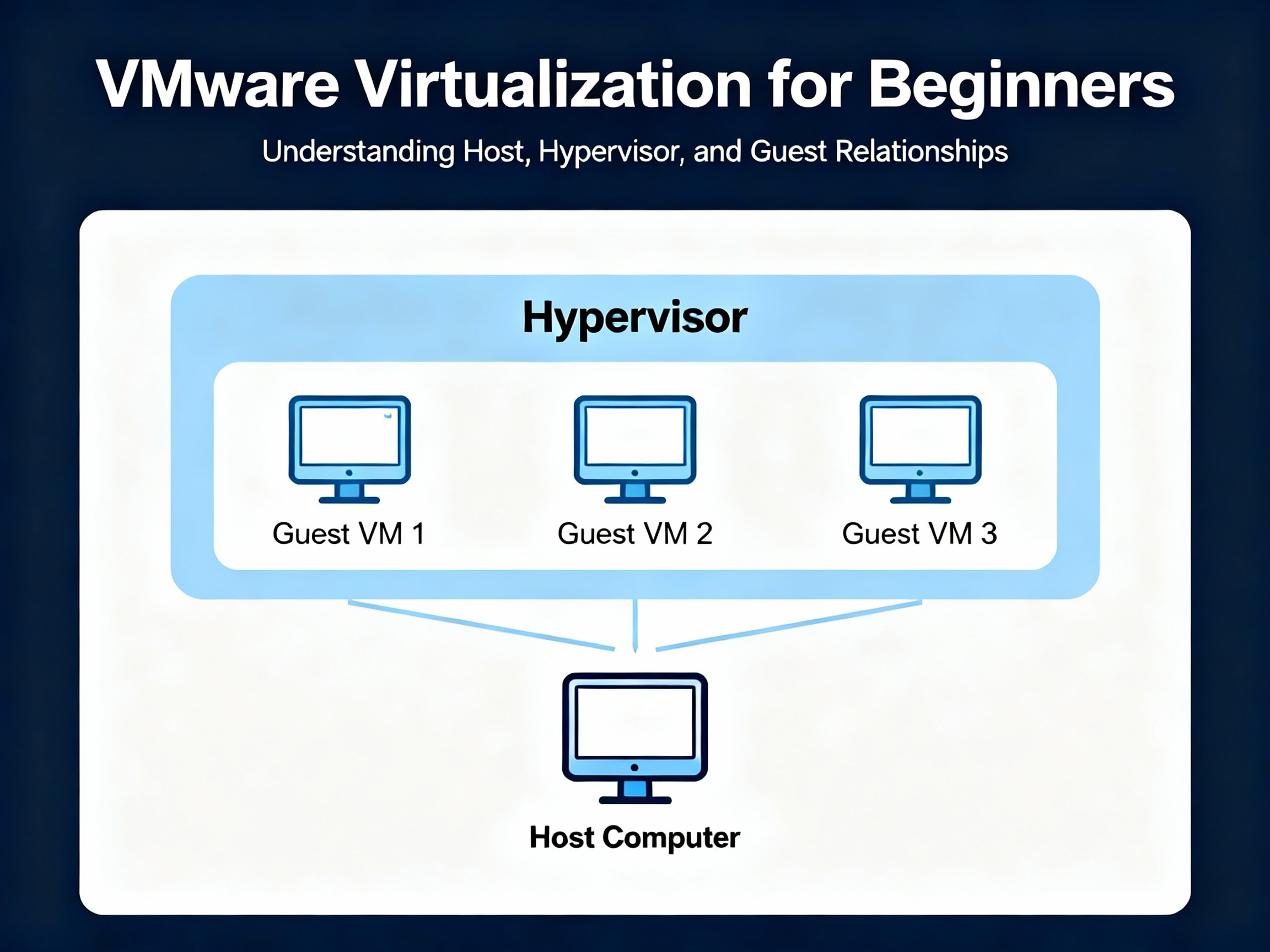
Bare-metal server:
The physical server hardware in a data center with no operating system installed yet—just raw hardware ready for hypervisor installation.
Host / Hypervisor:
The virtualization operating system installed on bare-metal hardware that hosts and manages virtual machines. Terms “host” and “hypervisor” are often used interchangeably.
Guest / VM / Instance:
A virtual machine running on top of the hypervisor. Called “guest” because it’s hosted by the hypervisor, also referred to as “VM,” “guest OS,” or “instance.”
Virtualization Manager:
Centralized management software that controls multiple hypervisors from a single interface. Examples include VMware vCenter Server, Oracle VM Manager, and Microsoft System Center Virtual Machine Manager.
vCPU (Virtual CPU):
A virtual processor assigned to a VM. One physical CPU core can be divided into multiple vCPUs and assigned to different VMs.
vRAM (Virtual RAM):
Memory allocated to a virtual machine from the physical server’s total RAM.
Virtual disk:
A file on physical storage that represents a hard drive to the virtual machine. Common formats include VMDK (VMware), VHD/VHDX (Hyper-V), and QCOW2 (KVM).
Virtual NIC (Network Interface Card):
A software-based network adapter presented to a VM, allowing network connectivity.
💡 Interview Tip: When discussing virtualization in job interviews, use correct terminology. Saying “I configured vCPU allocation on the ESXi host for production VMs” demonstrates deeper understanding than “I changed some VM settings.”
Virtualization vs Dual-Boot Systems
Many people confuse virtualization with dual-boot configurations. They solve different problems in fundamentally different ways.
Dual-Boot (Legacy Approach)
Architecture:
- One physical server with one hard drive
- Hard drive partitioned into separate sections
- Each partition contains a different operating system
Example configuration:
- Partition 1: 200 GB for Linux Ubuntu
- Partition 2: 200 GB for Windows 11
- Partition 3: 100 GB shared data
How it works:
- Power on the server
- Boot menu appears (GRUB, Windows Boot Manager)
- Select which operating system to load
- Chosen OS boots and uses full hardware resources
Critical limitation: Only one operating system runs at a time. To switch from Linux to Windows, you must:
- Save all work and close applications
- Shut down Linux completely
- Reboot the server
- Select Windows from boot menu
- Wait for Windows to boot (2-5 minutes)
Use cases:
- Personal computers where users occasionally need different operating systems
- Development workstations for testing cross-platform software
- Legacy systems before virtualization became mainstream
Virtualization (Modern Approach)
Architecture:
- One physical server with hypervisor
- Multiple VMs, each with complete operating system
- All VMs run simultaneously
Example configuration:
- VM1: Windows Server 2025 with SQL Database (4 GB RAM, 2 vCPU)
- VM2: Ubuntu Linux 22.04 with Apache web server (4 GB RAM, 1 vCPU)
- VM3: Windows 11 Pro workstation (4 GB RAM, 2 vCPU)
- VM4: CentOS for testing environment (2 GB RAM, 1 vCPU)
How it works:
- Physical server boots once into hypervisor
- All VMs start automatically (or on-demand)
- All operating systems run concurrently
- Switch between VMs instantly (no reboot)
- VMs communicate over virtual networks
Key advantages over dual-boot:
Concurrent operation: All operating systems run simultaneously—switch between them in seconds.
Network communication: VMs can communicate with each other, enabling complex multi-tier applications.
Resource sharing: Multiple OSs share hardware efficiently instead of one OS monopolizing all resources.
Isolation: Problems in one VM don’t affect others (unlike dual-boot where both OSs share hardware directly).
Snapshots and backups: Save VM state at any point and restore instantly—impossible with dual-boot.
Comparison Table
| Feature | Dual-Boot | Virtualization |
|---|---|---|
| Concurrent OSs | No (one at a time) | Yes (all simultaneously) |
| Switching time | 3-5 minutes (full reboot) | Instant (switch windows) |
| Resource usage | One OS uses all hardware | Shared among multiple VMs |
| Network between OSs | Not possible | Yes (virtual networks) |
| Isolation | None (shared hardware) | Strong (VM isolation) |
| Backup/restore | Complex (full partition images) | Simple (VM snapshots) |
| Use case | Personal dual-OS workstations | Enterprise servers, labs, production |
🎯 Bottom Line: Dual-boot is appropriate for personal computers needing occasional OS switching. Virtualization is the enterprise standard for running multiple servers, testing environments, and production workloads simultaneously.
Major Virtualization Platforms
Different hypervisors dominate different market segments. Understanding the landscape helps you choose the right platform for your needs.
VMware vSphere (ESXi Hypervisor)
Market position: Industry leader in enterprise virtualization with the largest market share.
Hypervisor: ESXi (formerly ESX)—bare-metal hypervisor installing directly on server hardware.
Management: vCenter Server provides centralized management for multiple ESXi hosts.
Key features:
- vMotion (live migration of running VMs between hosts)
- High Availability (automatic VM restart on host failure)
- Distributed Resource Scheduler (automatic load balancing)
- Fault Tolerance (continuous VM availability)
Desktop products:
- VMware Workstation Pro (Windows/Linux desktop virtualization)
- VMware Workstation Player (free for non-commercial use with limited features)
- VMware Fusion (macOS desktop virtualization)
Licensing: Commercial licensing required for production use; free evaluation versions available.
Strengths: Mature ecosystem, extensive features, broad hardware support, large community.
Use cases: Enterprise data centers, production servers, mission-critical workloads.
Microsoft Hyper-V
Market position: Strong in Windows-centric environments, integrated with Microsoft ecosystem.
Hypervisor: Hyper-V—built into Windows Server and Windows 10/11 Pro editions.
Management:
- Hyper-V Manager (built-in console)
- System Center Virtual Machine Manager (SCVMM) for enterprise
- Windows Admin Center (web-based management)
Key features:
- Live Migration (VM mobility between hosts)
- Replica (disaster recovery replication)
- Integration with Active Directory and Azure
- Nested virtualization (run VMs inside VMs)
Licensing: Included with Windows Server licenses; Windows 10/11 Pro for desktop.
Strengths: Tight Windows integration, included licensing, excellent for Microsoft shops, Azure connectivity.
Use cases: Windows Server environments, Active Directory infrastructure, organizations heavily invested in Microsoft technologies.
Oracle VM and VirtualBox
Oracle VM Server:
- Enterprise bare-metal hypervisor for Oracle workloads
- Optimized for Oracle Database and applications
- Based on Xen hypervisor technology
- Managed by Oracle VM Manager
Oracle VirtualBox:
- Free, open-source desktop virtualization (Windows, macOS, Linux)
- Excellent for learning, testing, and development
- Limited enterprise features compared to VMware Workstation
- Cross-platform support
Strengths: Free licensing (VirtualBox), Oracle workload optimization (VM Server).
Use cases: Oracle database deployments, personal labs, development environments.
Red Hat KVM (Kernel-based Virtual Machine)
Market position: Leading open-source virtualization for Linux environments.
Technology: KVM built into Linux kernel, managed with libvirt and tools like virt-manager.
Management:
- Red Hat Virtualization (RHV) for enterprise
- oVirt (open-source equivalent)
- OpenStack integration for cloud environments
Strengths: Open-source, deep Linux integration, no licensing costs, cloud-native.
Use cases: Linux-heavy environments, OpenStack clouds, cost-sensitive deployments.
Citrix Hypervisor (formerly XenServer)
Market position: Strong in Virtual Desktop Infrastructure (VDI) deployments.
Technology: Based on Xen hypervisor, integrated with Citrix Virtual Apps and Desktops.
Strengths: Excellent VDI performance, graphics optimization, Citrix ecosystem integration.
Use cases: Virtual desktop infrastructure, graphics-intensive applications, healthcare and education.
Platform Selection Guide
| If you need… | Consider… |
|---|---|
| Best overall features and support | VMware vSphere |
| Windows-centric environment | Microsoft Hyper-V |
| Free desktop virtualization | Oracle VirtualBox |
| Open-source enterprise solution | Red Hat KVM |
| Virtual desktops (VDI) | Citrix Hypervisor |
| Learning and labs | VirtualBox, VMware Player, or Hyper-V |
| Oracle Database workloads | Oracle VM Server |
💡 Career Advice: Learn multiple virtualization platforms. Organizations use different technologies, and cross-platform skills make you more valuable. Start with Hyper-V or VirtualBox (free), then explore VMware when opportunity arises.
Essential Virtualization Concepts and Operations
Beyond basic VM creation, understanding these concepts separates beginners from experienced virtualization administrators.
VM Templates
What they are: Pre-configured virtual machines with operating system installed, patched, and standardized, used as “golden images” to rapidly create new VMs.
How they work:
- Create a VM with desired OS and configuration
- Install updates and standard applications
- Generalize the OS (remove unique identifiers)
- Convert to template (read-only master image)
- Deploy new VMs from template in minutes
Benefits:
- Consistent VM configuration across environment
- Rapid deployment (minutes instead of hours)
- Reduced manual configuration errors
- Standardized security and patch levels
Real-world example: Create a Windows Server 2025 template with latest updates and standard tools. Deploy 20 new web servers from this template in under 30 minutes instead of spending days installing and configuring each server individually.
Snapshots
What they are: Point-in-time captures of a VM’s state, including disk contents and optionally memory state.
How they work:
- Take snapshot before risky changes (patches, upgrades, configuration)
- If changes cause problems, revert to snapshot instantly
- VM returns to exact state when snapshot was taken
Use cases:
- Testing patches: Snapshot → apply updates → test → keep changes or revert
- Software testing: Snapshot clean system → install test software → revert when done
- Training environments: Snapshot baseline → students make changes → revert for next class
Important considerations:
- Snapshots consume disk space (store changes since snapshot)
- Don’t use as backups (dependent on original VM files)
- Delete old snapshots after confirming changes work
- Performance impact grows with snapshot age and number
Best practice: Take snapshots before major changes, test thoroughly, then either commit changes (delete snapshot) or revert. Don’t maintain snapshots indefinitely.
Cloning
What it is: Creating a complete, independent copy of an existing VM.
Difference from snapshots:
- Snapshot: Dependent on original VM, tracks changes
- Clone: Completely independent VM, fully functional copy
Clone types:
Full clone:
- Complete copy of all VM files
- Independent from source VM
- Requires equal disk space
- Can modify without affecting original
Linked clone:
- Shares base disk with source VM
- Only stores differences from parent
- Smaller disk footprint
- Faster creation
- Requires parent VM files remain available
Use cases:
- Creating test environments from production VMs
- Distributing identical VMs to multiple hosts
- Rapid deployment of similar configurations
- Development and staging environments
P2V (Physical to Virtual) Migration
What it is: Converting a physical server into a virtual machine, migrating the entire operating system, applications, and data into a VM running on a hypervisor.
Process:
- Analyze physical server (OS, applications, drivers)
- Install P2V conversion tool (VMware Converter, Microsoft Virtual Machine Converter)
- Capture physical server’s disks and configuration
- Create VM with equivalent virtual hardware
- Convert and transfer data to hypervisor
- Test and validate VM functionality
- Decommission physical server
Benefits:
- Extend life of older hardware by virtualizing workloads
- Reduce physical server count
- Improve disaster recovery capabilities
- Simplify backup and restoration
Challenges:
- Hardware-specific drivers may need replacement
- Licensing considerations (OS and applications)
- Performance validation required
- Downtime during migration
Real-world example: Migrate aging Windows Server 2012 physical server running legacy application to VM on modern hypervisor. Old server hardware can retire while workload continues running in virtualized environment with improved backup and high availability.
V2V (Virtual to Virtual) Migration
What it is: Moving virtual machines between different virtualization platforms or hypervisors.
Common scenarios:
- VMware to Hyper-V
- VirtualBox to VMware
- On-premises hypervisor to cloud (AWS, Azure)
- Between different hypervisor versions
Process:
- Export VM from source platform (OVA, OVF format)
- Convert virtual disk formats if needed
- Import VM to destination platform
- Adjust virtual hardware configuration
- Install new platform’s integration tools
- Test functionality
Use cases:
- Consolidating different virtualization platforms
- Migrating to cloud platforms
- Disaster recovery scenarios
- Vendor changes
High Availability and Disaster Recovery
High Availability (HA):
Automatically restarts VMs on different hosts if hardware fails, minimizing downtime.
How it works:
- Multiple hypervisor hosts in a cluster
- Shared storage accessible by all hosts
- Heartbeat monitoring between hosts
- If host fails, VMs automatically restart on surviving hosts
- Downtime limited to VM reboot time (1-3 minutes)
Disaster Recovery (DR):
Replication of VMs to remote sites for protection against site-wide failures.
How it works:
- Replicate VM disks to DR site (continuous or scheduled)
- If primary site fails, start replicated VMs at DR site
- Recovery time depends on replication frequency and automation
🛡️ Enterprise Reality: Mission-critical VMs typically use both HA (protects against hardware failure) and DR (protects against site disasters) for comprehensive availability.
Benefits of Virtualization: Why It Matters
Understanding theoretical concepts is important, but recognizing real-world benefits drives adoption decisions.
1. Cost Savings (Hardware Consolidation)
Server consolidation: Replace 10-20 physical servers with 1-2 virtualization hosts, reducing:
- Hardware purchase costs by 80-90%
- Maintenance contracts and support costs
- Replacement and upgrade expenses
Data center costs:
- Less rack space needed (reduces leasing costs)
- Fewer network cables and switches
- Reduced physical security requirements
Real-world example: Company running 30 physical servers consolidates to 3 virtualization hosts, reducing annual hardware costs from $150,000 to $30,000 while improving performance and management.
2. Energy Efficiency
Power consumption: Fewer physical servers mean dramatically lower electricity usage:
- Each physical server draws 300-500 watts
- Consolidating 20 servers to 2 saves ~8,000 watts continuous draw
- Annual electricity savings: $5,000-$10,000 depending on rates
Cooling requirements: Less heat generation reduces HVAC demands:
- Air conditioning for data centers is expensive
- Typically 1:1 ratio (1 watt of IT power = 1 watt of cooling)
- Server consolidation cuts cooling costs in half
Environmental impact: Lower carbon footprint through reduced energy consumption.
3. Simplified Management
Centralized control: Manage hundreds of VMs from single console instead of physically accessing individual servers.
Automation capabilities:
- Scripted VM deployment
- Automated patching and updates
- Policy-based resource allocation
- Scheduled snapshot creation
Remote administration: Manage infrastructure from anywhere with network access—no need to physically visit data centers.
Monitoring and reporting: Comprehensive visibility into resource usage, performance metrics, and capacity planning.
4. Rapid Deployment
VM creation speed:
- Physical server: Hours to days (ordering, shipping, racking, cabling, OS installation)
- Virtual machine: Minutes (deploy from template, power on)
Template-based deployment: Standardized VMs created from golden images in under 10 minutes.
Testing and development: Instantly create test environments, run tests, then delete—no hardware procurement delay.
Real-world impact: Development teams provision test environments in minutes instead of waiting weeks for hardware approval and setup.
5. Disaster Recovery and Business Continuity
VM portability: Move VMs between hosts, data centers, and even cloud providers.
Backup simplification: Back up entire VMs as files rather than individual server components.
Rapid recovery: Restore complete server environments in minutes from VM backups.
Site redundancy: Replicate VMs to disaster recovery sites automatically.
Testing DR plans: Test disaster recovery without impacting production (clone VMs, test recovery, delete test VMs).
6. Flexible Resource Allocation
Dynamic resource adjustment: Increase or decrease vCPU, vRAM, and storage without hardware changes or downtime.
Resource pools: Allocate resources based on business priorities and workload demands.
Overcommitment: Safely allocate more total vCPU and vRAM than physical resources (works because VMs don’t use maximum resources simultaneously).
Example: Web server VM experiencing high traffic? Increase from 2 vCPU to 4 vCPU in seconds without reboot (hot-add supported on some platforms).
7. Enhanced Testing and Development
Safe experimentation: Test patches, configuration changes, and upgrades using snapshots—revert instantly if problems occur.
Isolated environments: Create self-contained test networks with multiple VMs that don’t affect production.
Cross-platform testing: Run Windows, Linux, and other operating systems simultaneously for compatibility testing.
Training and certification labs: Build complex lab environments on single physical server for learning Active Directory, networking, and system administration.
8. Licensing and Software Optimization
Consolidated licensing: Some vendors offer more favorable licensing for virtualized environments.
License mobility: Move software licenses between VMs more easily than between physical servers.
Test licenses: Evaluate software on temporary VMs without dedicating physical hardware.
💰 ROI Reality: Organizations typically achieve full return on virtualization investment within 6-12 months through combined hardware, energy, and management cost savings.
Virtualization vs Cloud Computing
Many people confuse virtualization with cloud computing. They’re related but distinct concepts.
Virtualization (Technology)
What it is: The technology that allows one physical server to host multiple virtual machines.
Where it runs: Your data center, on your hardware, managed by your IT team.
What you manage:
- Physical servers and hypervisors
- Virtual machines and guest operating systems
- Applications running in VMs
- Network, storage, and backup infrastructure
- Security, patching, and monitoring
Capital expenses: Purchase servers, storage, networking equipment upfront.
Operational model: Traditional IT ownership—you own and operate everything.
Scalability: Limited by your physical hardware—must purchase and install more servers to expand.
Example: Your company runs 50 VMs on 5 VMware ESXi servers in your basement data center. Your IT team manages everything from hypervisors to applications.
Cloud Computing (Service Model)
What it is: A service model where you consume computing resources (virtualized servers, storage, networking) from a remote provider’s data centers as an on-demand service.
Where it runs: Cloud provider’s data centers (AWS, Azure, Google Cloud) across multiple geographic regions.
What provider manages:
- Physical servers, networking, and storage hardware
- Data center facilities (power, cooling, security)
- Virtualization platform (hypervisors)
- Base infrastructure and networking
What you manage:
- Virtual machines (or serverless functions)
- Operating systems (depending on service model)
- Applications and data
- Cloud resource configuration
Capital expenses: Minimal or zero—pay monthly or hourly for resources consumed.
Operational model: Consumption-based—pay for what you use, scale up or down on demand.
Scalability: Nearly unlimited—provision hundreds of VMs in minutes, scale globally.
Example: Your company runs 50 VMs on Amazon Web Services (AWS EC2). AWS manages physical infrastructure and hypervisors; you configure and manage VMs and applications through web console or API.
Service Models (IaaS, PaaS, SaaS)
Cloud computing offers different levels of management responsibility:
IaaS (Infrastructure as a Service):
- Provider: Physical hardware, virtualization
- You: Operating systems, applications, data
- Examples: AWS EC2, Azure Virtual Machines, Google Compute Engine
PaaS (Platform as a Service):
- Provider: Physical hardware, virtualization, operating systems, runtime environments
- You: Applications and data
- Examples: AWS Elastic Beanstalk, Azure App Services, Google App Engine
SaaS (Software as a Service):
- Provider: Everything (infrastructure, platform, application)
- You: Use the application and manage your data
- Examples: Microsoft 365, Salesforce, Google Workspace
Relationship Between Virtualization and Cloud
Virtualization enables cloud: Cloud providers use virtualization technology (hypervisors) to create and manage the virtual servers you rent. AWS, Azure, and Google Cloud run massive virtualization platforms under the hood.
Cloud consumes virtualization: When you launch an EC2 instance on AWS, you’re getting a virtual machine running on Amazon’s hypervisors—virtualization as a service.
On-premises virtualization → Private cloud: Organizations can build “private clouds” using virtualization platforms with self-service portals, chargeback systems, and automation—cloud-like experience using your own infrastructure.
Comparison Table
| Aspect | On-Premises Virtualization | Public Cloud |
|---|---|---|
| Infrastructure ownership | You own hardware | Provider owns hardware |
| Capital cost | High (purchase servers) | Low (pay-per-use) |
| Operational cost | Predictable (fixed) | Variable (usage-based) |
| Scalability | Limited by hardware | Nearly unlimited |
| Management responsibility | Full (hardware to apps) | Partial (VMs and apps) |
| Deployment speed | Days to weeks (hardware) | Minutes (provision VMs) |
| Geographic reach | Single location typically | Global (multiple regions) |
| Control | Complete control | Shared responsibility |
| Best for | Stable workloads, compliance | Variable workloads, agility |
Hybrid Cloud: Best of Both Worlds
Many organizations combine on-premises virtualization with public cloud:
Hybrid architecture:
- Core applications run on-premises (data sovereignty, low latency)
- Variable workloads burst to cloud (seasonal demand, testing)
- Disaster recovery sites in cloud (cost-effective DR)
- Development in cloud, production on-premises
Tools enabling hybrid:
- VMware Cloud on AWS (run VMware workloads in AWS)
- Azure Arc (manage on-premises and cloud resources together)
- Google Anthos (multi-cloud and on-premises management)
🎯 Modern Reality: Most enterprises use hybrid approaches—virtualized on-premises infrastructure for core workloads plus public cloud for specific use cases. Understanding both virtualization and cloud is essential for modern IT professionals.
Key Takeaways
💻 Virtualization transforms hardware efficiency by enabling one physical server to run multiple virtual machines simultaneously, dramatically improving resource utilization from 30% to 90%+ while reducing costs.
🔧 Hypervisors are the foundation of virtualization—specialized software that sits directly on hardware, creating and managing virtual machines while allocating CPU, RAM, storage, and network resources among them.
☁️ Virtualization enables cloud computing but they’re not the same—virtualization is the underlying technology, while cloud is a service model that delivers virtualized resources remotely as on-demand, pay-per-use services.
🚀 Real-world benefits extend beyond cost savings to include rapid VM deployment (minutes vs days), simplified disaster recovery, flexible resource allocation, and safe testing environments using snapshots and clones.
Frequently Asked Questions
Q: Can I run virtualization on my personal computer?
A: Yes, using desktop virtualization software like Oracle VirtualBox (free), VMware Workstation Player (free for non-commercial use), or Hyper-V (included in Windows 10/11 Pro). Your computer needs sufficient RAM (8GB minimum, 16GB+ recommended) and CPU virtualization support enabled in BIOS.
Q: Does virtualization slow down performance compared to physical servers?
A: Modern virtualization adds only 2-5% performance overhead—negligible for most workloads. Benefits of resource sharing, consolidation, and management typically outweigh minor performance differences. Mission-critical applications with extreme performance requirements may still use dedicated physical servers.
Q: What happens if the hypervisor server fails?
A: Without high availability (HA) configuration, all VMs on that host stop. With HA (multiple hosts in a cluster with shared storage), VMs automatically restart on surviving hosts within 1-3 minutes. Enterprise environments always implement HA for production workloads.
Q: Can different types of operating systems run on the same hypervisor?
A: Yes, that’s a key benefit. You can run Windows Server, various Linux distributions, and other operating systems simultaneously on the same hypervisor. Each VM operates independently with its own OS.
Q: Is virtualization secure? Can VMs access each other?
A: Properly configured virtualization is very secure. Hypervisors isolate VMs from each other—one VM cannot directly access another VM’s memory or storage. VMs communicate only through virtual networks you configure. Security vulnerabilities are rare and quickly patched by vendors.
Q: How much does virtualization software cost?
A: It varies widely. VirtualBox is free. Hyper-V is included with Windows Server and Windows 10/11 Pro. VMware vSphere requires commercial licensing ($1,000-$5,000+ per processor depending on edition and features). KVM is open-source and free. Evaluate based on your needs and budget.
Next Steps: Building Your Virtualization Skills
Understanding virtualization concepts prepares you for hands-on practice and advanced topics.
Recommended learning path:
Week 1-2: Desktop virtualization practice
- Install VirtualBox or enable Hyper-V
- Create your first virtual machine
- Experiment with snapshots and clones
- Build multi-VM lab environment
Week 3-4: Networking and storage
- Configure virtual networks and switches
- Connect VMs to each other
- Implement shared storage scenarios
- Practice P2V migrations
Week 5-6: Enterprise features
- Explore high availability concepts
- Test VM migration between hosts
- Implement backup and recovery strategies
- Study resource pools and allocation
Certifications to consider:
- VMware Certified Professional (VCP)
- Microsoft Certified: Azure Administrator Associate
- Red Hat Certified Virtualization Administrator (RHCVA)
- CompTIA Cloud+ (covers virtualization fundamentals)
Related Topics:
- “Building Your First Active Directory Lab with Hyper-V”
- “VMware vSphere: Complete Setup Guide for Beginners”
- “Understanding Cloud Computing: IaaS, PaaS, and SaaS Explained”
- “Virtual Networking Fundamentals: VLANs, Switches, and Security”
Have questions about virtualization concepts or choosing the right platform for your needs? Drop a comment below with your specific scenario—I respond to every question and love helping others understand infrastructure technologies.
Virtualization transformed IT from hardware-dependent to software-defined infrastructure. Master these fundamentals, and you’ll understand the foundation beneath cloud computing, modern data centers, and enterprise IT. Share this guide with others learning virtualization, and follow along for hands-on tutorials and advanced topics!