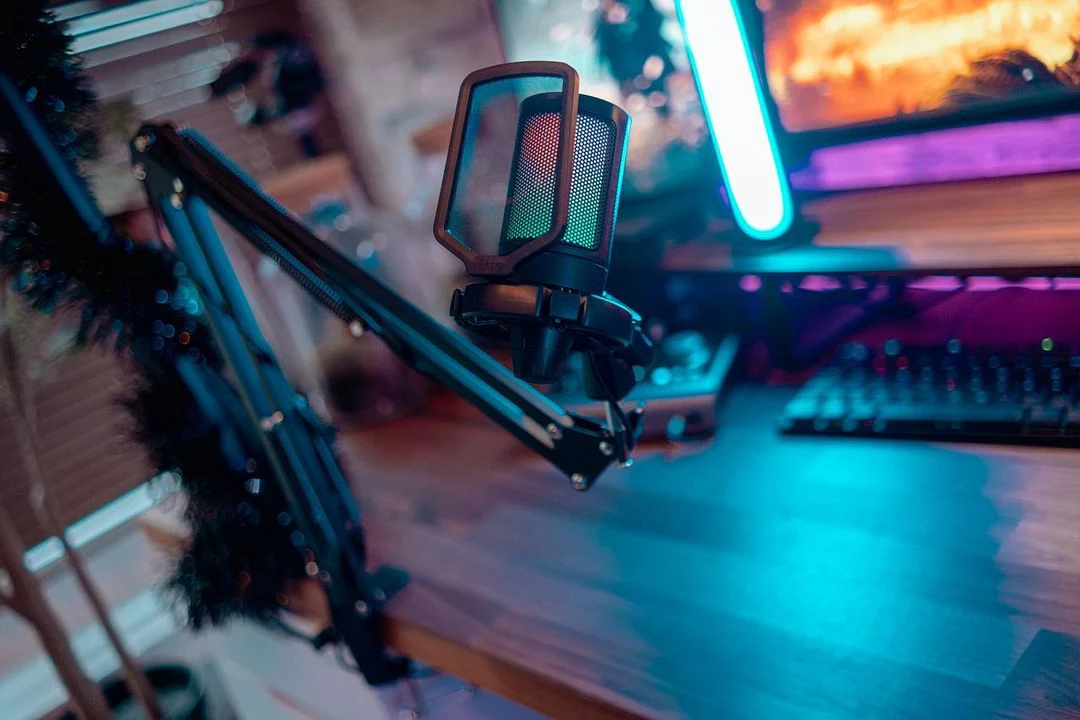
To make your soft voice loud and clear on any Microphone, with zero background noise—follow these steps for desktop and OBS settings, plus microphone handling tips. Most issues with quiet mic output come from Windows settings, mic placement, or not boosting the signal enough before filtering.
STEP-BY-STEP GUIDE
1. WINDOWS MIC SETTINGS – MAXIMUM BOOST
- Go to Sound Settings > Recording Tab > Select Mic > Properties > Levels.
- Set Microphone level to 100%.
- If available, set Microphone Boost to +20dB or +30dB.youtube+2
- Set Format to “1 channel, 16 bit, 48000 Hz”.
- Disable any “Enhancements” in the Properties tab (these may lower your volume).
2. PHYSICAL MIC PLACEMENT
- Speak directly into the top of the mic, 2–4 inches away—not from the sides.
- Set the physical gain knob on the mic to 70–90% (almost maximum) but below the point of distortion – if knob is available on your mic.
- Test by speaking normal then loud to ensure no crackling.
3. OBS FILTER RECOMMENDATIONS (LAYER IN ORDER)
- Gain: Add a Gain filter, +10dB to +15dB if your voice remains quiet after system boost.
- Noise Suppression: RNNoise or Speex, set between -20dB to -35dB to cancel background hum. Lower suppression avoids muffling your voice.
- Noise Gate: Closed threshold 7–12dB below your soft speaking level; open threshold a few dB above.
- Compressor: Ratio 4:1 or 5:1, threshold -25dB to -20dB, attack 6ms, release 60ms, output gain +2 to +6dB to further amplify soft speech without clipping.
- Limiter: Threshold -3dB to -6dB, fast release (60ms) to block distortion when you shout.
- EQ (3-Band Equaliser): Cut lows below 80Hz, slightly boost 3-5kHz for vocal clarity.
- For the 3-Band Equalizer in OBS to make a quiet, soft voice sound louder, clearer, and more present, use these settings as your starting point and adjust by ear for best results
3-BAND EQ SUGGESTED SETTINGS FOR VOICE
| Band | Setting | Adjustment | Purpose |
|---|---|---|---|
| Low | 0.00 to +2.00 dB | Slight boost | Adds fullness but avoid muddiness; boost only if voice sounds thin |
| Mid | +3.00 to +6.00 dB | Main boost | Adds body and helps soft voices sound stronger and clearer |
| High | +2.00 to +4.00 dB | Boost clarity | Improves crispness and presence for clear studio sound |
Start with Mid around +4 dB, High around +3 dB, Low at 0 or +1 dB. This shape brings out articulation and brightness—very important for a feeble voice. If your mic sounds harsh or sibilant with more highs, reduce the High band a bit.
WHY THESE SETTINGS HELP
- Mid boost: Makes your soft speech stand out and avoids a hollow or muffled sound.
- High boost: Adds “air” and clarity, critical for studio-type vocal presence.
- Low gentle boost: Rounds your voice if it feels thin, but a big boost will add rumble and noise.
Adjust in small steps and test with your normal speaking volume. Always combine EQ with proper gain and compressor settings for consistent, loud, and clear output.
If your voice still isn’t loud enough, turn up the Gain filter (+5 to +10 dB) after the EQ.
4. TROUBLESHOOTING
- Test your mic on another PC or app (Audacity, phone) to rule out hardware faults.
- Try disabling “exclusive control” for your mic in Windows sound settings to avoid auto-volume adjustment.
- Don’t overdo suppression or gate—too strong will mute soft sounds.
WHAT TO AVOID
- Do not stack too many noise filters, as they will make soft voices even quieter.
- Avoid speaking from too far away, as USB condenser mics are not highly sensitive to distant sound.
With these steps, your mic should pick up your voice clearly and loudly, with minimal to zero background noise. Regularly monitor the input meter to keep peaks near -6dB and adjust as needed.
