Extracting images from a PDF is useful when you need to reuse photos, graphics, or scanned documents. Adobe Acrobat allows you to export individual images or extract all images at once in formats such as JPEG, PNG, and TIFF.
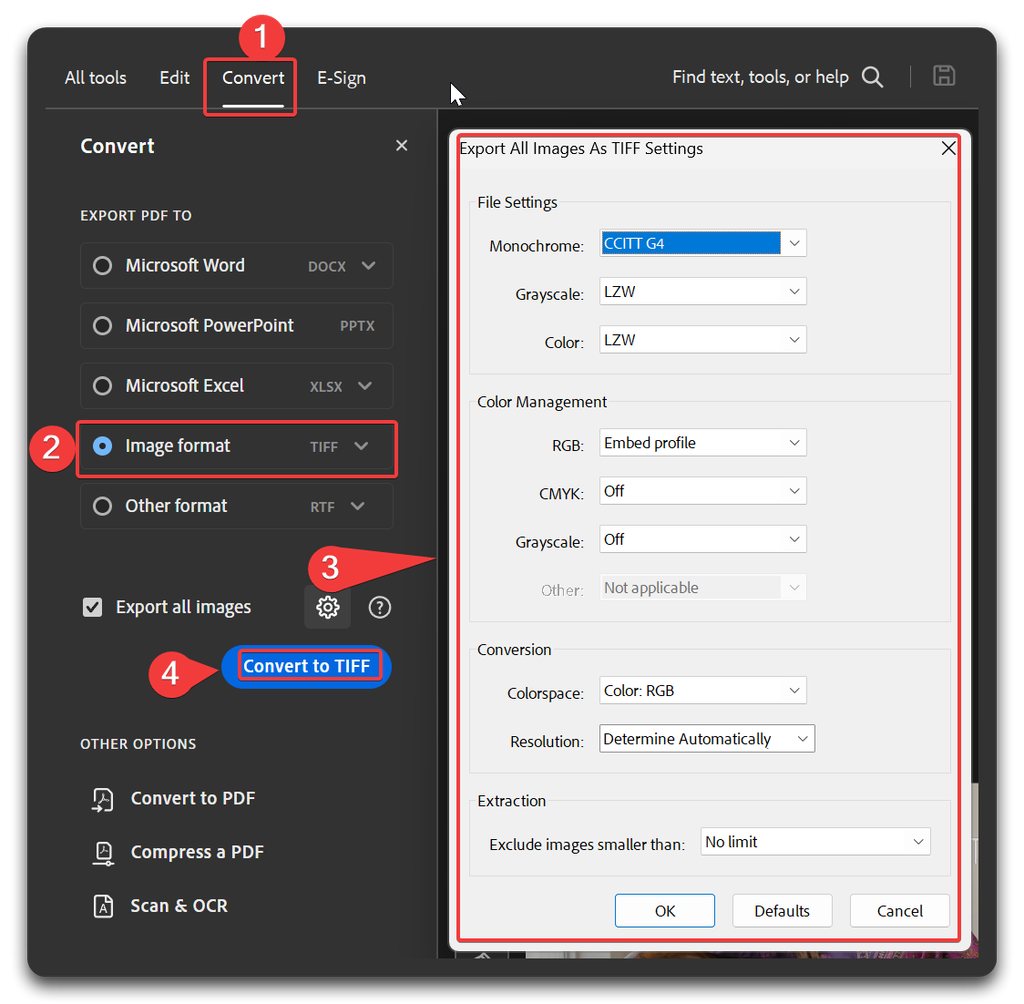
Export All Images from a PDF
- Open the PDF in Adobe Acrobat Pro.
- Select All tools → Export a PDF.
- Choose Image and select TIFF, PNG, or JPEG.
- Select Settings or the gear icon.
- Enable Export all images.
- Adjust the image and color settings.
- Click OK, then select Export.
- Choose a folder and save the extracted images.
Best Settings for High Quality
For the highest quality, choose TIFF and use these settings:
- Monochrome: CCITT G4
- Grayscale: LZW
- Color: LZW
- RGB: Embed profile
- CMYK: Embed profile when available for print images
- Colorspace: Determine automatically
- Resolution: Determine automatically
- Exclude images smaller than: No Limit
TIFF with LZW compression preserves image quality because LZW is lossless. However, Acrobat cannot restore detail that was already compressed or reduced in the original PDF.
Which Format Should You Choose?
- TIFF: Best for maximum quality, printing, scanning, and archiving.
- PNG: Best for graphics, screenshots, text, and images requiring transparency.
- JPEG: Best for websites and smaller file sizes, but it uses lossy compression.
- JPEG 2000: Useful when you need advanced compression with good quality.
Export One Image
To export a single image:
- Open the PDF in Acrobat.
- Select Edit a PDF.
- Right-click the image.
- Choose Save Image As or the image export option.
- Select the desired format and save it.
Directly exporting the image is better than taking a screenshot because screenshots may reduce the image’s resolution and color accuracy.
Final Tip
For professional printing, use TIFF with LZW compression and an embedded color profile. For websites, use JPEG for photographs or PNG for graphics and screenshots. Adobe Acrobat can extract raster images, but vector objects may not be exported as separate image files.