“Learn to code” has become a huge mantra in the 21st century. But learning to program isn’t just for software engineers. Whether you are managing an eCommerce shop and want to automate data collection to improve conversion rates, track your Instagram audience traffic, or simply stop endlessly clicking through spreadsheets, programming can do the heavy lifting for you.
Estimated Reading Time: 8 minutes
What You’ll Learn:
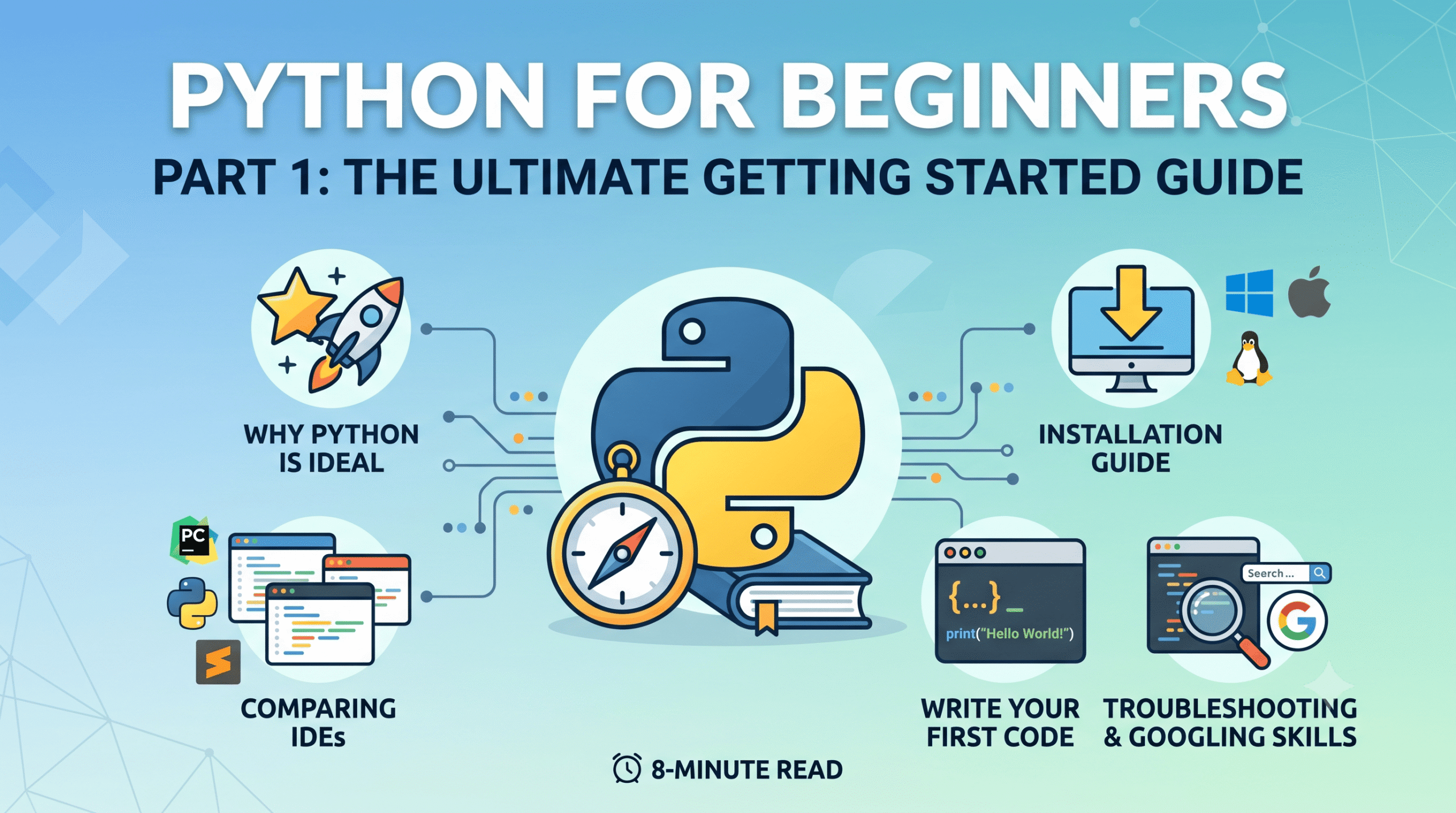
- Why Python is the ideal first language.
- How to install Python on Windows, macOS, and Linux.
- The difference between popular IDEs (like IDLE, PyCharm, and Sublime Text).
- How to write your very first line of code.
- The essential developer skill: How to troubleshoot and Google effectively.
Why Learn Python? (And What Is It Used For?)
There is a reason many universities are switching their computer science curriculum away from Java and toward Python. Python is widely considered the best first language to learn. It features a gentle learning curve and simple syntax, making it highly readable.
However, do not let its simplicity fool you—it is incredibly powerful. Python is utilized by massive tech companies like Google, NASA, Yahoo, and YouTube. It is even used by non-technology companies such as JPMorgan Chase and Industrial Light and Magic.
A Brief History
Created by Guido van Rossum and first released in 1991, Python was designed with a core philosophy: code readability matters. While older languages required complex, verbose syntax just to print a simple message, Python was built to look almost like plain English. Today, it dominates fields like cloud computing, artificial intelligence, web development, and daily task automation.
“Half of the software engineers day is spent googling for information. Programming can be complicated and no one can keep all this information in their head.” — Al Sweigart
Choosing Your Workspace: The Best IDEs
To write code, you do not need to buy expensive software or physical tools. All you need is a free interpreter program to translate your commands to the computer. When you download Python, it comes bundled with an editor program called IDLE, which you type your Python code into.
IDLE operates in two main modes:
- The Interactive Shell: This window features a
>>>prompt. It runs Python instructions one at a time and displays the results immediately, making it perfect for experimenting. - The File Editor: This is where you enter code for complete, multi-line programs.
While IDLE is excellent for beginners because it requires no extra setup, professional developers eventually move on to more advanced Integrated Development Environments (IDEs). Two popular alternatives you can explore later are Sublime Text and PyCharm.
[Suggest Image Placement: A side-by-side screenshot comparing the IDLE interactive shell (with the >>> prompt) and the IDLE file editor window. Alt-text: “Comparison of Python IDLE Interactive Shell and File Editor interfaces.”]
Step-by-Step Installation Guide
Before you can start automating, you need the right tools installed. The golden rule: Always download Python 3 (like version 3.5 or newer), not Python 2 (like version 2.7).
| Operating System | Installation Steps |
| Windows | Visit python.org and download the Windows installer. Crucial: During installation, check the box that says “Add Python to PATH” before clicking Install. |
| macOS | Visit python.org and download the macOS installer. Alternatively, use Homebrew via the terminal: brew install python. |
| Linux (Ubuntu/Debian) | Most Linux distributions come with Python pre-installed. To update to the latest version, open your terminal and run: sudo apt-get update && sudo apt-get install python3. |
Warning: Installation steps can vary slightly depending on your specific operating system version, so always consult official documentation if you hit a snag.
Writing Your First Python Code
Let’s dive into the Interactive Shell. Open IDLE (on Windows, click Start and type “IDLE”).
Expressions vs. Statements
In Python, an instruction that evaluates down to a single value is called an expression. An instruction that does not evaluate to a single value is called a statement.
Let’s test an expression. Type the following into the shell and hit Enter:
Python
2 + 2
Expected Output:4
Python evaluates this expression down to a single integer value.
Working with Text (Strings)
Python categorizes data into types. Whole numbers (like 42) are integers, numbers with decimal points (like 3.14) are floats, and text values are called strings. Strings must begin and end with a single quote so Python knows exactly where the text begins and ends.
Python
print('Hello world!')
Expected Output:Hello world!
The print() function acts like a mini-program that takes the value passed to it and displays it on the screen.
The Developer’s Secret: How to Google for Help
You will inevitably get error messages, and that is perfectly okay. These errors do not damage your computer. When you get stuck, your best friend is Google, which will likely point you to a Q&A site called Stack Overflow.
If you need to ask a forum for help, follow these best practices to get a fast, accurate response:
- Be specific: Explain what you are trying to do, not just what you did.
- Pinpoint the error: If you receive an error message, specify the exact point and line number where the error occurs.
- Share your code cleanly: Copy and paste your entire error message and code into a pastebin site like pastebin.com or gist.github.com to share it via a clean link.
- Show your work: Explain what you have already tried to solve the problem yourself.
- Provide environment details: Always list your specific OS version (like Windows 7) and the version of Python you are using.
[Suggest Image Placement: A flowchart diagram showing the troubleshooting process: Encounter Error -> Google Error -> Check Stack Overflow -> Ask Question with Context. Alt-text: “Flowchart demonstrating how software developers troubleshoot Python errors.”]
Key Takeaways
- Automation is for Everyone: You do not need a computer science background to use Python to automate repetitive daily tasks.
- Version Matters: Always ensure you are installing and using Python 3, not Python 2.
- Master the Environment: Use IDLE’s interactive shell to test quick expressions, and use the file editor to write out full scripts.
FAQ
Q: Do I need a powerful computer to run Python?
A: Not at all! Python is incredibly lightweight. Any standard laptop or desktop PC from the last decade can run Python effortlessly.
Q: What is the difference between Python the software and Python the language? A: When people say “Python,” they usually mean either the Python interpreter software installed on your machine or the actual typed Python language. You need the software to run the language.
Q: Can I use double quotes for strings instead of single quotes? A: Yes. While standard tutorials often use single quotes like 'Hello world!', Python also accepts double quotes ("Hello world!"). Just ensure you use the same quote type to start and end the string.
Next Steps
Now that your environment is set up and you’ve run your first expressions, you are ready to build something real.
In Part 2 of this series, we will dive into a Hands-On Guided Project focused on practical Cloud Engineering tasks. We will break down complete code blocks step-by-step so you understand exactly what your code is doing.
Did you run into any issues during installation? Drop a comment below, and let’s troubleshoot it together!