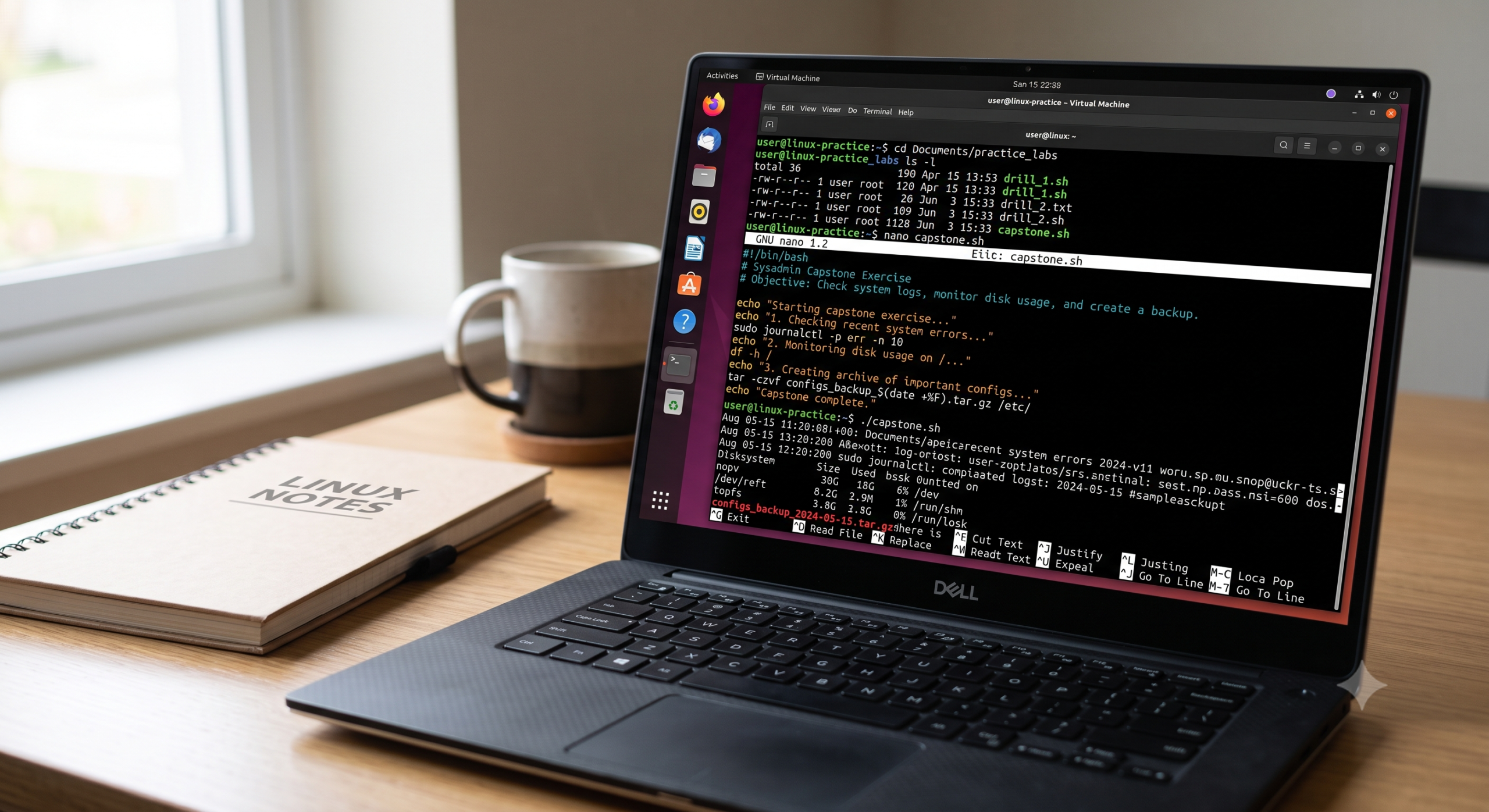
Companion practice file to the study notes. Run these in an actual Linux terminal (a VM, WSL, or a cloud instance all work fine). Each drill isolates one concept; the capstone at the end combines everything into one realistic sysadmin-style session.
Safety note before you start: several drills below intentionally simulate small mistakes so you can see their effect. Do them in a disposable VM or a non-production account — not on a machine you actually depend on.
Quick Drills (5–10 min each)
Drill 1 — Terminal & shell orientation
- Open your terminal using three different methods: the applications menu, right-click → “Open in Terminal,” and the
Ctrl+Alt+Tshortcut. - Open a second tab in the same window (the
+button). - Run
echo $0in each tab — confirm both report the same shell (likelybashor-bash). - Run
type bashandtype cd. Note which one is an executable file and which is a shell builtin.
Check yourself: Can you explain, in one sentence each, the difference between the terminal window and the shell running inside it?
Drill 2 — Command anatomy
- Run
ping -c 1 8.8.8.8. Identify out loud (or in a notes file) which part is the command, which is the option, which is the option’s value, and which is the argument. - Run
pingwith no arguments at all. Read the error message carefully. - Run
ls, thenls -l /etc, thenls -la /etc, thenls --all /etc. Confirm the last two produce identical output. - Run
df, thendf -h(human-readable sizes — a bonus option not in the transcript, but useful to discover on your own).
Check yourself: Without looking at your notes, write the general syntax pattern command [options] [arguments] from memory.
Drill 3 — man pages and getting help
- Open
man ls. Practice:g(top),G(bottom),/format+ Enter (search forward),n(next match),q(quit). - Find the SYNOPSIS line for
ls. Identify one part in square brackets (optional) and explain what the...after[FILE]means. - Run
type useraddandtype alias. Tryman useraddon one andhelp alias(or the appropriate builtin) on the other — confirm which works. - Use
aproposorman -kto find every command related to the word"password". List at least 2 you didn’t know existed.
Check yourself: Explain the difference between bold text and italic/underlined text inside a man page synopsis.
Drill 4 — Tab completion discipline
- Type
ifcand press Tab — confirm it completes toifconfig(installnet-toolsfirst if needed:sudo apt install net-tools). - Type just
ifand press Tab once (nothing happens), then Tab again to see all matches. Keep typing until it resolves uniquely. - Type
cat /e+ Tab, then continue toward/etc/passwdusing Tab at each opportunity — never type a full path segment by hand. - Deliberate mistake drill: in a scratch directory (
mkdir ~/tabtest && cd ~/tabtest && touch fileone), typecat fileonewith two spaces in the middle, then press Tab. Notice it does not complete — this is your signal something’s wrong. Fix the extra space, then Tab again and confirm it now completes.
Check yourself: State the rule from the lecture in your own words: what should you do the moment Tab fails to complete something you expected it to?
Drill 5 — Keyboard shortcuts in motion
- Run
ls -l /etc/passwd. - Press
↑to recall it, thenCtrl+Ato jump to the start of the line, deletels -land typecatinstead, then Enter. - Type a long command, then press
Ctrl+Upartway through — confirm the line before the cursor is wiped. - Start a long-running command (
ping 8.8.8.8with no-climit) and stop it withCtrl+C. - Start it again, this time pause it with
Ctrl+Z, then resume it withfg(foreground) orbg %1(background). - Press
Ctrl+Lto clear your screen.
Check yourself: What’s the practical difference between stopping a process with Ctrl+C versus Ctrl+Z?
Drill 6 — Bash history control
- Check your limits:
echo $HISTFILESIZEandecho $HISTSIZE. - Run 5 different harmless commands (
whoami,pwd,date,uptime,id). - Run
historyand find each one by its line number. - Re-run one using
!<number>, then re-run the most recent using!!. - Try
!wh:p(print, don’t run) before actually running!wh. - Check your current
HISTCONTROLvalue:echo $HISTCONTROL. Set it toignorespacefor this session only, then run a command with a leading space and confirm it’s absent fromhistory. - Set
HISTTIMEFORMAT="%d/%m/%y %T"and runhistoryagain — confirm timestamps now appear. - Delete one specific history line with
history -d <line_number>.
Check yourself: Explain why history -c alone, run right after doing something you didn’t want logged, might actually draw more attention than it prevents.
Drill 7 — Root access, the three ways
(Do this only in a disposable VM.)
- Run
idto confirm your current user and groups. - Try
sudo su, confirm your prompt now ends in#, thenexitback out. - Try a single privileged command with plain
sudo:sudo groupadd testgroup101. Then immediately run a secondsudocommand — notice you’re not re-prompted for a password (5-minute credential cache). - Run
sudo -kto invalidate the cache, then try a thirdsudocommand — confirm you’re prompted again. - Set a root password (Ubuntu only, since it has none by default):
sudo passwd root. Then try plainsuand log in with that root password. - Compare
/and/root— runls /andls /rootand explain in your own words why they are not the same thing.
Check yourself: Which of the three root-access methods is generally considered the safest habit for day-to-day admin work, and why?
Capstone Lab: “New Server Onboarding” (30–45 min)
Scenario: You’ve just been handed a fresh Ubuntu server (or VM) as a junior sysadmin. Your task is to do initial setup and safe exploration — combining terminal basics, help-seeking, history hygiene, and privilege management the way you would on a real first day.
Work through this as one continuous session. Where a step says “explain,” write a one-line comment either in your terminal (as a # comment, harmless in bash) or in a separate notes file.
- Orient yourself.
- Open a terminal. Check your current user and groups with
id. - Confirm your default shell:
echo $SHELL.
- Open a terminal. Check your current user and groups with
- Install a better terminal tool.
- Update package lists and install
terminator:sudo apt update && sudo apt install terminator - Open Terminator and split the window both horizontally and vertically at least once.
- Update package lists and install
- Investigate the network.
- Check if
ifconfigworks. If not, installnet-tools. - Use
ifconfig(orip aas a modern alternative) to find this machine’s IP address. - Confirm outbound connectivity:
ping -c 3 8.8.8.8. Explain what would happen if you ran plainping 8.8.8.8with no-coption, and how you’d stop it if you did.
- Check if
- Learn a command you’ve never used, using only built-in help.
- Pick a command you haven’t used before (e.g.,
du,free,uptime,who,w). - Use
manto read its synopsis and at least two options. - Confirm with
typewhether it’s a builtin or executable, and use the correct help method (man,help, or--help) accordingly. - Use
man -koraproposto find one other command related to the same topic.
- Pick a command you haven’t used before (e.g.,
- Do some safe file exploration using Tab discipline.
- Using only Tab completion (no manually typed full paths), navigate to
/var/logand view the contents of one log file withcatorless. - Deliberately introduce a stray space in a path and observe Tab refusing to complete it — then fix it. Write one sentence on why this habit matters, referencing the
/var/logdeletion risk from the lecture.
- Using only Tab completion (no manually typed full paths), navigate to
- Create a group and a user as root, two different ways.
- Use
sudo groupaddto create a group calleddeploy. - Use
sudo useraddto create a user calledsvc_appand add them to thedeploygroup. - Set a password for
svc_appusingsudo passwd svc_app. - Now do the equivalent user-creation task a second way:
sudo su, create a second test user directly as root, thenexitback to your normal account. - Explain in one line why the second approach (
sudo su) carries more risk of “forgetting you’re root” than the first.
- Use
- Practice responsible history hygiene.
- Run
historyand scroll through everything you’ve done in this lab. - Set
HISTTIMEFORMAT="%d/%m/%y %T"and re-runhistoryto see timestamps. - Make that setting permanent by appending it to
~/.bashrc. - Find the line number of one command you’d like to “clean up” (e.g., a typo’d command) and remove just that line with
history -d.
- Run
- Wrap-up documentation.
- In a plain text file (
~/onboarding-notes.txt), write 5–8 lines summarizing: what shell is running, what IP address the server has, what groups/users you created, and one new command you learned today with a one-line description of what it does. - View the finished file with
cat ~/onboarding-notes.txt.
- In a plain text file (
Stretch goal (optional): Repeat steps 3 and 6 on a CentOS/RHEL machine or container if you have access to one, and note every place the behavior differs from Ubuntu (package manager, wheel vs sudo group, root password defaults, HISTCONTROL default).
Self-assessment checklist
By the end of this lab you should be able to, without hesitation:
- [ ] Explain terminal vs. shell vs. console in your own words
- [ ] Correctly identify command, option, option-value, and argument in any command line
- [ ] Navigate and search a man page without touching the mouse
- [ ] Tell whether a command is a shell builtin or an executable, and get help for either
- [ ] Recite the Tab-completion safety rule and explain the
/var/logcautionary example - [ ] Use at least 5 keyboard shortcuts from memory
- [ ] Explain
HISTFILESIZEvsHISTSIZE, and configureHISTCONTROLandHISTTIMEFORMAT - [ ] Demonstrate all three ways to gain root access, and state which is safest for daily use and why
- [ ] Distinguish
/,/root, and a regular user’s home directory